Recipe - Some help for Twilio/SMS Setup
Skill level: Intermediate
Organization: Lakeside Christian Church
Requires Rock: 1.9.0
{# strip images & classes from the HTML but otherwise leave structure #}
I humbly submit this as a non-expert, end user because this information is spread across several RockRMS manuals and its easy to get confused. As of version 9, there are three types of RockRMS-Twilio integration, each requiring three unique Twilio/WEBHOOK configuration URLS. You essentially have to choose which one of all three features you want your ROCK/Twilio number to utilize. One number doesn't do all three of these functions.
(Usage #1) For SMS CONVERSATIONS (i.e. SMS Message Forwarding)
This feature allows an SMS number to spoof a staff person's real cell number. When a message is sent through RockRMS, each conversation is given a an id number [for example: (@123) ]. When a staff member replies with this conversation id number, RockRMS is able to send a response back to the person who initiated the SMS Text.
-
-In Twilio, the inbound message must be set to WEBHOOK, HTTP POST, with the URL: [your website]/Webhooks/Twilio.ashx
- In RockRMS, go to Admin > Communications > SMS Phone Numbers and add the SMS Phone Number configured in Twilio and link it to a staff person's phone number.
- In RockRMS, go to People > SMS Conversations and select the phone number to manage. Send and receive messages as desired, or use your personal cell device if setup.
(Usage #2) FOR TEXT-To-WORKFLOW (SMS Keyword Responses).
This feature allows people to text an individual keyword to a RockRMS/Twilio number and receive an SMS Response. If a keyword doesn't match the criteria setup in Rock, the user receives a message that a keyword is not setup. Once setup, the Keyword can trigger a workflow, etc.
-
In Twilio, the inbound message must be set to WEBHOOK, HTTP POST, with the URL: [your website]/Webhooks/TextToWorkflowTwilio.ashx
- In RockRMS, go to Admin > Communications > SMS Phone Numbers and add the SMS Phone Number configured in Twilio and link it to a staff person's phone number.
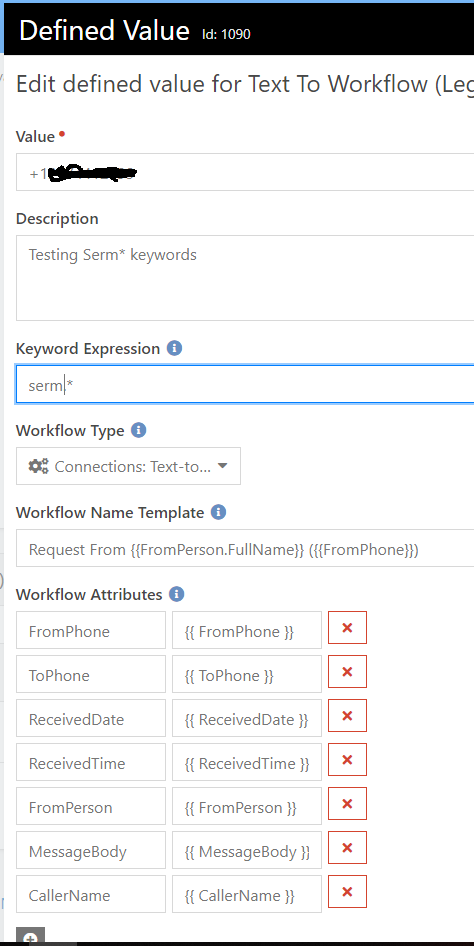
- In Admin > General Setting > Defined Types find the Workflow type "Text to Workflow." In the lower section, add a new item that includes defined value/ description/ keyword expression/ workflow type/ workflow name template, and workflow attributes (see below).
- Study the "Blasting Off with Workflows" Manual to understand how to utilize the values in a workflow.
- In the workflow, create a text field called SMSResponse. When a value is set to this field, the workflow automatically responds with that text.
- Online, you can google for a regular expression builder to help you come up with more complex matching patterns. For example, this string will match upper/lower case words matching pattern serm.* \W*((?i)serm(?-i))\W*
Defined Type Configuration:
- The value is the phone number receiving inbound keywords (i.e. +1#######)
- The keyword expression is the keyword to watch for (i.e. serm.* watched for sermon, sermons, etc)
- The workflow type is the workflow to be triggered.
- All the workflow attributes need to be added if they are to be used in the workflow:
- FromPhone {{FromPhone}}
- ToPhone {{ToPhone}}
- ReceivedDate {{ReceivedDate }}
- ReceivedTime {{ReceivedTime}}
- FromPerson {{FromPerson}}
- MessageBody {{MessageBody}}
(Usage #3) For SMS PIPELINE (Conversational Responses)
This feature is similar to Text-To-Workflow but isn't limited to individual keywords that are managed by RockRMS/Twilio. For example, a person could send a prayer request to a RockRMS/Twilio number and it could be recorded into ROCK RMS.
- In Twilio, the inbound message must be set to WEBHOOK, HTTP POST, with the URL: [your website]/Webhooks/TwilioSMS.ashx
- In RockRMS, go to Admin > Communications > SMS Phone Numbers and add the SMS Phone Number configured in Twilio and link it to a staff person's phone number.
- In RockRMS, go to Admin > Communications > SMS Pipeline and build your conversation responses.
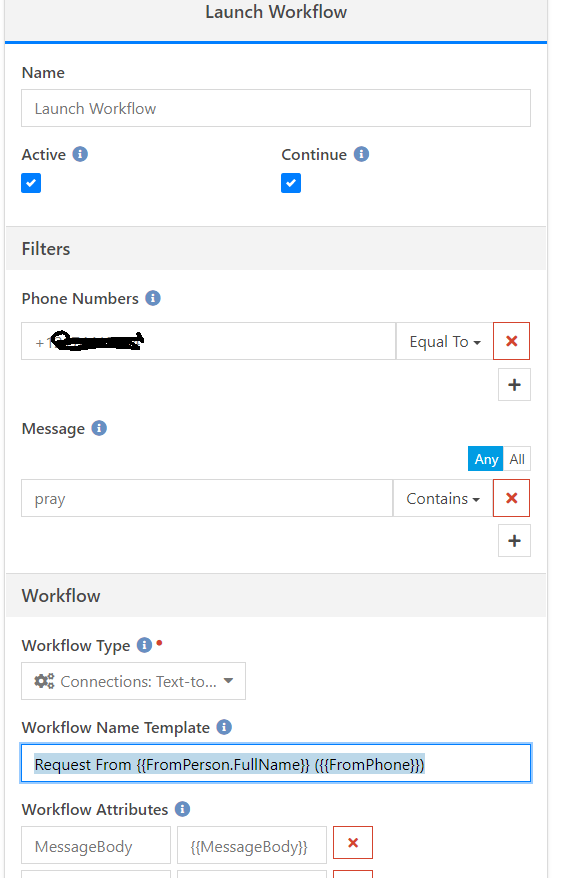
- When adding a Workflow to the SMS Pipeline, its configuration is nearly identical to the Text-To-Workflow setup.
- Online, you can google for a regular expression builder to help you come up with more complex matching patterns. For example, this string will match upper/lower case words matching pattern serm.* \W*((?i)serm(?-i))\W*
SMS Pipeline Workflow Configuration:
- The phone number is receiving inbound message (i.e. +1#######)
- Check Active, and/or Continue as indicated
- Setup your message (filter). You can use regular expression for more complext keyword matches (i.e. serm.* watched for sermon, sermons, etc)
- The workflow type is the workflow to be triggered.
- The workflow template is a user friendly label for the workflow [ i.e. Request From {{FromPerson.FullName}} ({{FromPhone}}) ]
- All the workflow attributes need to be added if they are to be used in the workflow:
- FromPhone {{FromPhone}}
- ToPhone {{ToPhone}}
- ReceivedDate {{ReceivedDate }}
- ReceivedTime {{ReceivedTime}}
- FromPerson {{FromPerson}}
- MessageBody {{MessageBody}}
Screenshots
- /GetImage.ashx?guid=d702e093-cae6-460d-8dce-577d318e6085
- /GetImage.ashx?guid=e1eb7920-0f6d-4af9-98cd-70a8c684013a