Recipe - Print Phone # Used for Search at Check-In
Skill level: Intermediate
Organization: Northside Christian Church
Requires Rock: 1.8.7
{# strip images & classes from the HTML but otherwise leave structure #}
Purpose
When our kids check-in on the weekends, they get three tags: a roster tag for the classroom, a name tag, and the security parent tag. Our family ministries team wanted the phone number for the parent/guardian printed on the roster tag to give the leaders in the classrooms quick access to that info. Since we have a lot of blended families, and even a lot of grandparents checking in their grandchildren, we needed the phone number that was printed to be the phone number that was used to search for the child at check-in. This ensures that if someone told us that the number was wrong or to use a different number to contact them, we had a chance to establish the proper check-in relationship.
We run around 1,000 check-ins a weekend for our kids ministry, and we've seen no performance impact since implementing this. Haven't tested for larger environments, but this has worked very well for us!
Step 1 - Create the Lava Shortcode
- Go to Admin Tools > CMS Configuration > Lava Shortcodes
- Create a new shortcode and set the following:
- Name: Check-In Phone Number
- Tag Name: checkinphone
- Description: Allows you to print the phone number used to check-in the child on the child's tag.
- Active: checked
- TagType: Inline
- Documentation: Whatever you put here is what shows when you expand it in the Lava Shortcode list.
- Configure the Shortcode Markup
There's a lot in the shortcode, but basically the SQL query is finding the latest search value for the person being checked in. Since our attended check-in also allows us to search by name, we wanted to default to a parent's phone number if they were searched by name. The logic at the end only runs if the search value wasn't a number. We also have some families where the adults don't have a configured mobile number, so it ensures it pulls a valid mobile number from the parent. If all of the parameters fail, it prints '800-NEE-DNMBR' so the leaders can get the person's mobile.
{% sql %}
    SELECT TOP 1 a.SearchValue
      FROM Attendance as a
     WHERE a.PersonAliasId = {{ primaryaliasid }}
      AND Try_Convert(bigint,a.SearchValue) IS NOT null
     ORDER BY a.CreatedDateTime DESC
{% endsql %}
{% assign numOfResults = results | Size %}
{% if numOfResults > 0 %}
    {% assign firstResult = results | First %}
    {% phonenumber where:'Number $= {{ firstResult.SearchValue }}'%}
        {% assign topNum = phonenumberItems | First %}
        {{ topNum.NumberFormatted }}
    {% endphonenumber %}
{% else %}
    {% assign parents = Person | Parents %}
    {% assign numOfParents = parents | Size %}
    {% assign singleNumber = '' %}
    {% assign numOfNumbers = 0 %}

    {% case numOfParents %}
    {% when 0 %}
        {{ '800-NEE-DNUMBR' }}
    {% when 1 %}
        {% assign parentsNum = parents | First | PhoneNumber: 'Mobile' %}
        {% if parentsNum %}
            {{ parentsNum }}
        {% else %}
            {{ '800-NEE-DNUMBR' }}
        {% endif %}
    {% else %}
        {% for parent in parents %}
            {% assign parentsNum = parent | PhoneNumber: 'Mobile' %}
            {% if parentsNum %}
                {% assign singleNumber = parent | PhoneNumber: 'Mobile' %}
                {% assign numOfNumbers = numOfNumbers | Plus:1  %}
            {% endif %}
        {% endfor %}
        {% if numOfNumbers == 0 %}
            {{ '800-NEE-DNUMBR' }}
        {% else %}
            {{ singleNumber }}
        {% endif %}
    {% endcase %}
{% endif %}
4. Configure the following parameter:
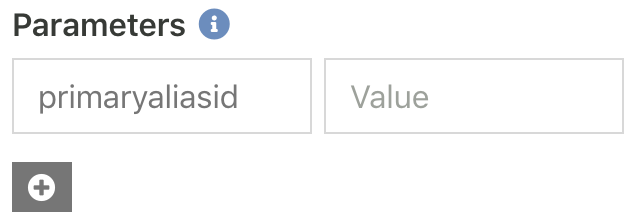
5. Check the boxes for Sql and RockEntity.
Step 2 - Create the Label Merge Field
- Go to Admin Tools > Check-In > Label Merge Fields
- Create a new one, set the name and description, then set the following MergeField:
{% assign checkInPerson = Person.Id | PersonById %}
{[ checkinphone primaryaliasid:'{{ checkInPerson.PrimaryAliasId }}' ]}
Now you can add this to your check-in label like any other merge field!
Screenshots
- /GetImage.ashx?guid=185b3b35-2b16-4f31-b0c9-543f7707782c