Recipe - How to get a Free SSL Certificate on your Windows Server
Skill level: Advanced
Organization: Hallmark Church
Requires Rock: 1.7.0
{# strip images & classes from the HTML but otherwise leave structure #}
SSL certificates are a necessity, and if you take a few minutes you can have one for free thanks to LetsEncrypt and CertifyTheWeb.
Note: We use an Azure VM for our Rock server, and Cloudflare for our DNS, but these steps should still apply to most setups where you have an admin account on a Windows Server.
Process
✔ Generate SSL certificate via Certify
- Log in to your server using Remote Desktop.
- Download Certify onto your server and install.
- Run the Certify app on the server.
- Get a certificate from LetsEncrypt via Certify. Follow the Certify guide for more details.
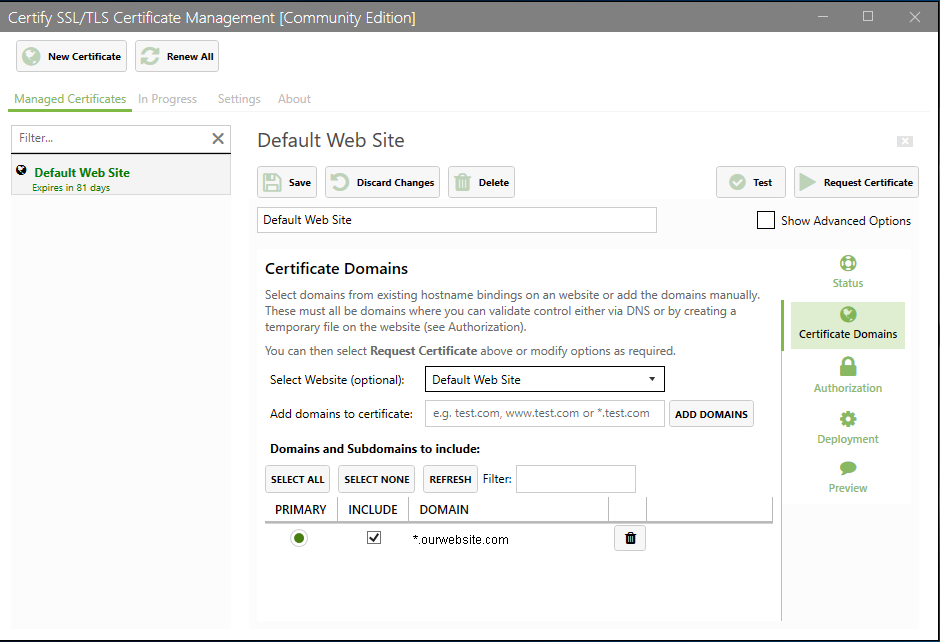
For your reference, I have used the following settings for our server: - Certificate Domains
- Select the IIS website that runs Rock (for us it was just Default Web Site)
- We have one domain (e.g. ourwebsite.com) and use 2 subdomains (e.g. rock.ourwebsite.com and my.ourwebsite.com) for Rock. Because of this, I use a wildcard for the domain: *.ourwebsite.com
- Authorization
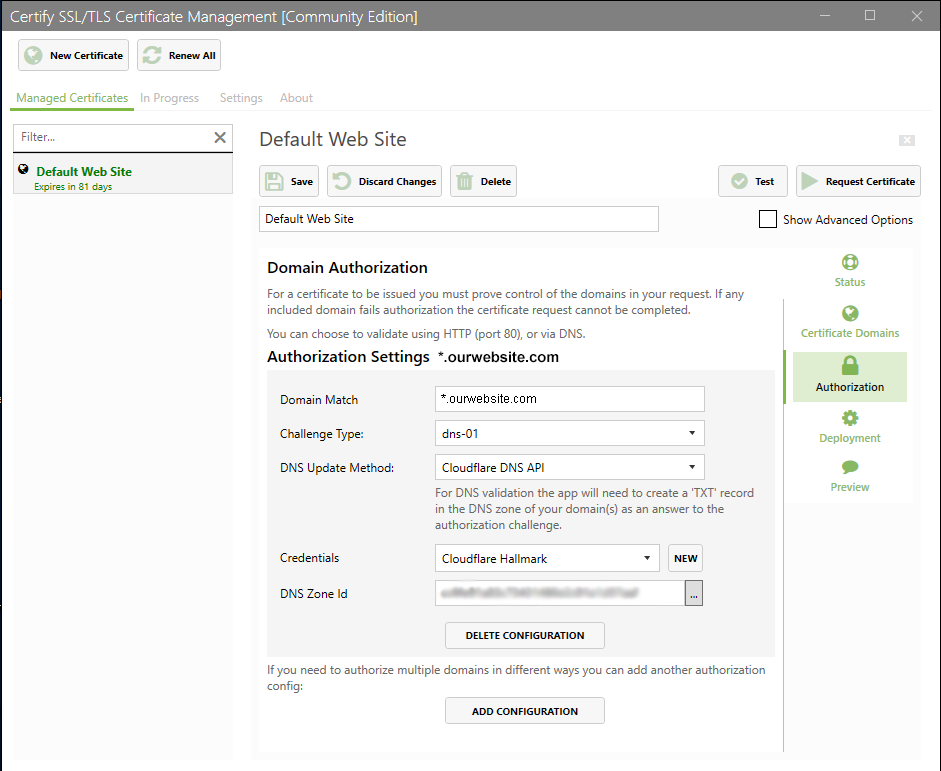
- Domain Match - I used the same wildcard for the domain as in the previous step: *.ourwebsite.com
- Challenge Type - I used dns-01
- DNS Update Method - Because we use Cloudlfare, I used Cloudflare DNS API
- Deployment
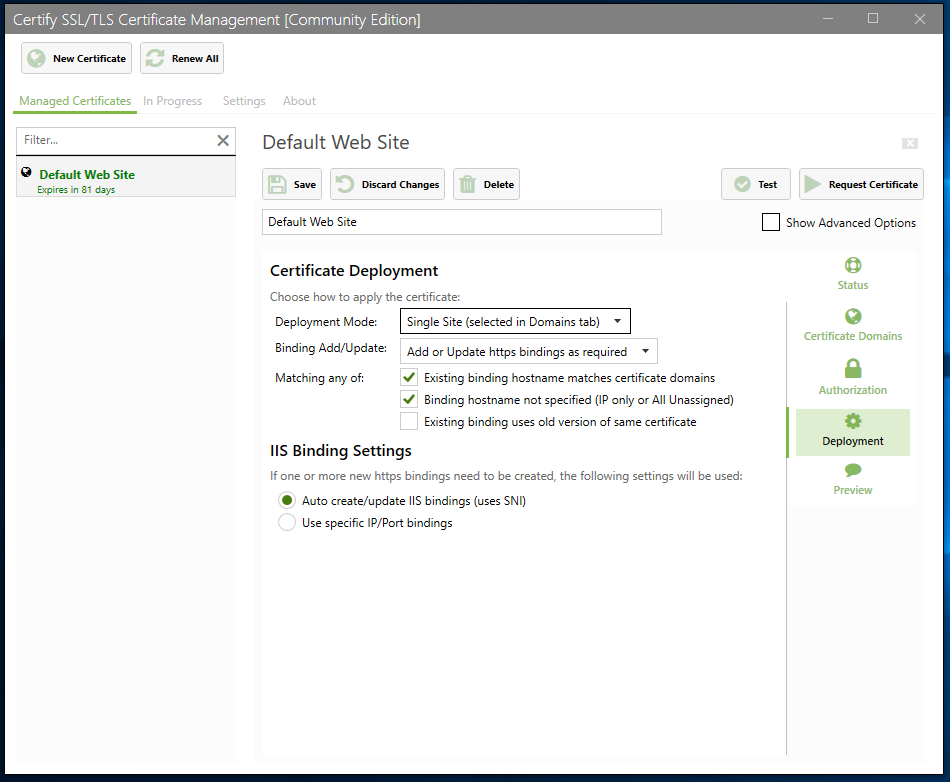
- Deployment Mode: Single Site
- Binding Add/Update: Add or Update https bindings as required
- Matching any of:
- Existing binding hostname matches certificate domains
- Binding hostname not specified - IIS Binding Settings: Auto create/update IIS bindings
🌎 IIS Manager
- Open IIS Manager on your Windows Server.
- Select the Site that you chose above (e.g. Default Web Site)
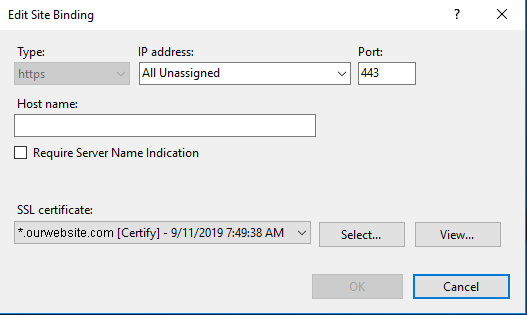
- Edit the Site bindings
- Edit your https binding. (If you don't have one, just click Add)
Ours has the following settings - Type: https
- IP address: All Unassigned
- Port: 443
- Host name: blank
- SSL certificate: Choose the new Certify SSL certificate
☁ Cloudflare Settings (if applicable)
- SSL: Flexible
- Always Use HTTPS
Screenshots
- /GetImage.ashx?guid=91df0b0c-aa79-492a-853a-de02b679b184