Recipe - CSV Person Importer
Skill level: Intermediate
Organization: Bayside Covenant Church
Requires Rock: 18.5
{# strip images & classes from the HTML but otherwise leave structure #}
A lot of people info ends up outside of Rock. Event signups in a spreadsheet, exports from third party tools, a list somebody typed up at a welcome table. Getting those people into Rock usually means typing them in one at a time or importing them and then cleaning up the duplicates afterward.
This recipe gives you one page to do it instead. You upload the CSV and it shows you who's already in Rock and who's new. Anything it isn't sure about gets set aside for you to look at. Nothing is saved until you click Import and afterward you can add everyone to a group if you want.
What it does
- Finds existing people by email, previous email, mobile phone, name and birth date or by Rock Person ID if your file has one
- Sends anything it isn't sure about to a review list instead of guessing
- Creates new people with their own family and adds their mobile number
- Can record where each person came from in a Person attribute
- Can add everyone from the import to a group you pick
- Runs in the browser using Rock's REST API so there's no plugin to install and no SQL
Before you start
- Rock 18.5 or newer. We built and tested it on 18.7 and 19.7.
- Permission to add a block to a page and change its settings
- About 15 minutes
If you have a test or sandbox server try it there first, it creates real people.
Setup
- Add a page for the importer on your internal site. Put it somewhere only the staff who should be importing people can see it. This tool can create people so page security matters.
- Add an HTML Content block to the page.
- Open the block settings. Under Enabled Lava Commands, check RockEntity. Leave Cache Duration at 0. The group list is built for each person who opens the page and caching would show one person's list to everyone.
- Edit the block's content and switch to the code editor. Copy the contents of the attached file, paste it in and save.
- Reload the page. You should see the importer.
That's the basic setup. The next two parts are optional.
Tracking where people came from
This part is optional. The importer can save a note on each person like "Fall guest list 2026" so you can tell later where they came from.
- Go to Admin Tools > Settings > Person Attributes and add an attribute named Imported From with the Text field type. Rock gives it the key ImportedFrom which is what the importer looks for.
- That's all. Each import asks for a value and suggests the file name and date.
New people always get the value. Existing people only get it if theirs is empty so you never lose where someone originally came from. If you'd rather use an attribute you already have change importerImportedFromKey at the top of the block content to that attribute's key.
Adding people to a group after an import
Also optional.
- Find the Ids of the group types you want to offer. Go to Admin Tools > Settings > Group Types and click one. The Id is at the end of the address in your browser.
- At the top of the block content find
{% assign importerGroupTypeIds = '' %} and put the Ids between the quotes separated by commas with no spaces like '25,32'. - Save the block.
The group list only shows active groups that the person running the import is allowed to see and add members to. Rock checks permission again on every add. If you leave the setting empty the group step doesn't show up at all.
Who can use it
Anyone who can view the page can open the importer. It talks to Rock's REST API as whoever is signed in so Rock admins can use it right away. Other staff need their role to have access to these REST controllers:
People, PhoneNumbers, AttributeValues, PersonSearchKeys, PersonAlias, DefinedValues, DefinedTypes, Attributes, EntityTypes, Groups, GroupTypes, GroupTypeRoles and GroupMembers
You can check that under Admin Tools > Security > REST Controllers. The easiest way to know for sure is to sign in as a regular staff user and import a small test file.
Using it
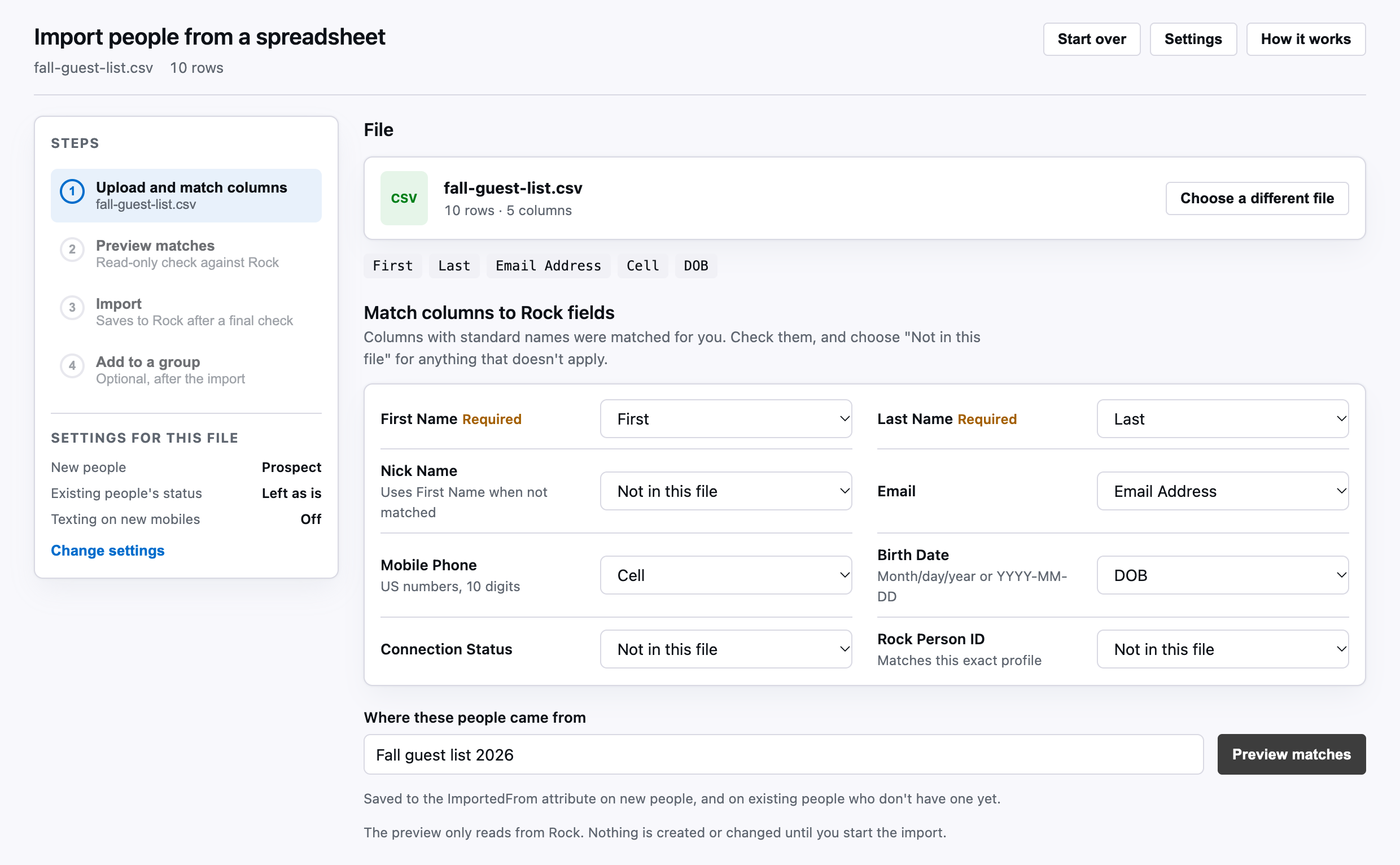
1. Upload and match columns. Drop in your CSV. Columns with common names like First Name, Email, Mobile, Cell or DOB get matched for you. Check them and pick the right column for anything it missed. Excel workbooks need to be saved as CSV first.
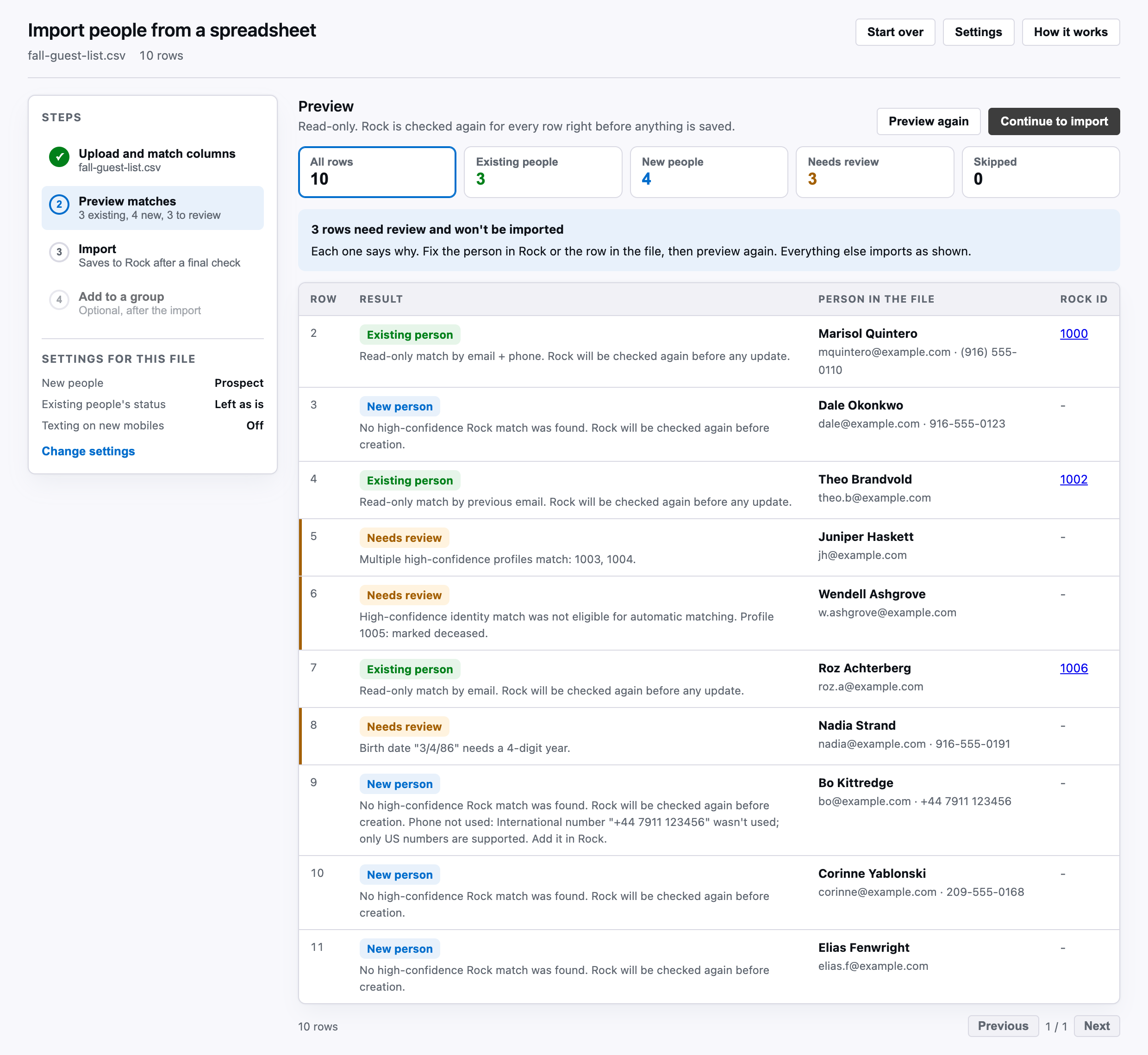
2. Preview. This only reads from Rock. Every row shows up as an existing person, a new person, needs review or skipped, along with the reason. Click a count to filter the list.
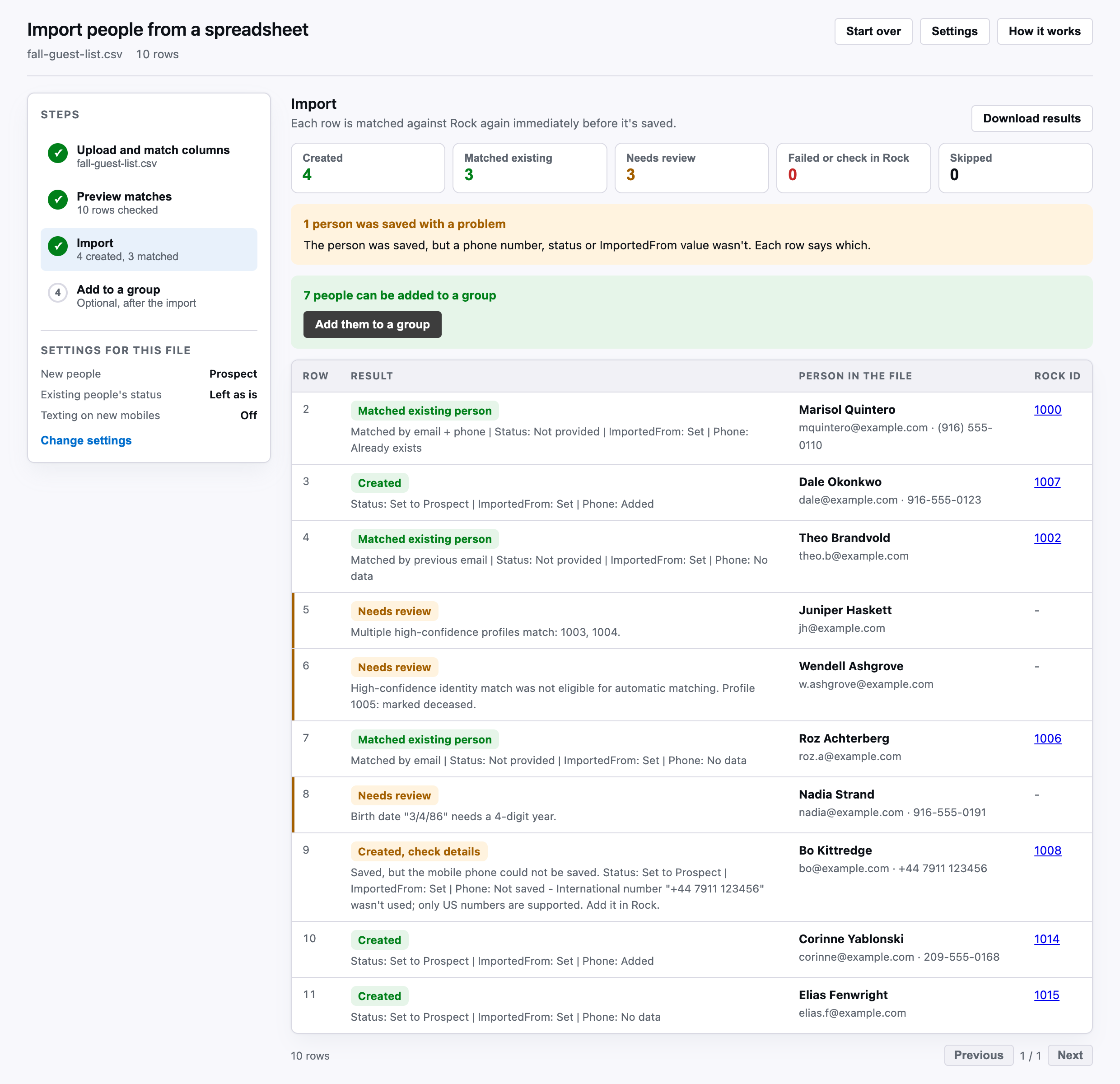
3. Import. Right before saving Rock gets checked again for the new people so nobody gets created twice. You can pause and resume. When it's done Download results gives you your file back with each row's result and Rock Id.
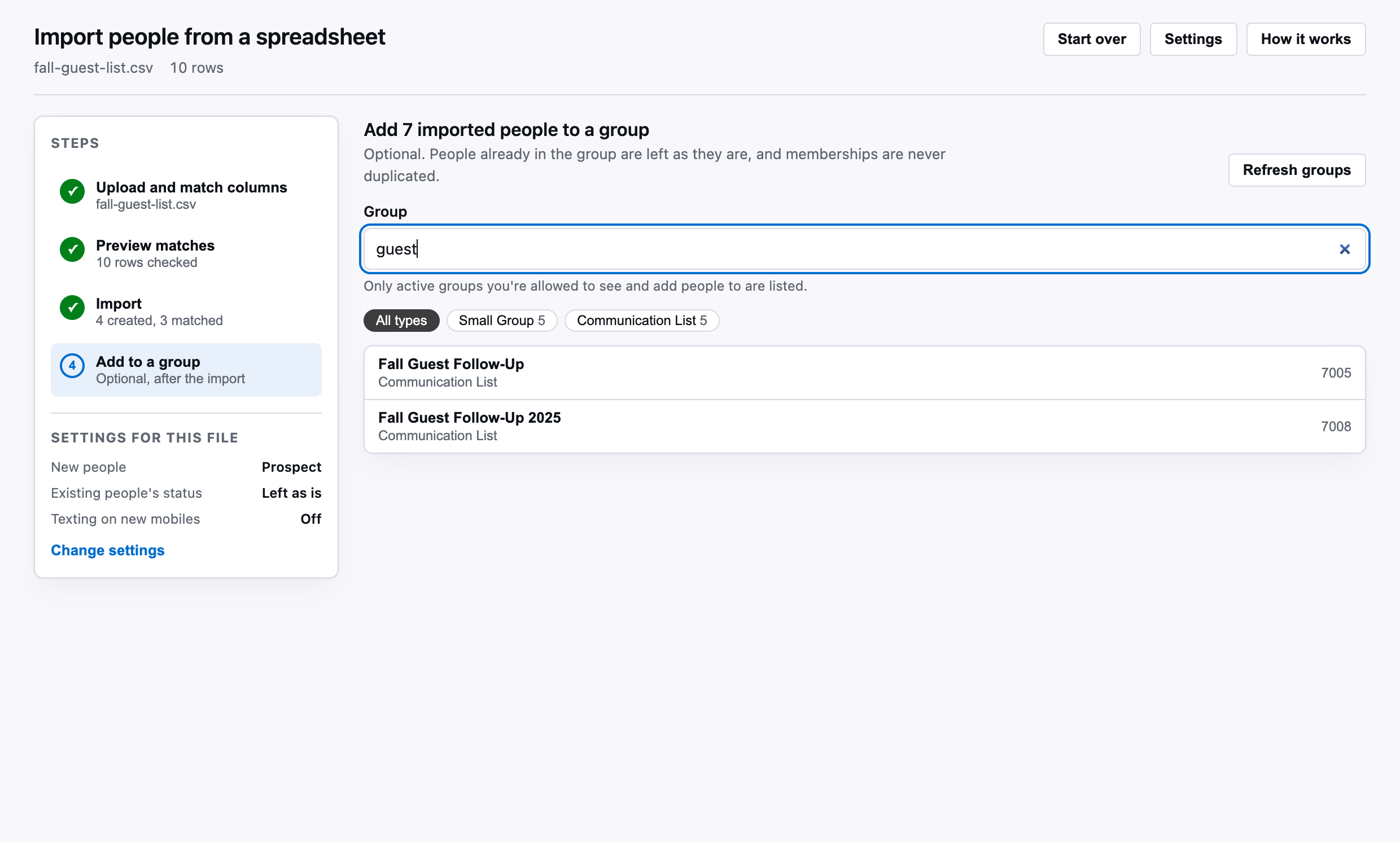
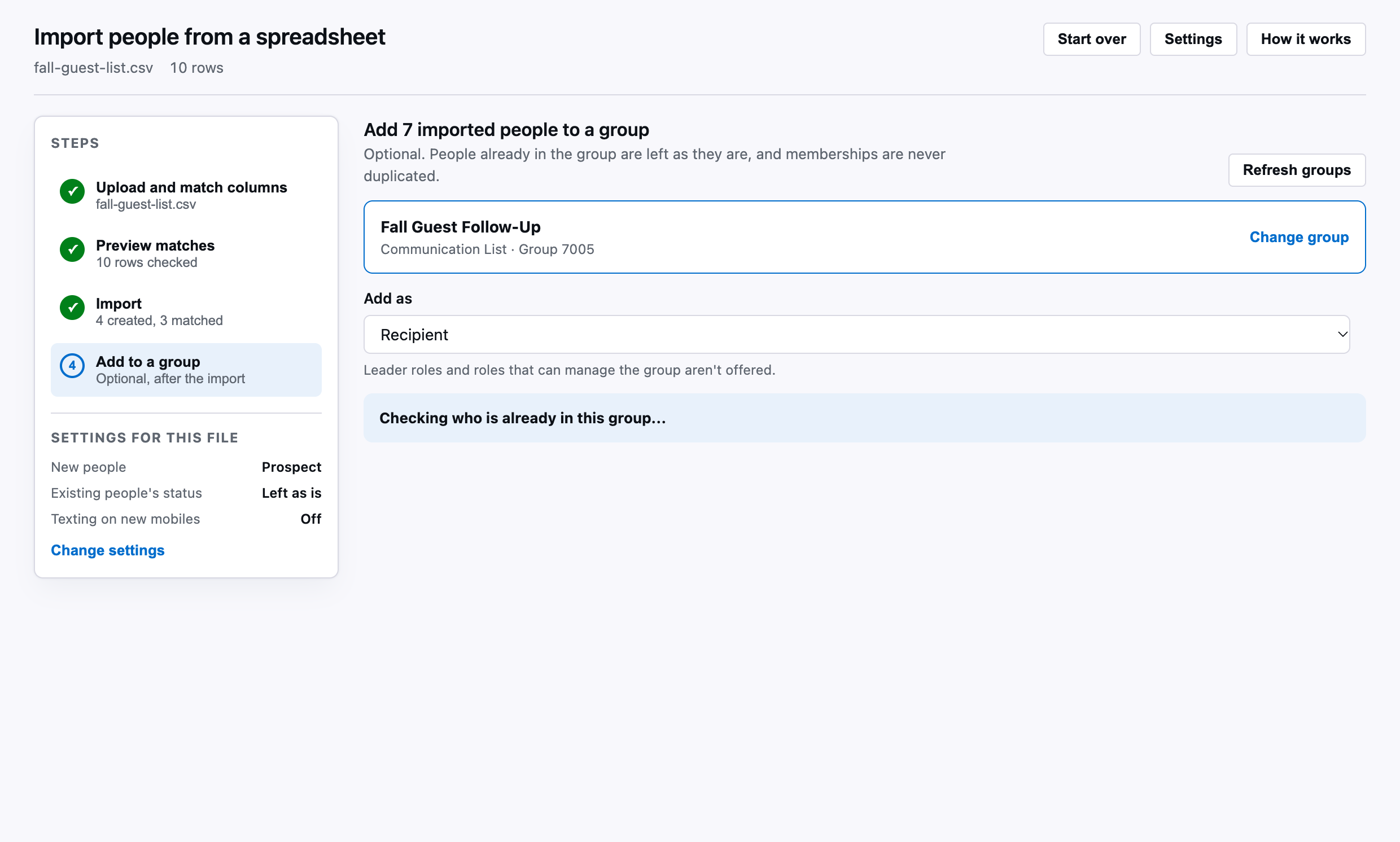
4. Add to a group. Search for a group by name or Id and pick a role. The importer shows who's ready to add and who's already in it. People already in the group are left alone.
How it decides who's who
A row matches someone in Rock when the first name or nickname and the last name match plus at least one of email, previous email or mobile phone and no other profile is just as close.
A row goes to review when
- Two profiles in Rock match equally well. These are usually duplicates you'll want to merge.
- The birth date in the file doesn't match the one in Rock.
- The match is marked deceased or is a business.
- A parent and child in the same family share a name and the file doesn't have a birth date to tell them apart.
- The email or phone in the file belongs to someone with a different name.
Rows in review are never created or changed. Fix the person in Rock or the row in your file then preview again. The same person showing up twice in your file gets caught before anything is saved too.
Phone numbers
It handles US numbers. Things like (916) 555-0101, 916.555.0101, +1 916 555 0101 and numbers with an extension all work. If a number can't be used the row still imports by email and the phone gets skipped with a note. That covers international numbers, two numbers in one cell and the 9.17E+09 that Excel sometimes turns phone numbers into. Placeholders like N/A or 000-000-0000 count as no phone.
A new mobile number only gets added if the person doesn't already have one. If they have a different mobile it's left alone and the row tells you.
If something goes wrong
If your sign-in times out or your connection drops the import pauses. Fix it and click Resume. Nothing gets lost or doubled.
A row marked Check in Rock means the connection dropped while that person was saving so it might or might not have saved. Look them up before you import that row again.
Running the same file twice is safe. People who were already imported just match.
Settings
The Settings button in the importer lets you change
- The connection status for new people when the file doesn't have one
- Whether the file's status should change existing people's status
- Status names in your file that should map to a Rock status like Guest=Visitor
- Whether texting is allowed on new mobile numbers. It's off by default. Only turn it on if the people in your file agreed to get texts.
- How many rows save at a time
Settings lock once you preview a file so the preview and the import follow the same rules. Click Start over to change them.
How fast is it
On our production server a 2,000 row preview took about a minute. Imports take a bit longer than previews since every new person gets saved one at a time. Bigger files work fine they just take longer. Keep the page open while it runs. It'll warn you if you try to leave.
Technical details
It's one HTML Content block with plain JavaScript and no outside libraries. It uses Rock's REST API with the signed-in person's permissions. Things like the Person record type and the Mobile phone type are found by their Rock GUIDs so there are no Ids to change in the code. The group list is built on the server with a {% group %} entity command with security turned on, which is why the block needs RockEntity. Lookups are batched to stay under Rock's REST query limits.
Download related file (csv_person_importer.html)