{# strip images & classes from the HTML but otherwise leave structure #}
A sitemap is an XML file that tells search engines which pages on your website are important and available to crawl. A sitemap does not guarantee better rankings by itself, but it does support search visibility by making it easier for Google to find and understand the pages you want included in search results.
Step 1: Create a Lava Webhook in Rock
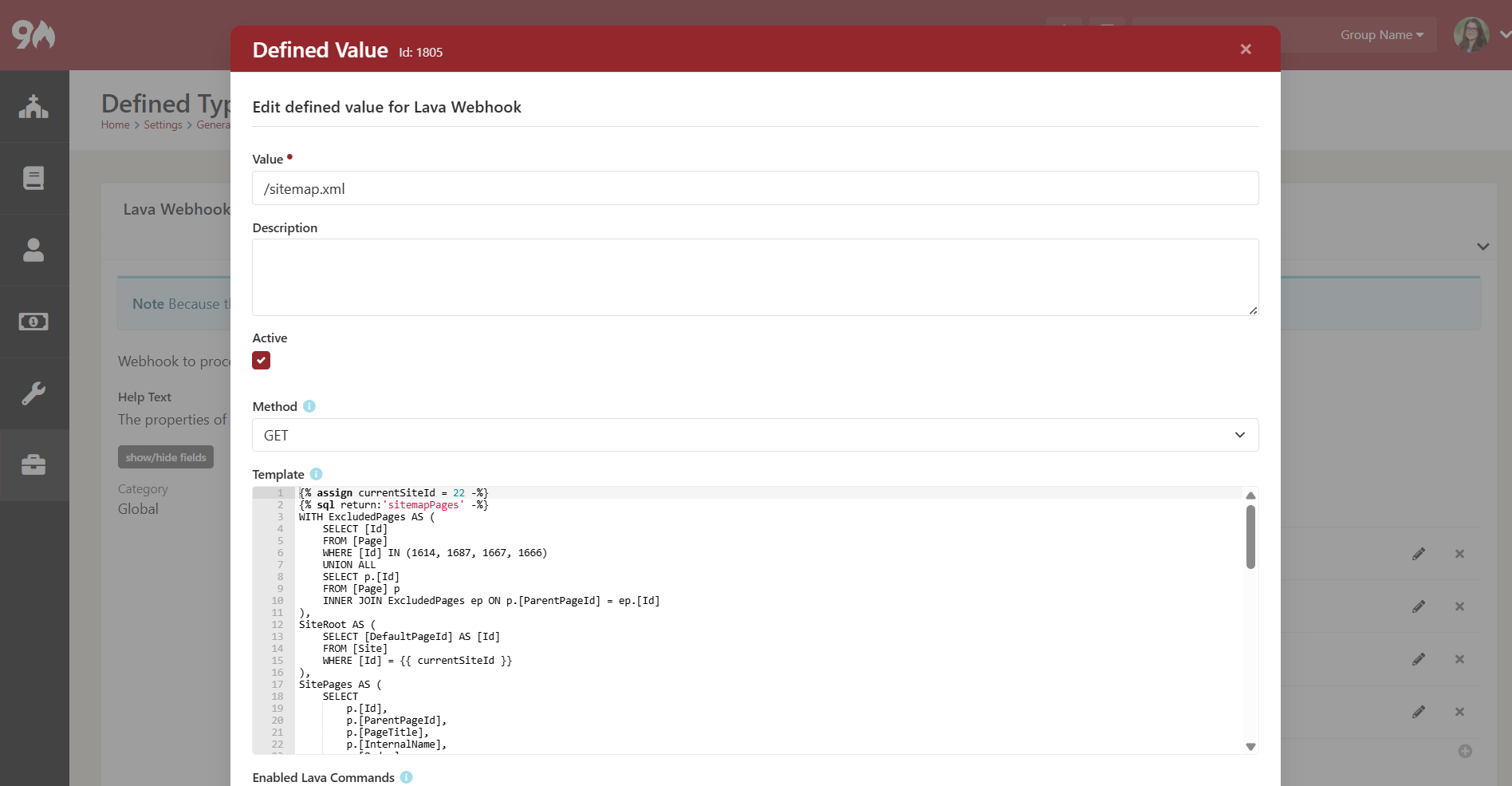
- Navigate to Admin Tools > Settings > General > Defined Types > Lava Webhook.
- Add a new value.
- Configure the settings.
- Select Save.
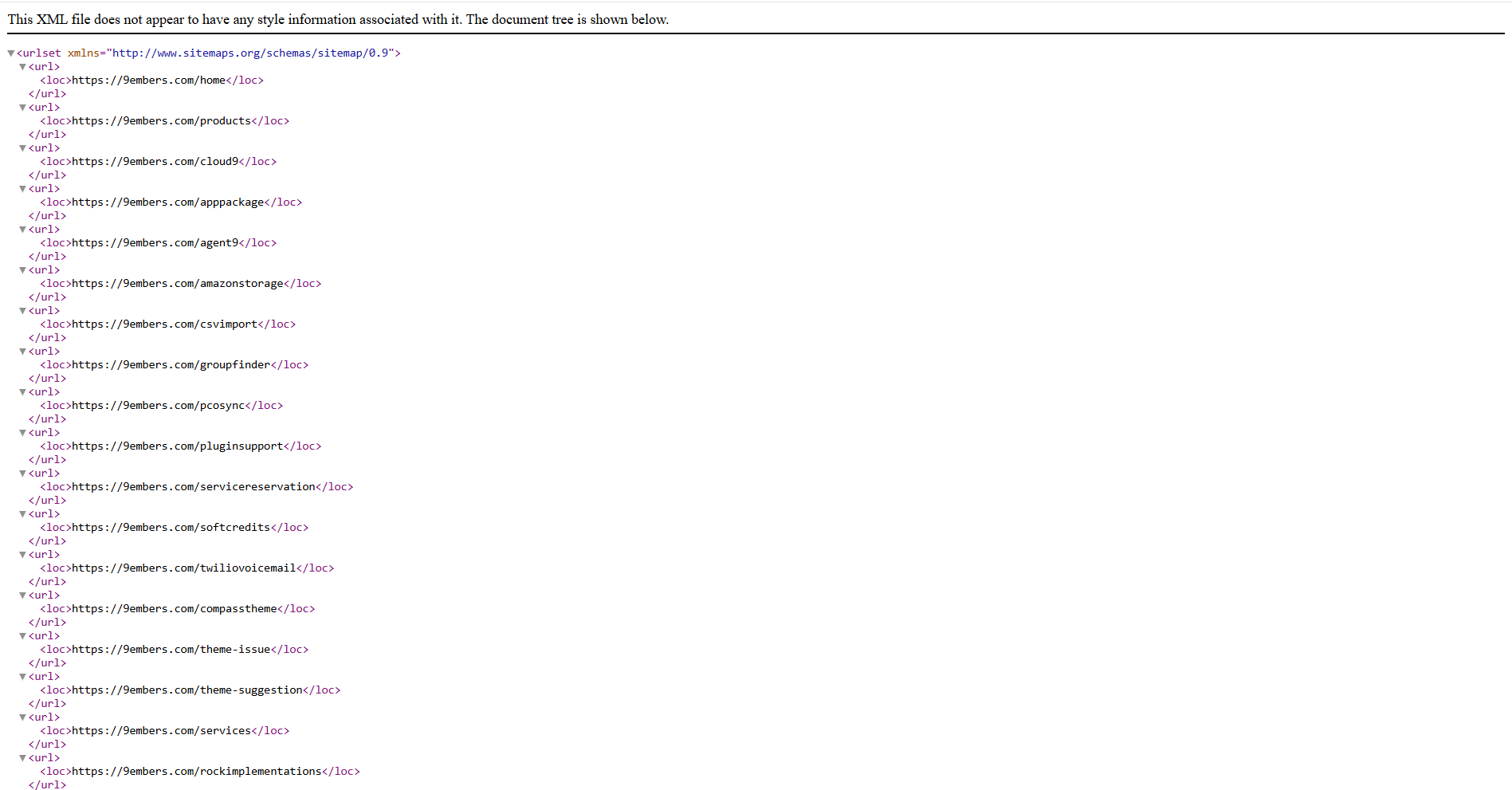
- Preview the sitemap at
https://yourchurch.com/Webhooks/Lava.ashx/sitemap.xml.
Suggested Settings
- Value:
/sitemap.xml
- Method: GET
- Response Content Type:
text/xml; charset=utf-8
Template: The template can vary depending on how you want to generate the sitemap. Here is a simple starter structure:
<?xml version="1.0" encoding="UTF-8"?>
<urlset xmlns="http://www.sitemaps.org/schemas/sitemap/0.9">
    <!-- Start For Loop Here -->
    <url>
        <loc>{{ pageUrl }}</loc>
    </url>
    <!-- End For Loop Here -->
</urlset>
Enable Lava Commands: This depends on the method used in the template. Only enable the Lava commands your sitemap actually needs.
Indexing Options
Include primary page routes for the selected SiteId when Allow Indexing is true.
{% assign currentSiteId = 22 -%}
{% assign baseUrl = 'Global' | Attribute:'PublicApplicationRoot' -%}

{% sql return:'sitemapPages' -%}
SELECT
    p.[Id] AS [PageId],
    p.[InternalName],
    p.[PageTitle],
    p.[AllowIndexing],
    pr.[Id] AS [PageRouteId],
    pr.[Route]
FROM [Page] p
CROSS APPLY (
    SELECT TOP 1
        pr.[Id],
        pr.[Route]
    FROM [PageRoute] pr
    WHERE pr.[PageId] = p.[Id]
        AND pr.[Route] IS NOT NULL
        AND pr.[Route] <> ''
        AND CHARINDEX(CHAR(123), pr.[Route]) = 0
    ORDER BY pr.[Id]
) pr
WHERE p.[SiteId] = {{ currentSiteId }}
    AND p.[AllowIndexing] = 1
ORDER BY
    p.[Id];
{% endsql -%}

{% for page in sitemapPages -%}

        {{ baseUrl }}{{ page.Route }}

{% endfor -%}
Include primary page routes for the selected SiteId when DisplayInNavWhen is set to Always or When Allowed.
{% assign currentSiteId = 22 -%}
{% assign baseUrl = 'Global' | Attribute:'PublicApplicationRoot' -%}

{% sql return:'sitemapPages' -%}
SELECT
    p.[Id] AS [PageId],
    p.[InternalName],
    p.[PageTitle],
    p.[DisplayInNavWhen],
    CASE p.[DisplayInNavWhen]
        WHEN 0 THEN 'Always'
        WHEN 1 THEN 'When Allowed'
        WHEN 2 THEN 'Never'
        ELSE 'Unknown'
    END AS [DisplayInNavWhenText],
    pr.[Id] AS [PageRouteId],
    pr.[Route]
FROM [Page] p
CROSS APPLY (
    SELECT TOP 1
        pr.[Id],
        pr.[Route]
    FROM [PageRoute] pr
    WHERE pr.[PageId] = p.[Id]
        AND pr.[Route] IS NOT NULL
        AND pr.[Route] <> ''
        AND CHARINDEX(CHAR(123), pr.[Route]) = 0
    ORDER BY pr.[Id]
) pr
WHERE p.[SiteId] = {{ currentSiteId }}
    AND ISNULL(p.[DisplayInNavWhen], 0) <> 2
ORDER BY
    p.[Id];
{% endsql -%}

{% for page in sitemapPages -%}
    <url>
        <loc>{{ baseUrl }}{{ page.Route }}</loc>
    </url>
{% endfor -%}
Include content channel items, such as messages, when they should also be listed in the sitemap.
{% assign today = 'Now' | Date -%}

{% contentchannelitem where:'ContentChannelId == 5 && StartDateTime <= "{{ today }}"' sort:'StartDateTime desc' iterator:'messages' -%}
    {% for item in messages -%}
        {% assign slug = item.PrimarySlug | Default:item.Slug -%}
        {% if slug != empty -%}

    {{ baseUrl }}messages/{{ slug }}

        {% endif -%}
    {% endfor -%}
{% endcontentchannelitem -%}
Step 2: Submit the Sitemap to Google Search Console
Once the sitemap is working publicly, submit it in Google Search Console.
- Navigate to Google Search Console.
- Select the correct website property.
- In the left navigation, go to Indexing > Sitemaps.
- Enter your sitemap URL:
https://yourchurch.com/Webhooks/Lava.ashx/sitemap.xml.
- Select Submit.
Need more help with Step 2? Watch “Sitemaps in Search Console” by Google Search Central.
More Insights from 9 Embers