Recipe - Manage Following records with Helix (a.k.a. Lava Applications)
Skill level: Advanced
Organization: The Crossing - Chesterfield
Requires Rock: 1.16.6
{# strip images & classes from the HTML but otherwise leave structure #}
Overview
The Following feature in Rock is a powerful tool for users to track people, groups, events, and more. However, when a staff member with multiple Following records leaves and loses access to restricted items, they may receive unwanted email notifications to their personal email.
Manually resolving this issue is challenging. Impersonating the user to unfollow entities isn't possible due to their profile now having restricted access. Directly deleting records via SQL risks removing legitimate Following records, such as those for content channel item or prayer, which the user may still be authorized to manage.
This recipe creates a utility that offers Rock Admins a safe and streamlined solution to manage these records effectively, ensuring precise updates without unintended deletions.
Tip
This recipe includes references to Projects and Tasks entities from the Project Management plug-in by Blue Box Moon. Be sure to remove or comment these references out if you do not use this plug-in.
Assumptions/prerequisites
This recipe assumes that you know the basics of creating a webpage, adding blocks to a page, and have the Helix plug-in installed and know how to access its settings.
Components
- Lava Application
- Webpage
- Page Parameter Filter block
- Lava Application Content block
- HTML Content blocks for styling & scripts
Lava Application
- Add a new Lava Application to your instance
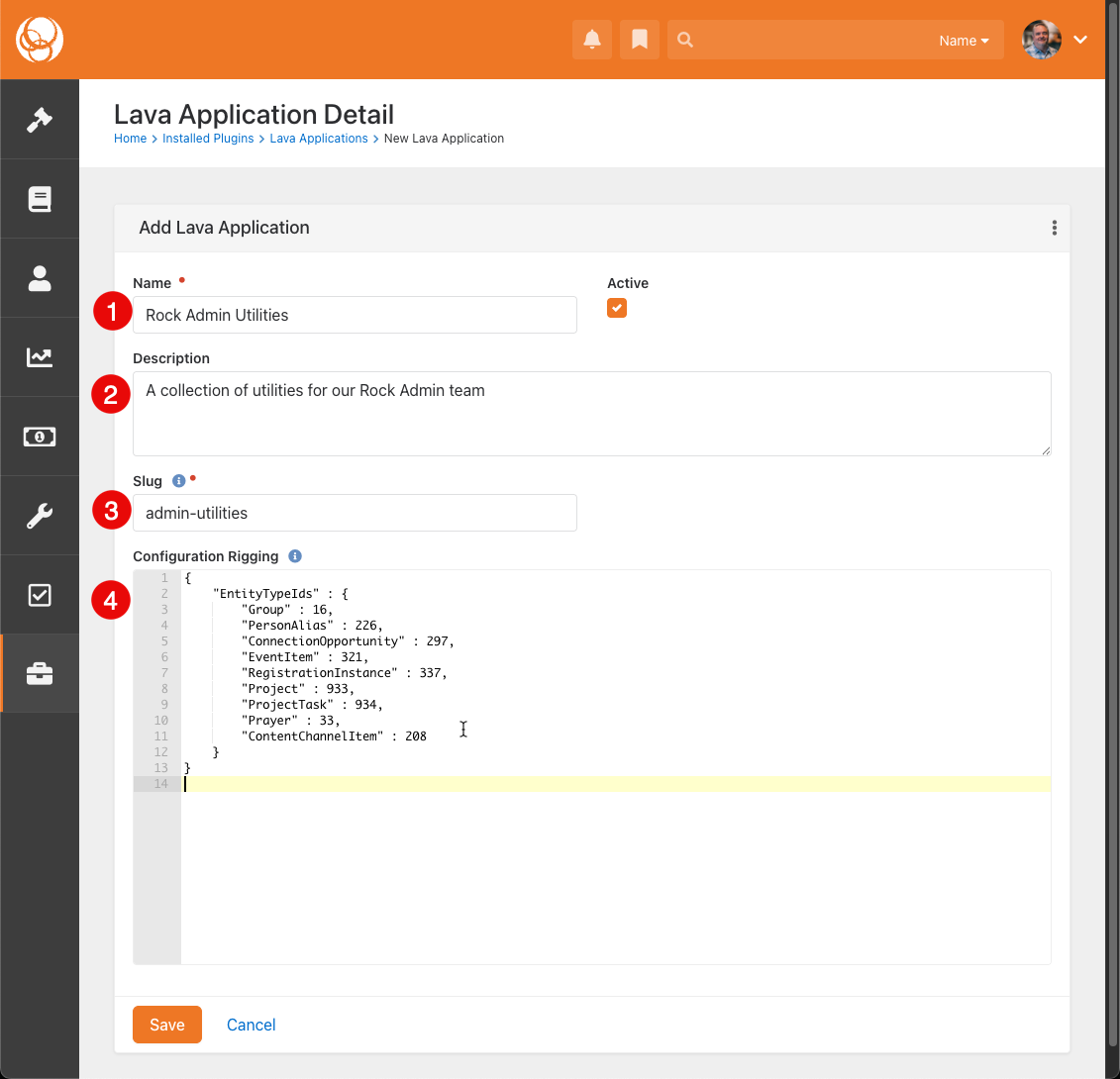
- NAME: Rock Admin Utilities
- DESCRIPTION: be kind to your future self and give it a description
- SLUG: admin-utilities
- CONFIGURATION RIGGING: use the following code
    {
        "EntityTypeIds" : {
            "Group" : 16,
            "PersonAlias" : 226,
            "ConnectionOpportunity" : 297,
            "EventItem" : 321,
            "RegistrationInstance" : 337,
            "Project" : 933,
            "ProjectTask" : 934,
            "Prayer" : 33,
            "ContentChannelItem" : 208
        }
    }
Important
Be sure to update these EntityTypeIds to the ones for your Rock instance.
- Add a new Endpoint to your Lava Application
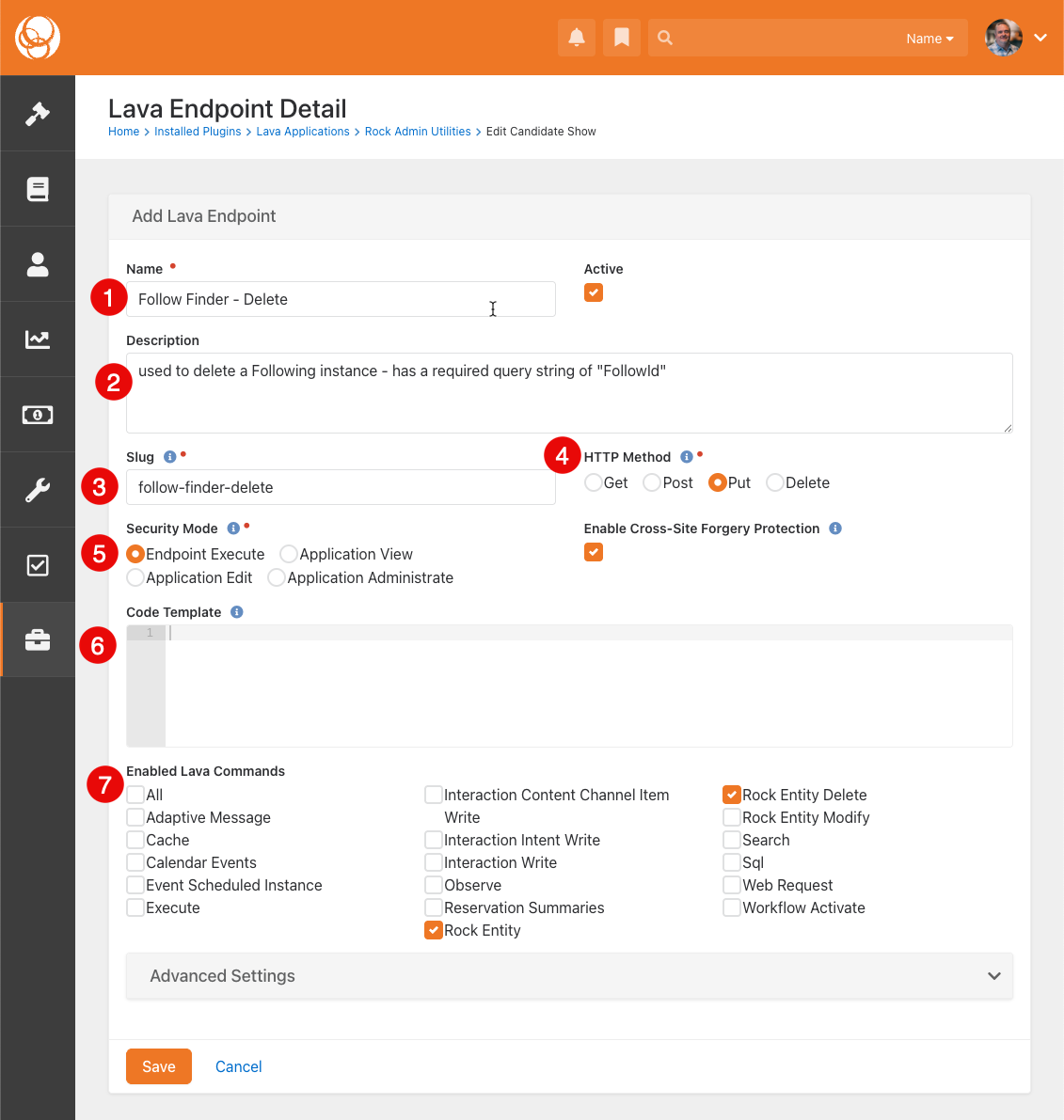
- NAME: Follow Finder - Delete
- DESCRIPTION: be kind to your future self and give it a description
- SLUG: follow-finder-delete
- HTTP METHOD: Put
- SECURITY MODE: Endpoint Execute
- CODE TEMPLATE: use the content from Endpoint.lava in the attached zipfile
- ENABLED LAVA COMMANDS: Rock Entity & Rock Entity Delete
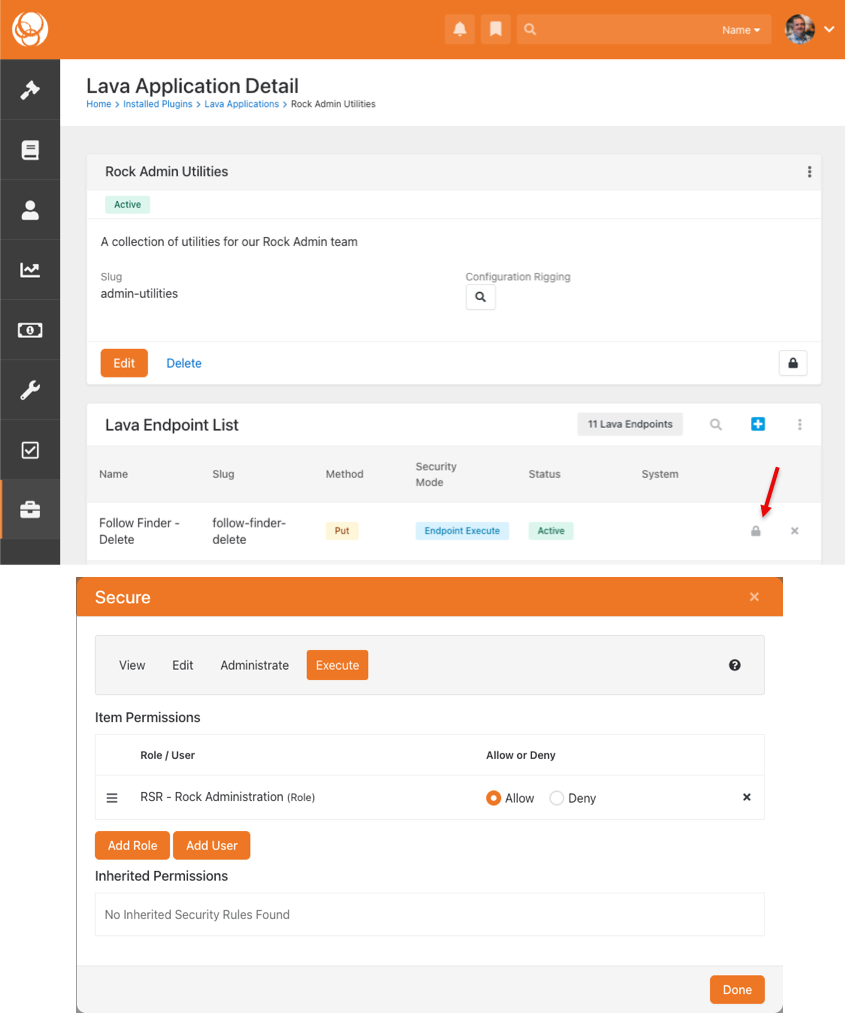
Important
After the Endpoint is created - be sure to add your Rock Admin security role to "Execute" permission for the
endpoint.
Web Page
- Create a new page for the utility (we put ours under the Power Tools page)
- Add the following blocks to this page
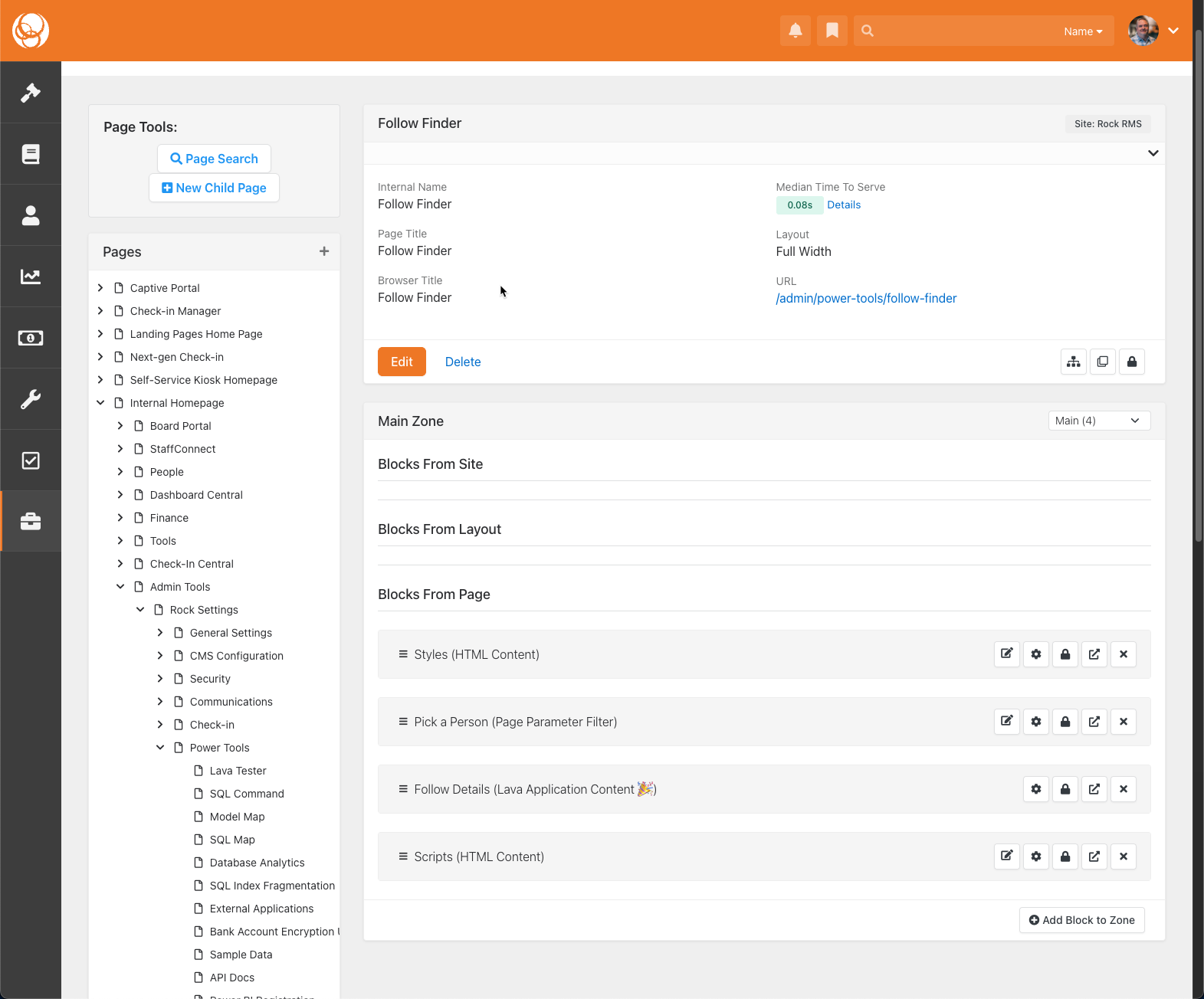
- HTML Content - for page styling
- Page Parameter Filter - for picking the person
- Lava Application Content - where the magic happens
- HTML Content - for scripts
HTML Content - Styles
- NAME: Styles
- CONTENT: use the following code
<style>
    .panel.panel-follow-finder .panel-heading .panel-title i {
        display: unset;
    }

    tr.htmx-swapping td {
        opacity: 0;
        transition: opacity 1s ease-out;
    }

    .toast-notification {
        background: white;
        color: black;
        border-radius: 0 5px 5px 0;
        box-shadow: rgba(0, 0, 0, 0.1) 1.95px 1.95px 2.6px;
        position: fixed;
        bottom: 30px;
        right: 20px;
        padding: 10px 20px;
        z-index: 10000;
        opacity: 1;
        transition: opacity 0.5s;
        display: flex;
        align-items: center;
    }

    .toast-notification.success {
        border-left: 4px solid #2e844a; /* Success green */
    }

    .toast-notification.error {
        border-left: 4px solid #C12700; /* Error red */
    }

    .toast-icon {
        margin-right: 10px;
    }

    .toast-icon.success {
        color: #2e844a; /* Match success border color */
    }

    .toast-icon.error {
        color: #C12700; /* Match error border color */
    }
</style>
Page Parameter Filter
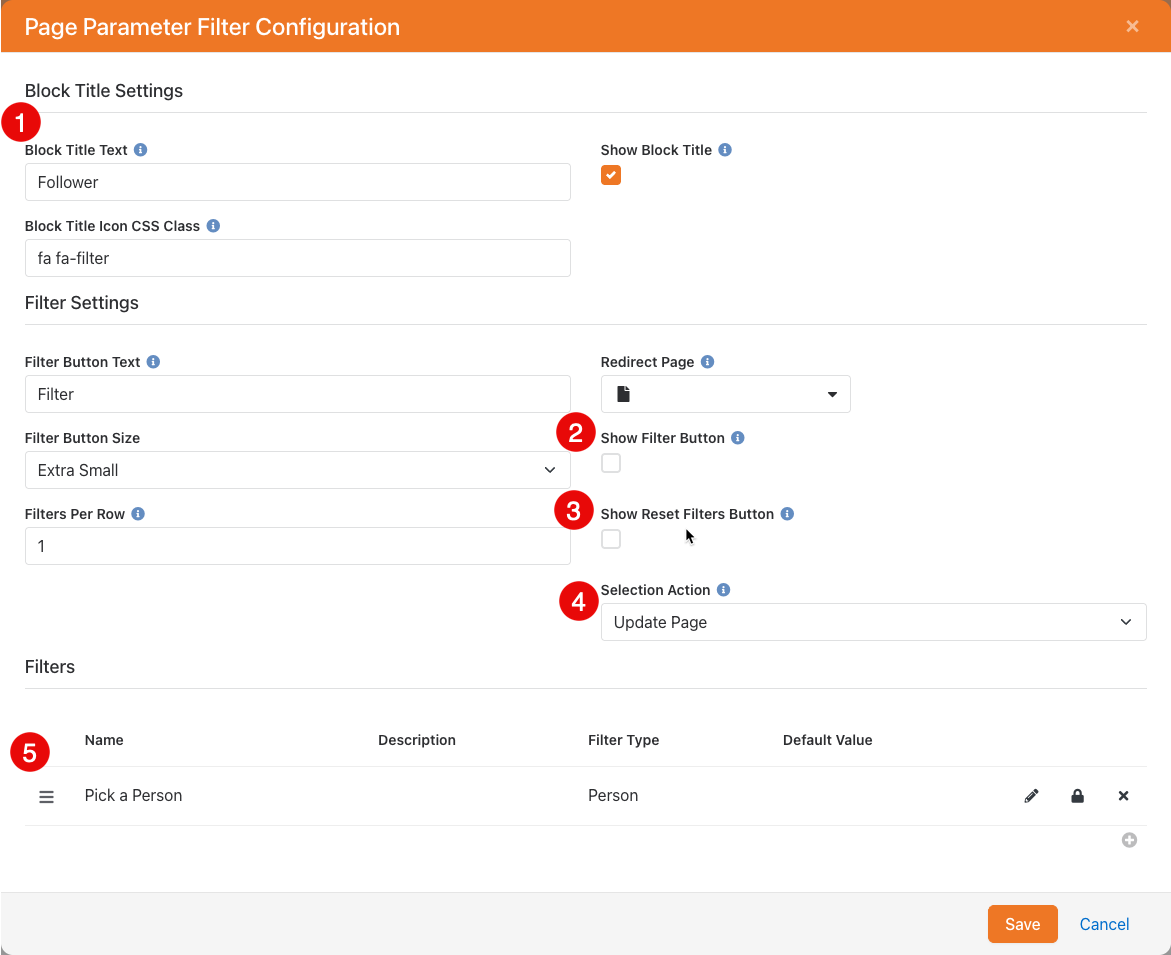
- BLOCK TITLE TEXT: Follower
- Turn off Show Filter Button
- Turn off Show Reset Filters Button
- Set Selection Action to Update Page
- Add 1 filter
- NAME: Pick a Person
- KEY: Person
- FIELD TYPE: Person
Lava Application Content
- NAME: Follow Details
- APPLICATION: Rock Admin Utilities
- LAVA TEMPLATE: use the content from LavaAppContent.lava in the attached zipfile
- ENABLED LAVA COMMANDS: Rock Entity
HTML Content - Scripts
- NAME: Scripts
- CONTENT: use the following code
<script>
    var toastTimeout;

    // Function to display a toast notification
    function showToast(message, type) {
        var toast = document.createElement('div');
        toast.className = 'toast-notification ' + type;

        // Create the icon element
        var icon = document.createElement('i');
        icon.className = (type === 'success' ? 'far fa-check-circle' : 'far fa-exclamation-circle') + ' toast-icon ' + type;

        // Create the text node
        var text = document.createElement('span');
        text.innerText = message;

        // Append icon and text to the toast
        toast.appendChild(icon);
        toast.appendChild(text);

        // Append the toast to the body
        document.body.appendChild(toast);

        // Remove toast after 5 seconds
        setTimeout(function() {
            toast.style.opacity = 0;
            setTimeout(function() {
                document.body.removeChild(toast);
            }, 500);
        }, 5000);
    }

    // Function to debounce showing the toast notification
    function debounceToast(message, type) {
        clearTimeout(toastTimeout);
        toastTimeout = setTimeout(function() {
            showToast(message, type);
        }, 50); // Show toast after inactivity
    }

</script>
The Result
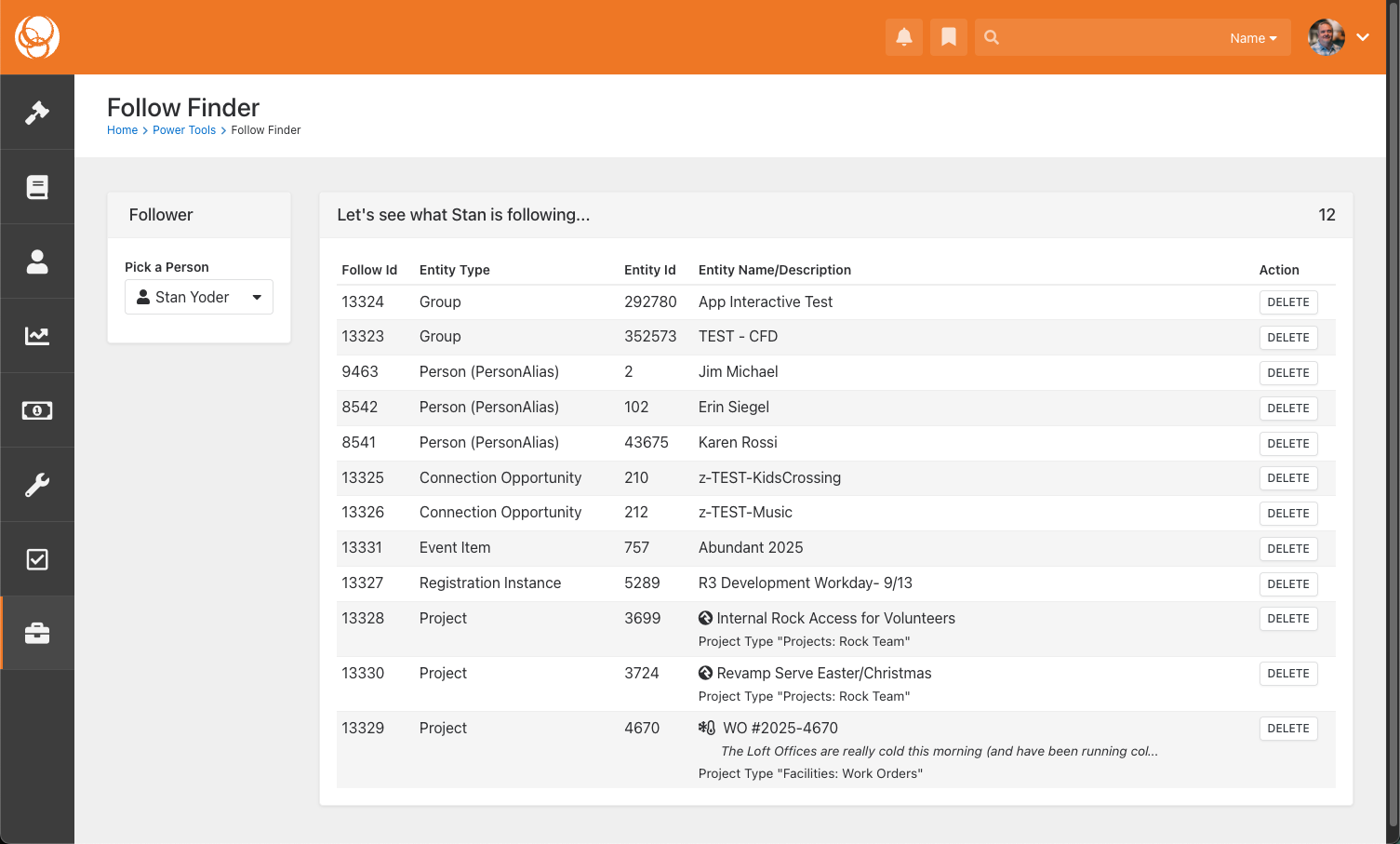
Download related file (FollowFinderFiles.zip)