Recipe - Clearstream - Launch Rock Workflows Instantly With Webhooks
Skill level: Advanced
Organization: Bayside Covenant Church
Requires Rock: 1.14.0
{# strip images & classes from the HTML but otherwise leave structure #}
The Push to Rock RMS > Launch Workflow step in Clearstream is helpful, but has one limitation. It depends on the Rock Process Workflows job. That results in workflows not being launched instantly when at times that is needed.
Here's an alternative way to do that.
Workflow Type Setup
- Create a new Workflow Type in Rock, with any name for testing.
- Add the following text attributes:
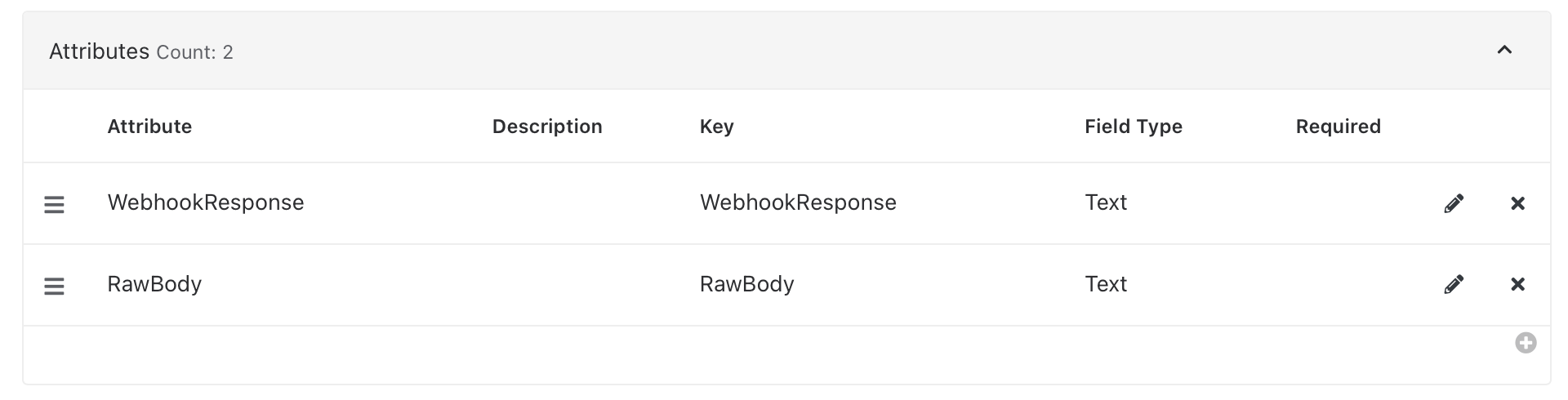
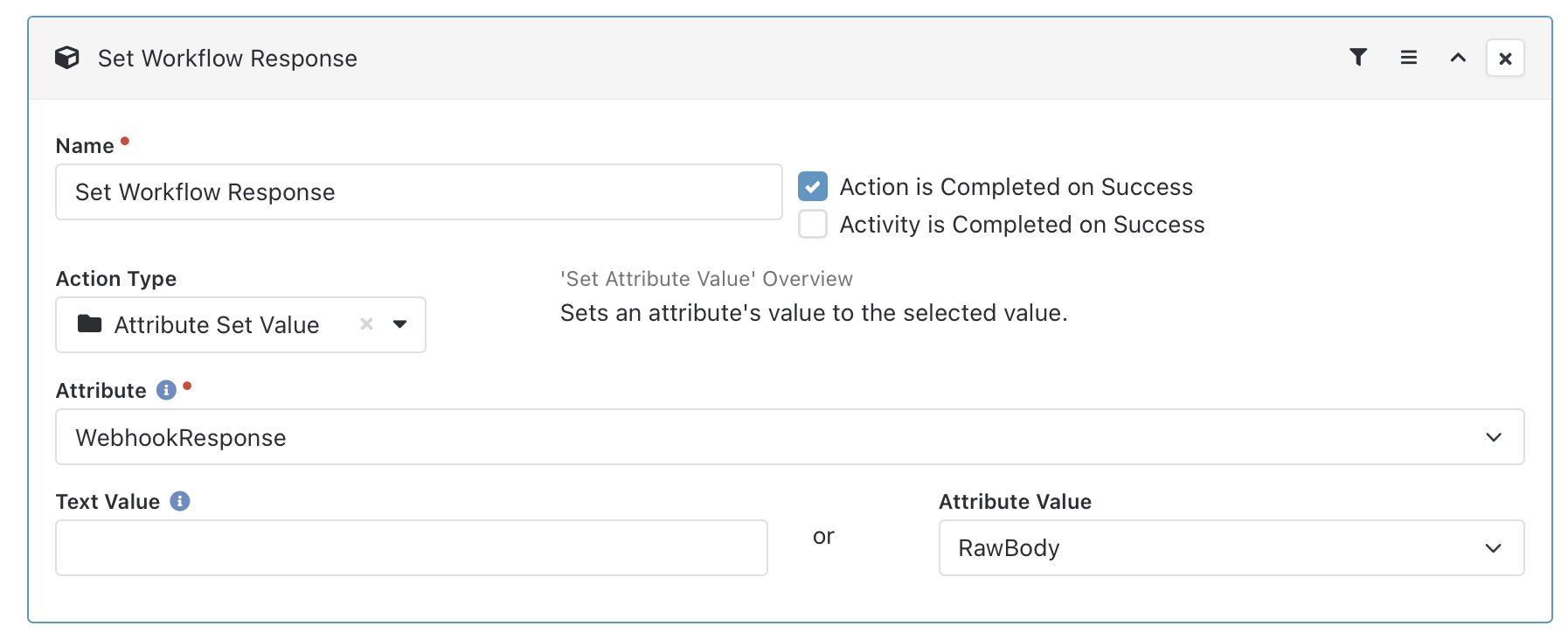
- Under the default Start activity, add a new action (Attribute Set Value) named Set Workflow
Response.
- We need to set the value of the WebhookResponse attribute to the attribute value of RawBody.
Webhook to Workflow Setup
A starting point to look over first is here: https://community.rockrms.com/documentation/bookcontent/12/304#configuringawebhooktoaworkflow
- Under the Defined Types, open the Workflow Webhook type.
- Add a new defined value and name it Clearstream Keyword
- In the process request field, you can add some lava to filter requests. For example, the lava {% assign rawBody = RawBody | FromJSON %}{% assign keyword = rawBody.data.keyword.name %}{% if keyword == 'devotional' %}True{% else %}False{% endif %} would filter in our case to Clearstream triggers with that
keyword.
- Under Workflow Type, select the workflow type created in the previous step.
- Under Workflow Attributes, set RawBody to {{ RawBody }}, which will pass the body of the request into our
workflow. There are other variables you can use in your workflow as well, which are documented in the Defined
Type help text.
- Save the value.

Clearstream Setup
- While logged in as an admin on Clearstream, visit https://app.clearstream.io/settings/api
- Click on Create Webhook
- Set the action to keyword.used
- Create the webhook with the URL in this format, replacing your domain and workflowtypeid from the created
workflow:
https://rocksolidchurch.com/Webhooks/LaunchWorkflow.ashx?WorkflowTypeId=1172&
- Click Create Webhook and you'll be taken to the manage webhook page.
- Text your keyword and you should see Clearstream pick it up as SUCCEEDED.
- If the previous test was successful, you will also see a workflow run in Rock.