Recipe - How to Setup the iPad Rock Check-In App via MDM
Skill level: Intermediate
Organization: Northside Christian Church
Requires Rock: 1.12.0
{# strip images & classes from the HTML but otherwise leave structure #}
Many churches who use iPads for check-in also deploy an MDM (mobile device management) solution like Mosyle, Jamf, etc. MDM software allows you to centrally manage devices / configurations, making it super easy to deploy at scale. The Rock Check-In iPad app can be deployed via MDM as well, it's just a little obscure how to do so. Credit to Michael Allen for creating a wiki in Github with a lot of this information!
NOTE: Whatever settings you push through your MDM provider will override any settings applied locally on the iPad itself. This is crucial information when you are testing, because your results will be inconsistent.
Step-By-Step
This guide is focused solely on how to prepare the configuration for the Rock Check-In App within your MDM solution. So this assumes the following are already true:
- You have an MDM solution already loaded with devices
- You have a profile within your MDM solution that installs the Rock Check-In app
- Prepare the application configuration
- Navigate to this AppConfig Generator webpage.
- Upload the attached specfile.xml file
- Click Configure to load the xml file into the configurator
- Specify the values for each field as needed for your organization
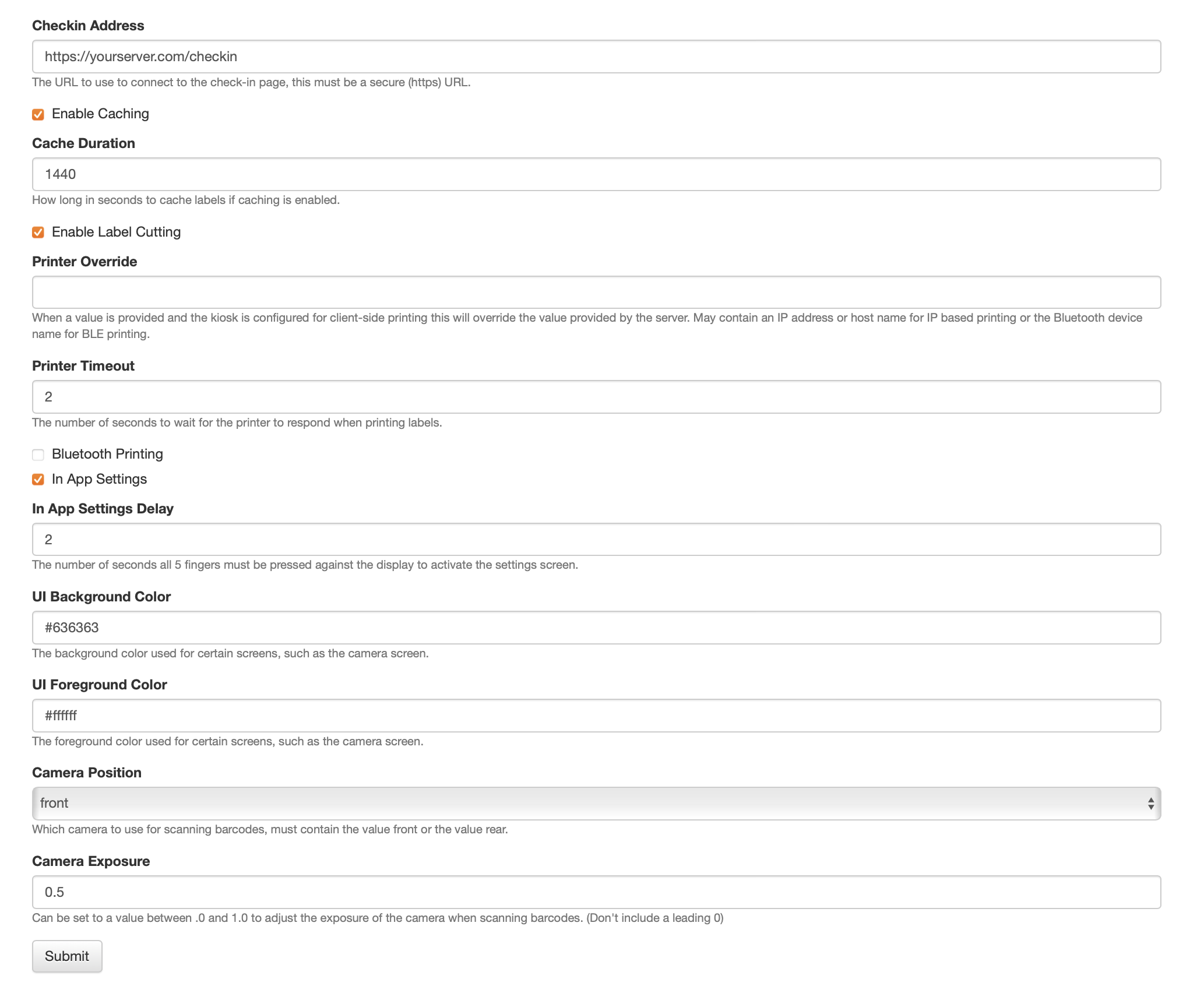
- Click Submit
- The XML configuration is created and now available to copy to your clipboard
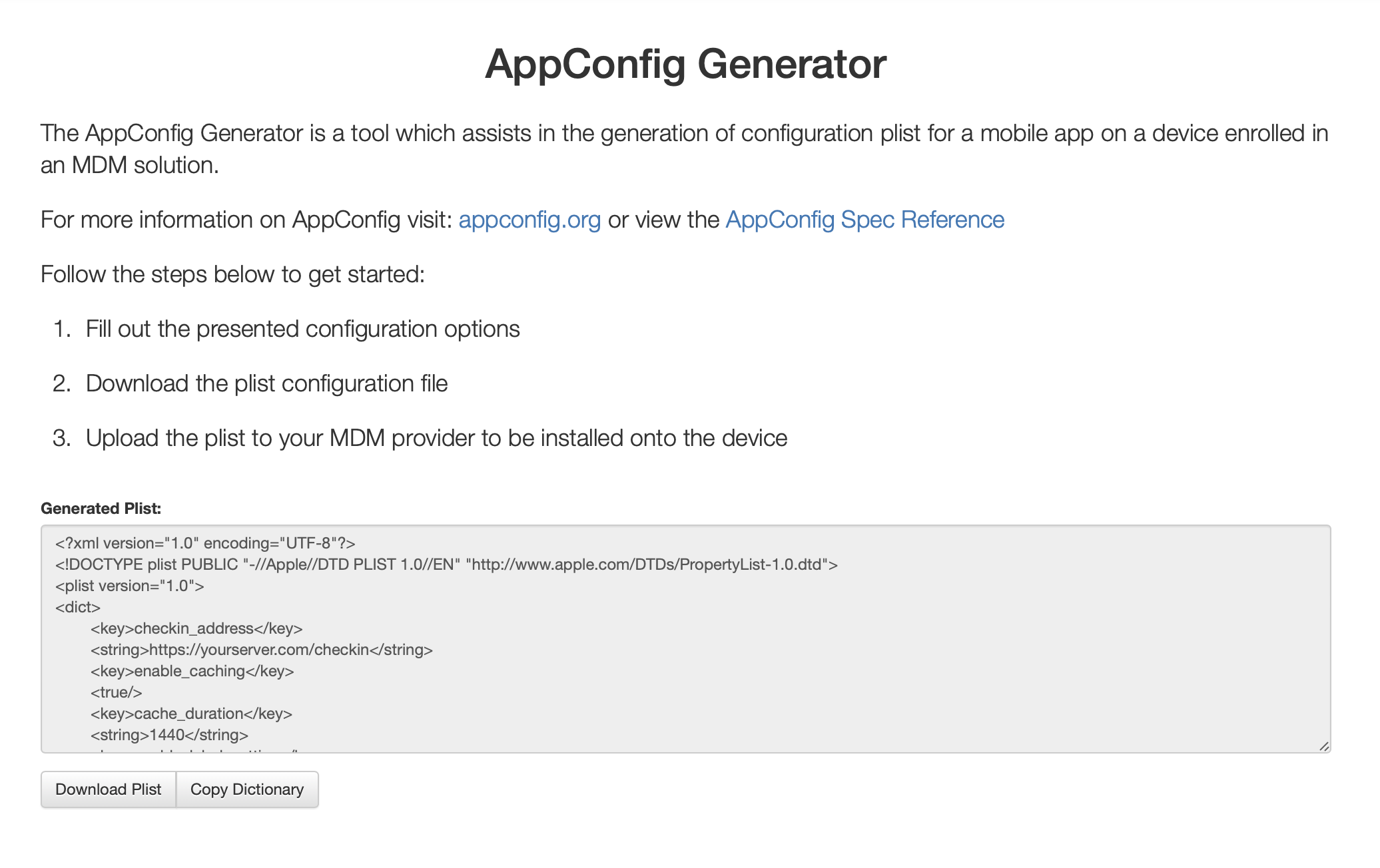
- If you are using Mosyle, you only need the <dict>...</dict> part, otherwise you will need the entire Plist.
- Login to your MDM platform
- Navigate to the profile that installs the Rock Check-In app
- Load the configuration XML from the earlier step (pictured below is what it looks like in Mosyle, for reference)
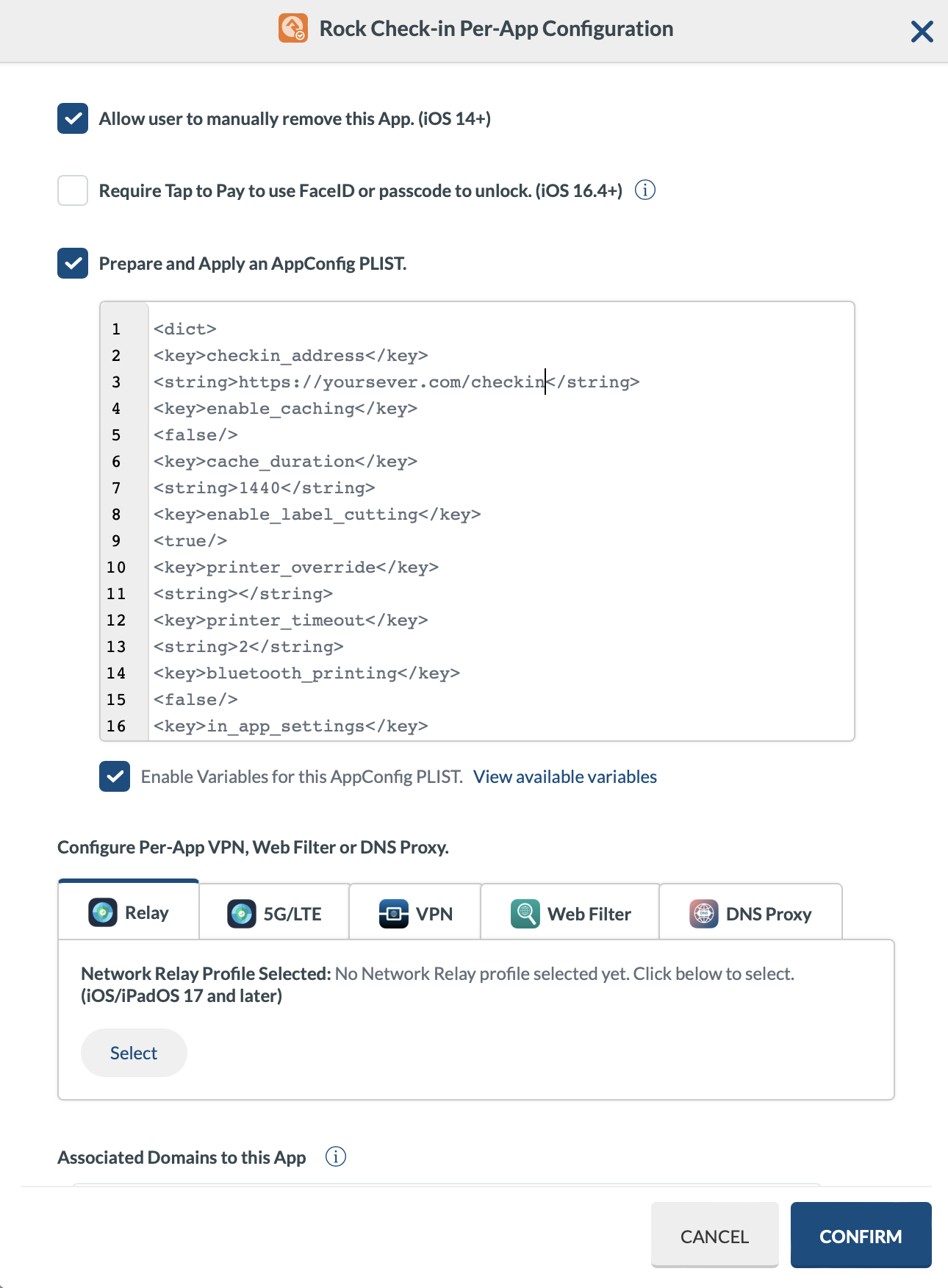
That's it! Your MDM will now install the Rock Check-In app using the provided configuration.
Download related file (specfile.xml)
Screenshots
- /GetImage.ashx?guid=97341903-2618-49bb-aa59-606cbd045ce7