Recipe - Facilities Requests
Skill level: Intermediate
Organization: Cornerstone Church (AZ)
Requires Rock: 1.14.0
{# strip images & classes from the HTML but otherwise leave structure #}
We've been using the out-of-the-box workflow for facilities requests for years, but wanted to have more flexibility and control. I wanted to use the functionality of connections but needed a different interface.
1) Workflow that creates the connection.
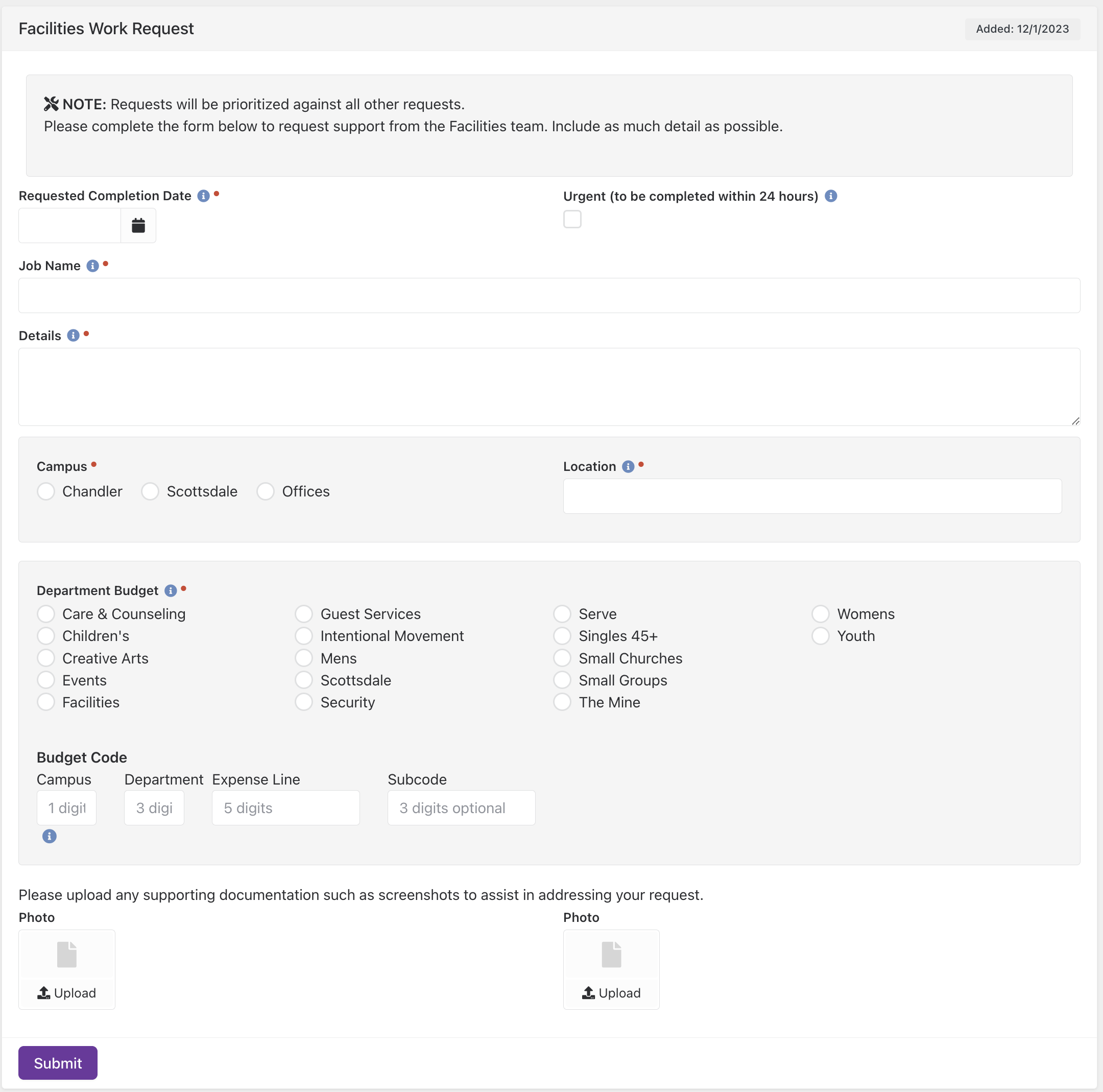
2) Data view / report / report data block to create a dashboard for facilities team
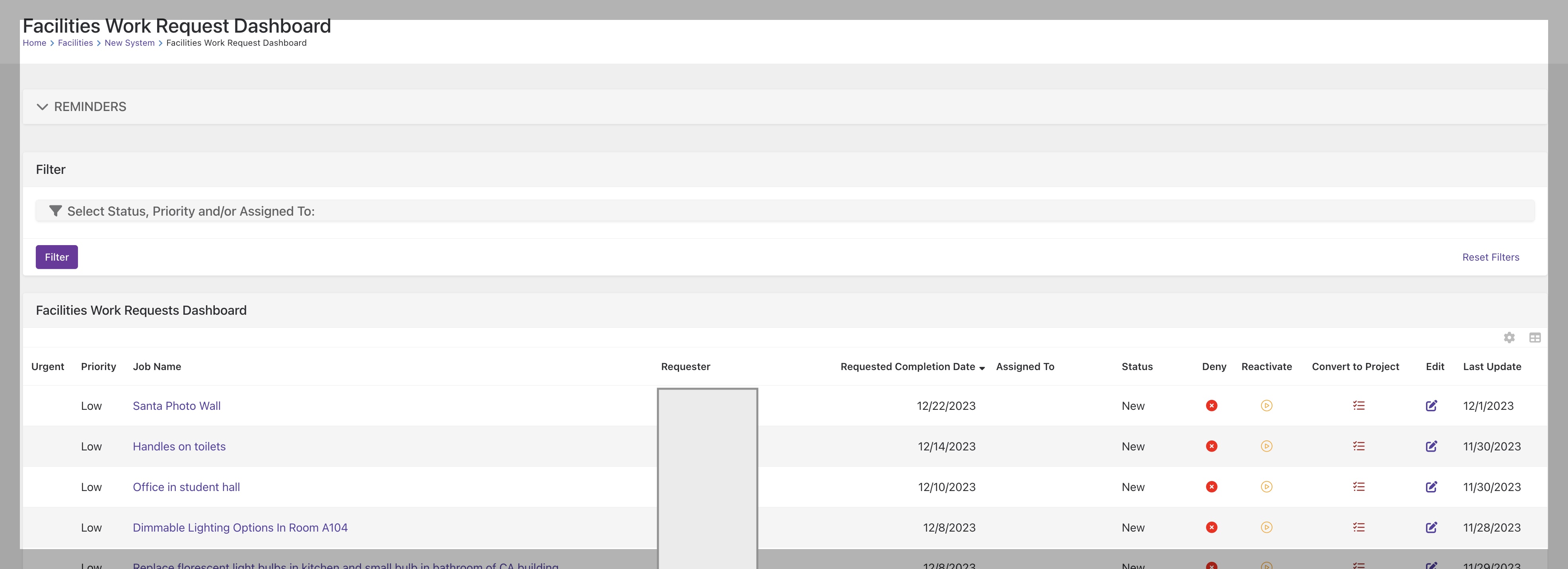
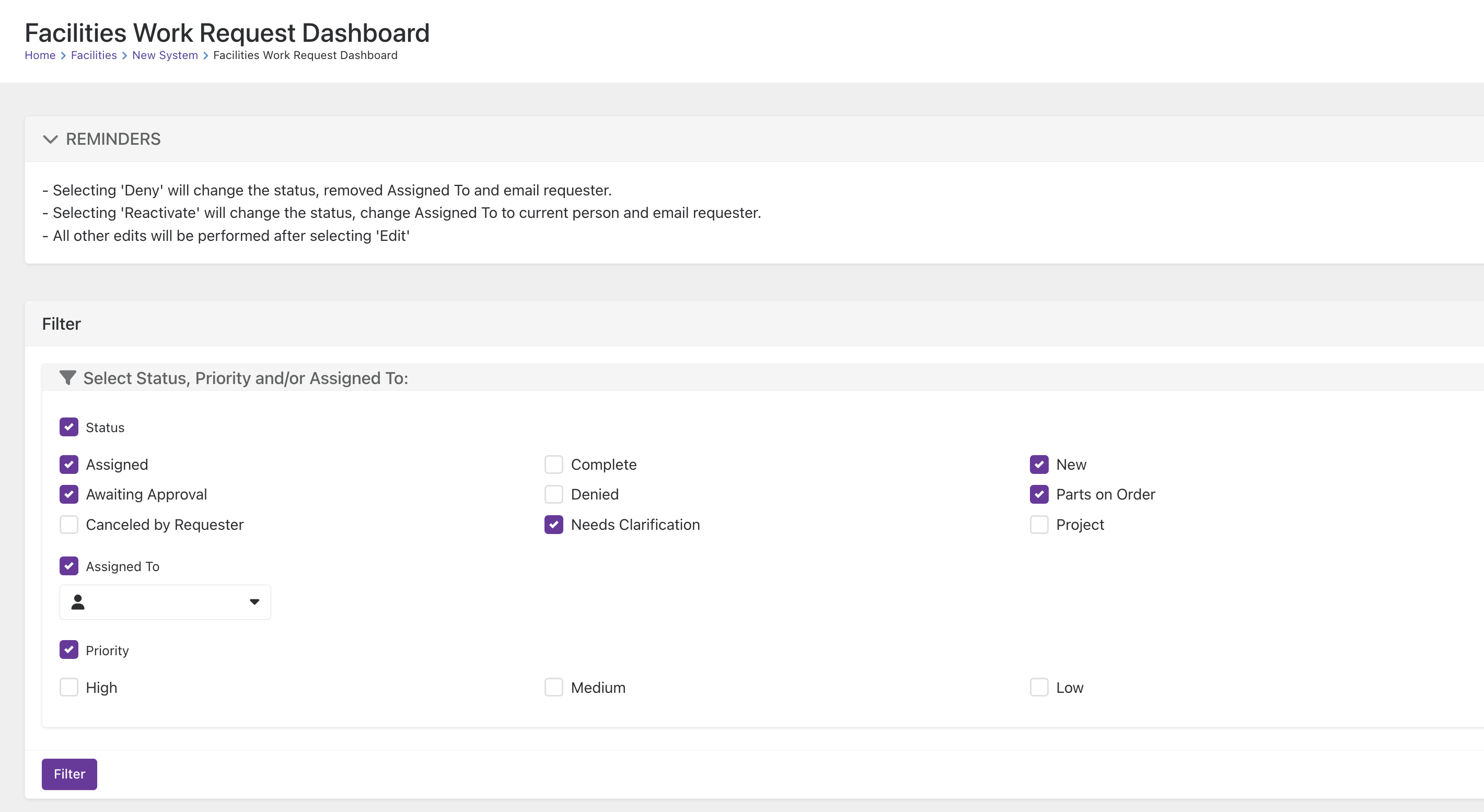
3) Workflow for each quick action on dashboard (deny, reactivate, convert to project (simply create Asana task) & complete (no longer used by our team but I included the workflow)}
4) Workflow for facilities team to edit connection or add activity (selecting edit or task name hyperlink from dashboard)
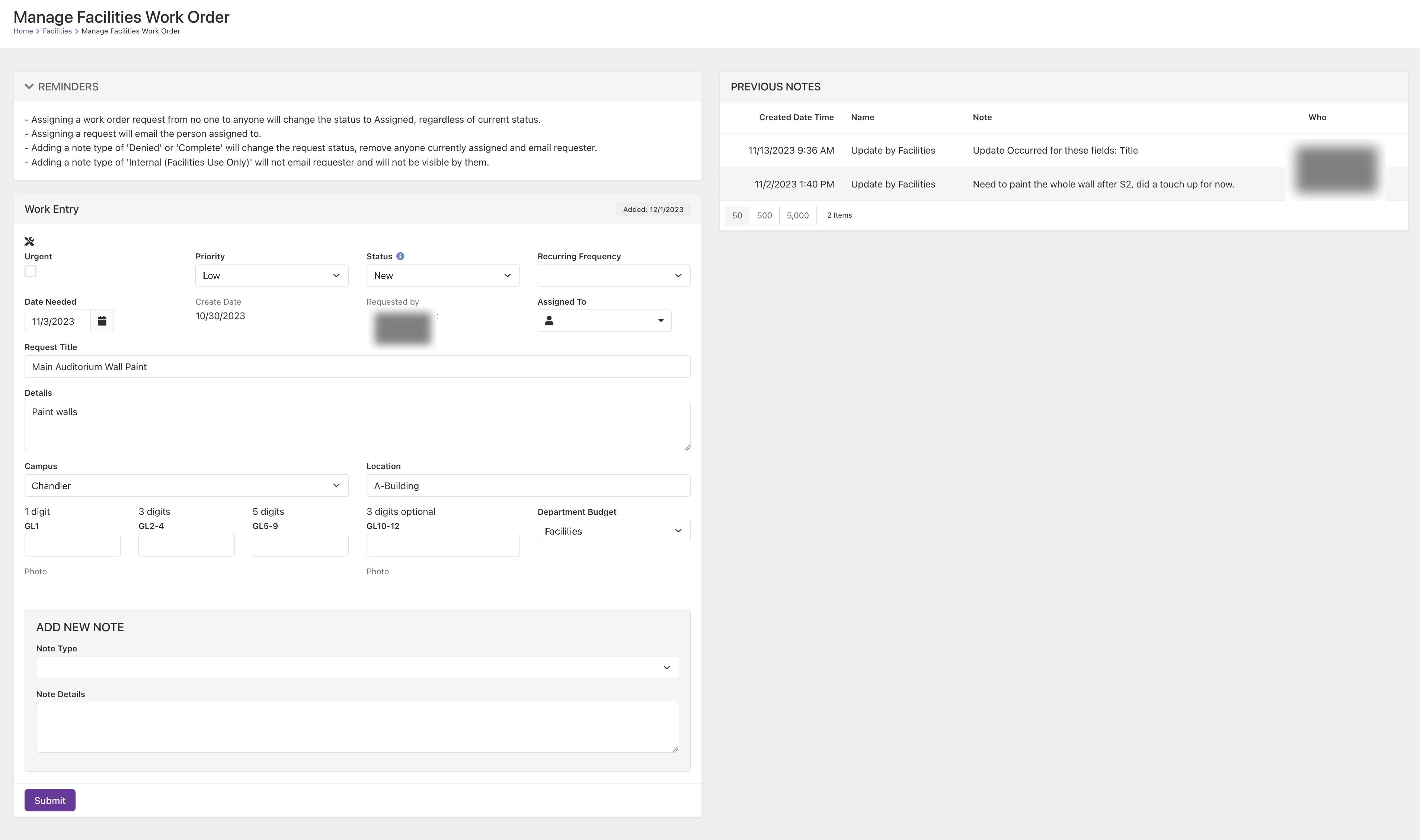
5) Workflow for staff to add notes aka connection request activities or cancel their request/connection
Here's all the setup:
1) Create Connection Type "Facilities Requests"
note the type id (hint: in the url). You'll reference this when you create the data view below in step #4
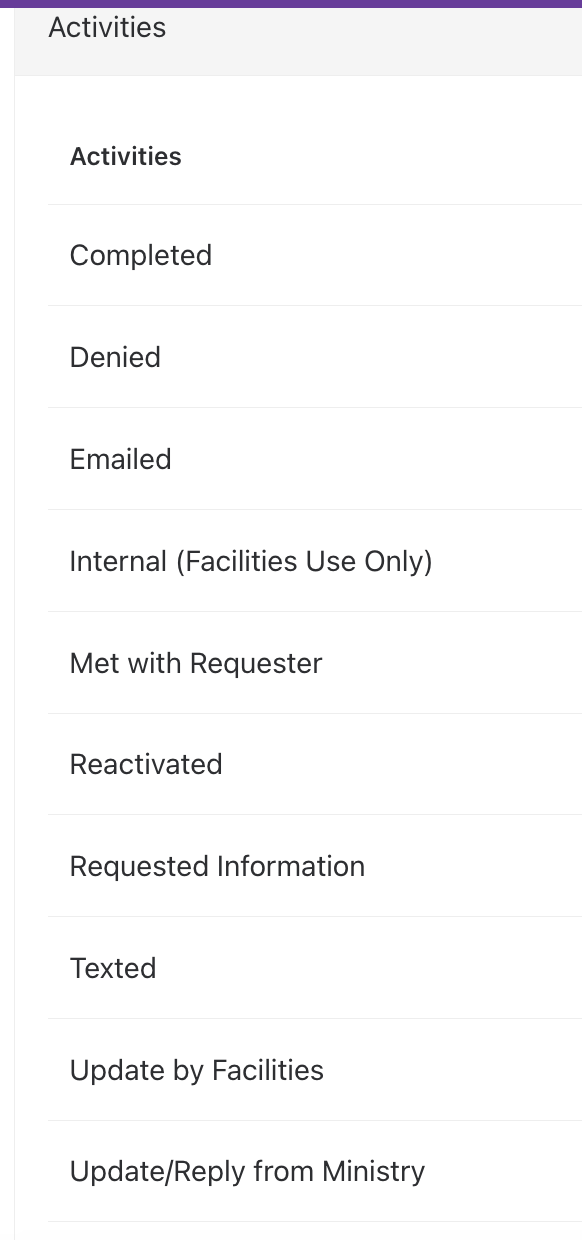
add the activities that you want notes added for
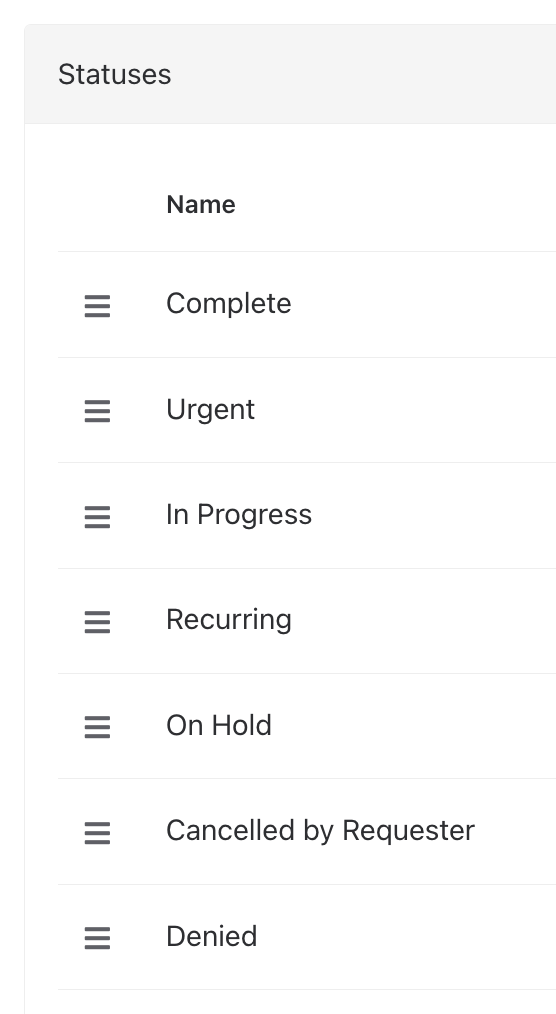
add the statuses
2) Create a Connection Opportunity for that type, which I called Facility Requests
Add Connection Request attributes:
Title - field type Text (all others unless noted)
Date Needed - field type Date
Recurring Frequency - single select 1^Annually,2^Quarterly,3^Monthly,4^Semi-Monthly,5^Weekly
Requester - person
Request Details - memo
Campus - we didn't want to use our true campuses so this is a single select
Location
Department Budget - single select
Photo & Photo2 - image
Connect Date - date
Status - single select 1^Assigned,2^Awaiting Approval,3^Canceled by Requester,4^Complete,5^Denied,6^Needs Clarification,7^New,8^Parts on Order,9^Project
Urgent - boolean
Assigned To - person
GL1, GL2-4, GL5-9 & GL10-12
Future Follow Up Date - Date
Priority - single select 1^High,2^Medium,3^Low
3) Create data view of Connection Requests with the type id = that noted in setup step #1
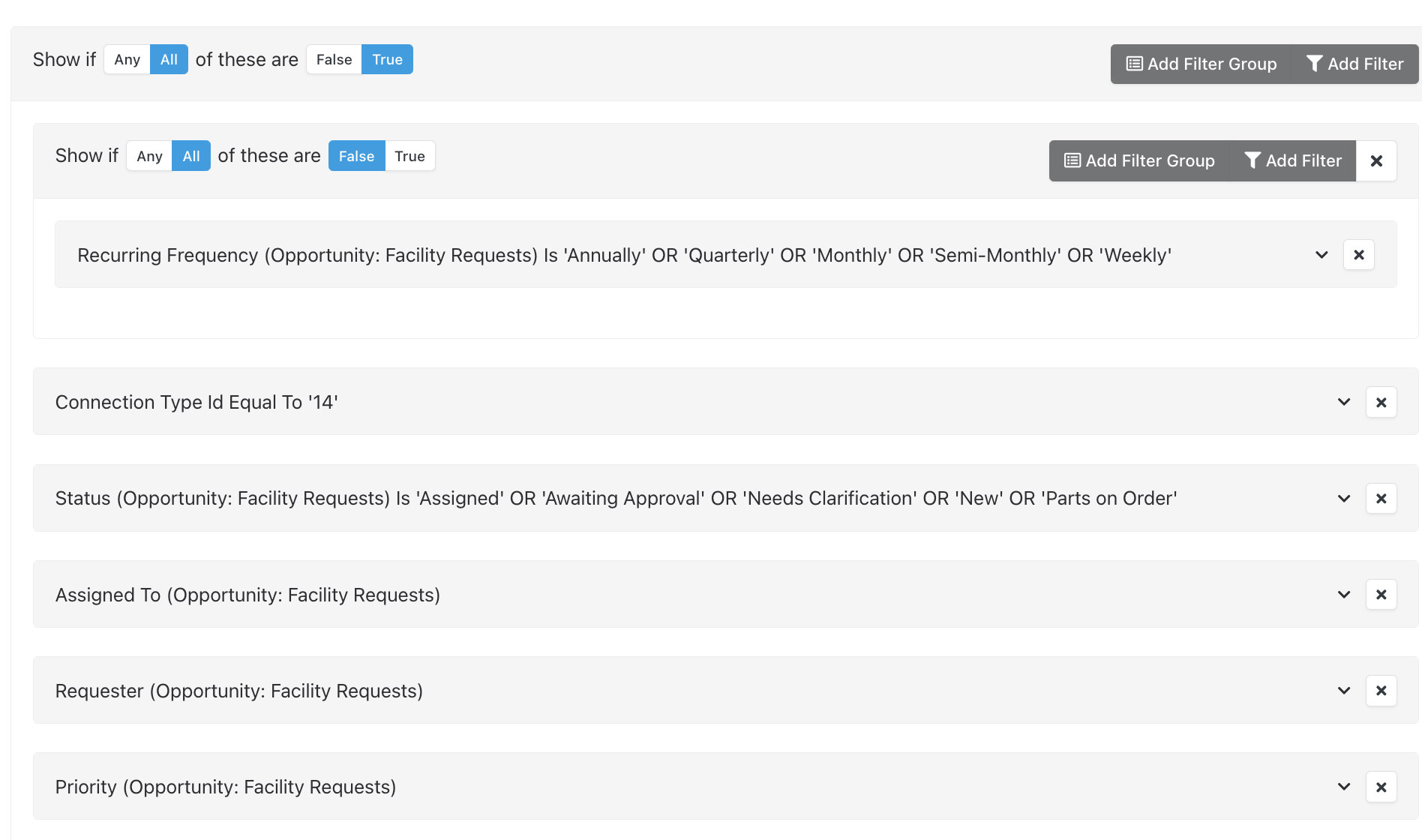
Note some conditions are included solely so they can be filtered on later.
4) Create pages that launch each workflow
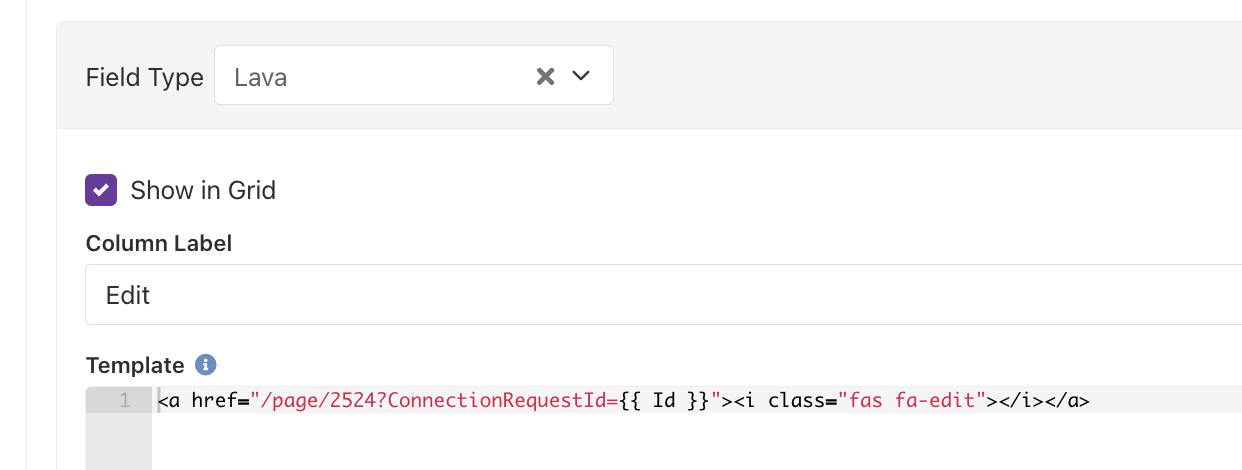
5) Create report of that data view, including the fields that you want displayed on the dashboard. You'll add a little lava for the quick actions on the dashboard. Here's the one we have for Edit:
6) Create page with a report data block, linking the report and selecting the filters you want displayed.
Download related file (Facilities_Work_Orders.zip)