Recipe - Creating Steps using Attendance Data
Skill level: Advanced
Organization: The Crossing - Chesterfield
Requires Rock: 1.13.0
{# strip images & classes from the HTML but otherwise leave structure #}
Overview
We recently started using the Steps feature of RockRMS to track folks who have completed one of our
Vision Venues.
What some churches call membership or core classes.
Previously we were using Person Attributes to just track the date that folks finished a Vision Venue. This told us the last time they completed a specific one, but not the historical dates for the repeat attenders. Plus we were only getting the completion date - nothing else. Steps allows us to track much more with Step Attributes, Start/End Date, & Status.
Considerations
We wanted an easy way for our class administrators to handle the creation of Steps when they wrapped up each Vision Venue session. The Auto-Complete Data View on the Step Type wasn't really an option because we wanted more details on the Step and more control of the Start/End dates. We considered using the Launch Workflow from a Group Member grid - but this didn't allow us to easily get the parameters (StepType, Start/End dates, etc) we needed for creating the step. And because each workflow would run independently - there wasn't a great way to provide a single summary to the admin when the entire run finished.
The Parts
We use a combination of 1 Step Program with 5 Step Types, 2 internal webpages and 2 workflows for this whole process.
The first webpage gives the admin an overview of the process, prompts for the needed parameters, displays a list of all folks that will be processed if they continue, and provides a link to the second webpage once all parameters are entered. The second webpage is just a workflow entry block for the first workflow.
The first workflow is interactive. It confirms the parameters one last time as well as the total number of folks that will be processed. Upon confirmation it will launch the second workflow. The second workflow runs in the background and loops thru the folks to create Steps based on the parameters passed from the first. Once all folks are processed, a summary email is sent to the user.
The Nuts & Bolts
For the purposes of this recipe I will assume you know how to setup a Step Program and Step Types. You will need to make note of the StepProgramId and the StepTypeIds.
Webpage #1: Vision Venue - Wrap-Up
This page uses a Page Parameter Filter block to get parameters from the user, a couple of HTML block to describe the process and show confirmation of parameters selected, and a Dynamic Data block to provide confirmation of the people that will be processed.
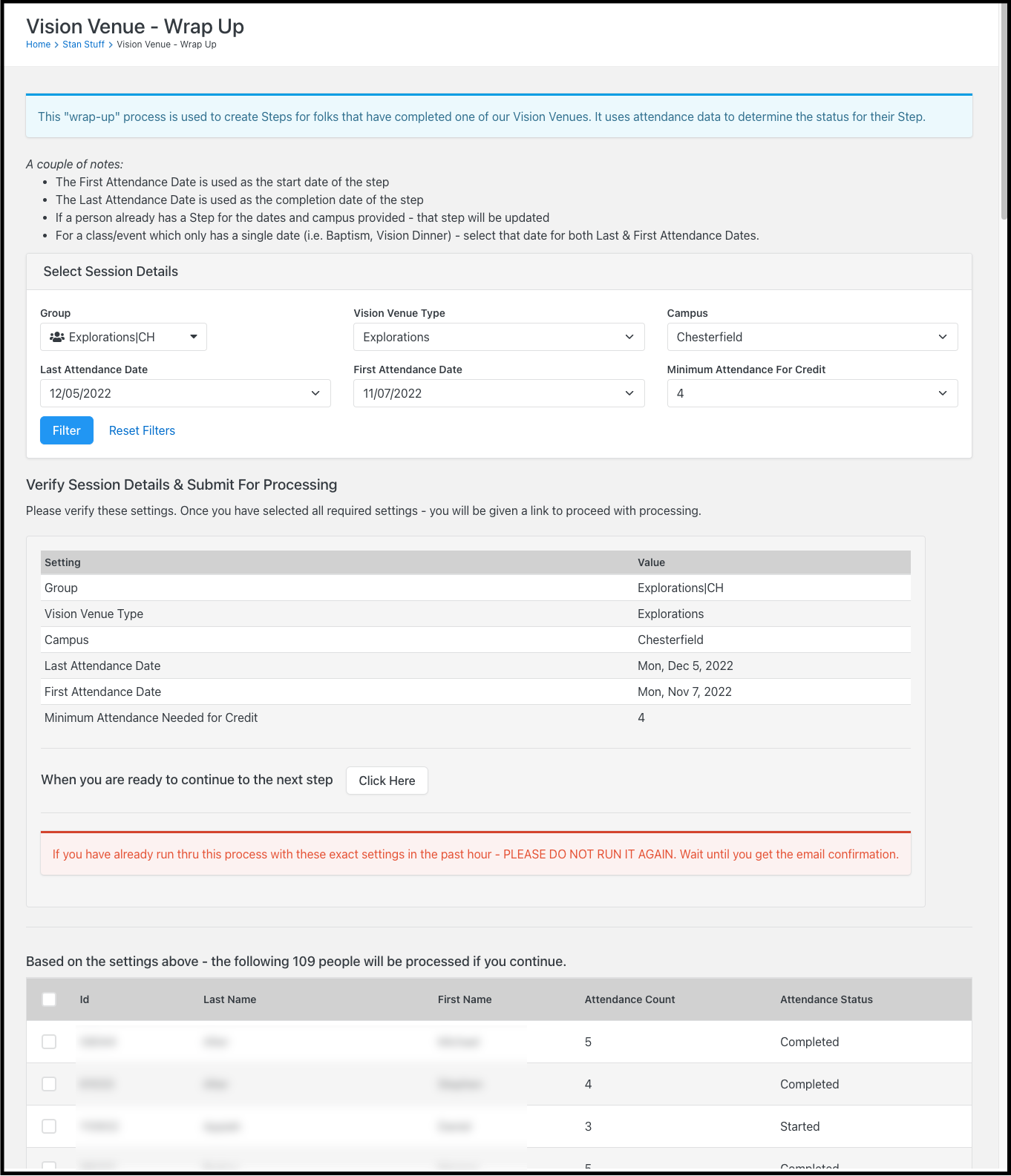
Page settings
HTML Content block #1: "Overview of Process"
Page Parameter Filter block
HTML Content block #2: "Confirm Parameters & Continue"
Dynamic Data Block
Webpage #2: Vision Venue - Wrap-Up (processing)
This is a really basic page with just a workflow entry block.
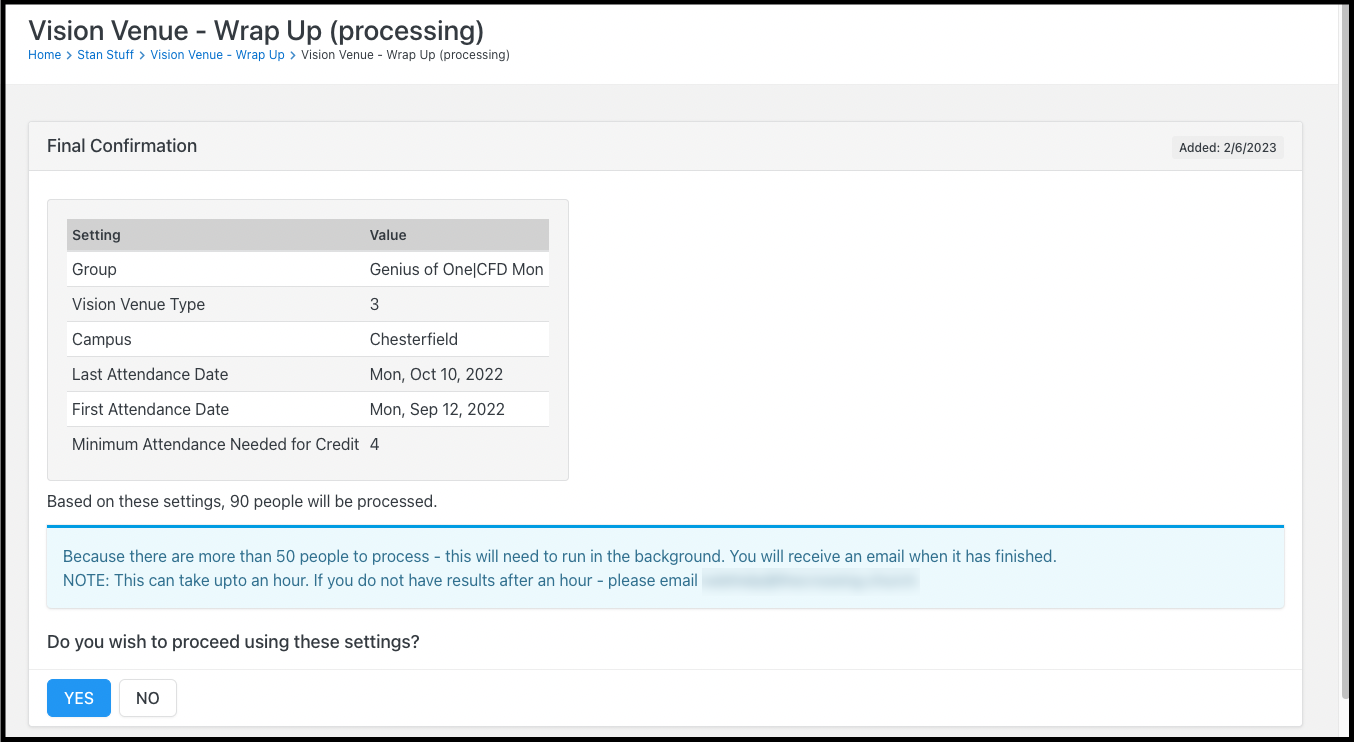
Page settings
Workflow Entry block
Workflow #1: Vision Venue - Wrap Up - Part 1
Overview
This workflow is interactive and verifies the parameters and affected number of people with the user one last time before calling the second workflow to create the steps.
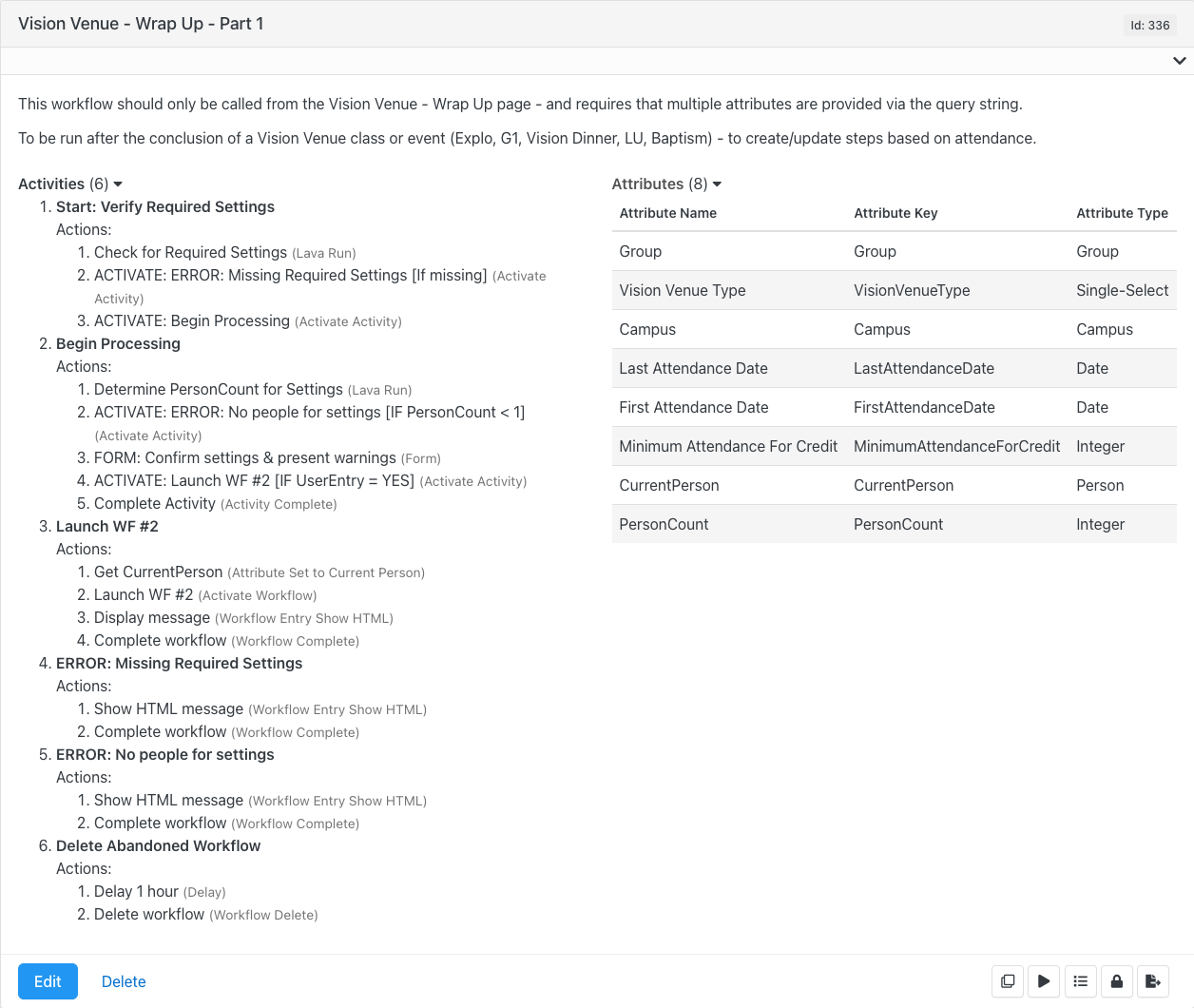
Workflow Attributes
Create each workflow attribute shown in the overview. The only one that needs additional details is the Vision Venue Type [Single-Select]:
Activity #1: Start: Verify Required Settings
This activity determines if all required parameters were passed into the workflow or not.
Activity #2: Begin Processing
This activity gets a total count of people to be processed based on parameters. Errors if count is 0. If count > 0 - asks user if they wish to proceed.
Activity #3: Launch WF #2
This activity gets the current person so we can notify them when the process completes, launches workflow #2, displays a confirmation email, and completes the workflow.
Activity #4: ERROR: Missing Required Settings
This activity displays an message to the user and completes the workflow.
Activity #5: ERROR: No people for settings
This activity displays an message to the user and completes the workflow.
Activity #6: Delete Abandoned Workflow
This is our cleanup activity. It will delay for 1 hour - then delete the workflow.
Workflow #2: Vision Venue - Wrap Up - Part 2
This workflow is NOT interactive and should only be called from workflow #1. Also - its processing interval should be set to 1 minute.
Overview
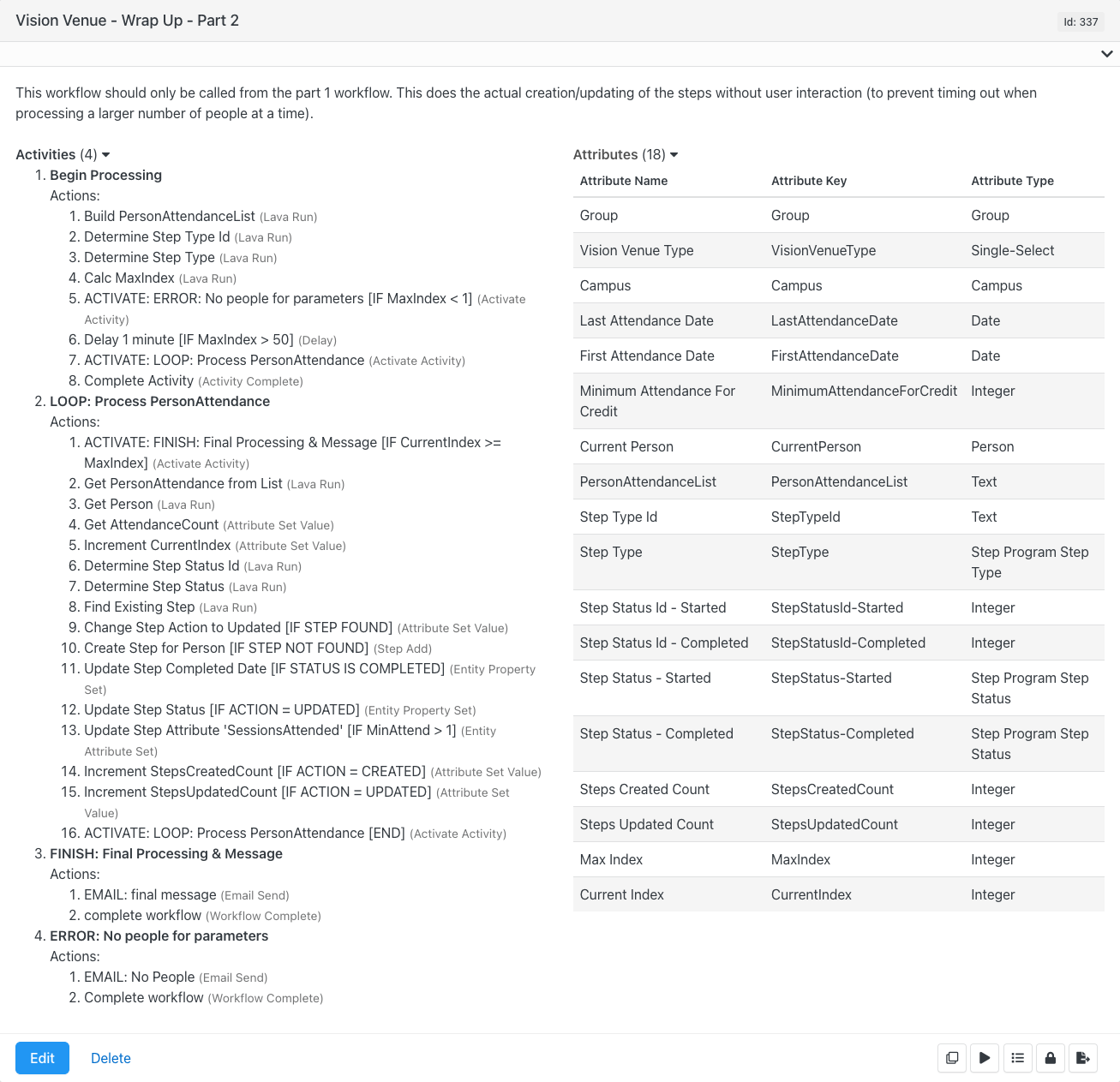
Workflow Attributes
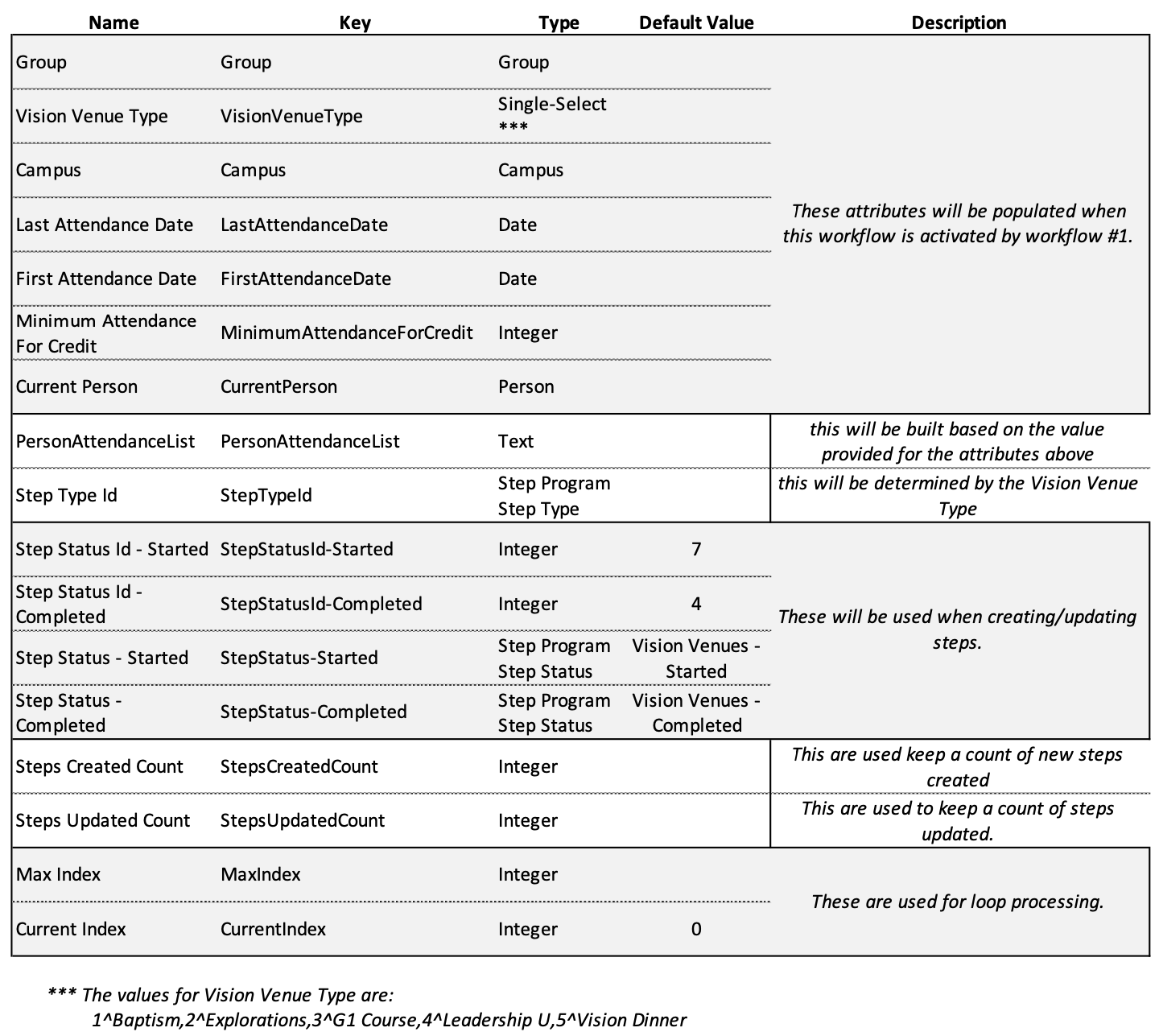
Activity #1: Begin Processing
This activity does all our prep work: building list of people to process based on inputs, determining step type to process, and kicking off the processing loop.
Activity #2: LOOP: Process PersonAttendance
This is the LOOP activity. It will run once for every person on the list that was build in activity #1 ... plus one last time to stop the loop processing. For each person it will determine the status the person earned based on their attendance, look for an existing step for the person and either create a step or update the one found as needed incrementing the appropriate counter, then loop to the next person. Once the list is exhausted, it will start the wrap up activity.
Activity #3: FINISH: Final Process & Message
This is the wrap-up activity. It will be activated once the list of people has been processed. It will email the person who kicked off the processing with final counts and complete the workflow.
Activity #4: ERROR: No People
Final Thoughts
First - congratulations for making it all the way to the end. This turned out to be a much longer one than I originally anticipated.
I indicated that this recipe requires Rock v1.13.x or higher. This is primarily because of the Lava filter "Steps" used in the Lava action that looks for an existing step for the person. If you remove this filter and go with an entity command instead, then I believe you only have to be at Rock v1.10 or 1.11. I cannot confirm this as this was all developed under Rock v1.13.
If you aren't super comfortable or familiar with loop processing in workflows - BlueBoxMoon has a great plug-in "Workflow Stimpack" that includes a workflow action called "For Each" which handles all the loop processing for you.