Recipe - Non-Cash Contribution Workflow
Skill level: Beginner
Organization: Simple
Requires Rock: 1.9.0
{# strip images & classes from the HTML but otherwise leave structure #}
This recipe relies on a workflow and connection types. You may download and import the attached workflow as a starting point.
Non-cash Gifts Workflow and Connections from Harvest Bible Chapel Pittsburgh North on Vimeo.
Table of Contents
Click on the topics below to jump to that section:
INTRO
In this strange time churches are looking for additional ways of raising funds for ministry or missions. A great way to help this endeavor is to have a streamlined process for handling non-cash gifts to the church.
Below is a workflow that you can import and modify for your church's needs for the purpose of handling the intake of information about the gift and creating a Connection Request in order to handle a representative from the church to complete the gift. The need for a connection request is due to the types of non-cash assets that may be given to the church. This may mean coordinating a drop off, a follow-up call for additional account details on a stock or 401K gift to name a few of the reasons why these types of gifts require a personal touch.
PREREQUISITES
Ensure that your entire finance team and leadership is aligned on the way that you want to handle non-cash assets. You may adjust the language, attributes, and connection type properties required as you see fit after importing the workflow.
DOCUMENTATION
Before we dive into it, let's familiarize ourselves with some of the prerequisite items and the documentation on their use:
LET'S DIVE IN!
CONNECTION SETUP
- Go to People - Connections - Connection Types (Settings/Gear Icon)
- Add a new connection type called "Non-cash Donations"
- Add two new connection request attributes (used for storing the item description passed from the workflow form to the connector):
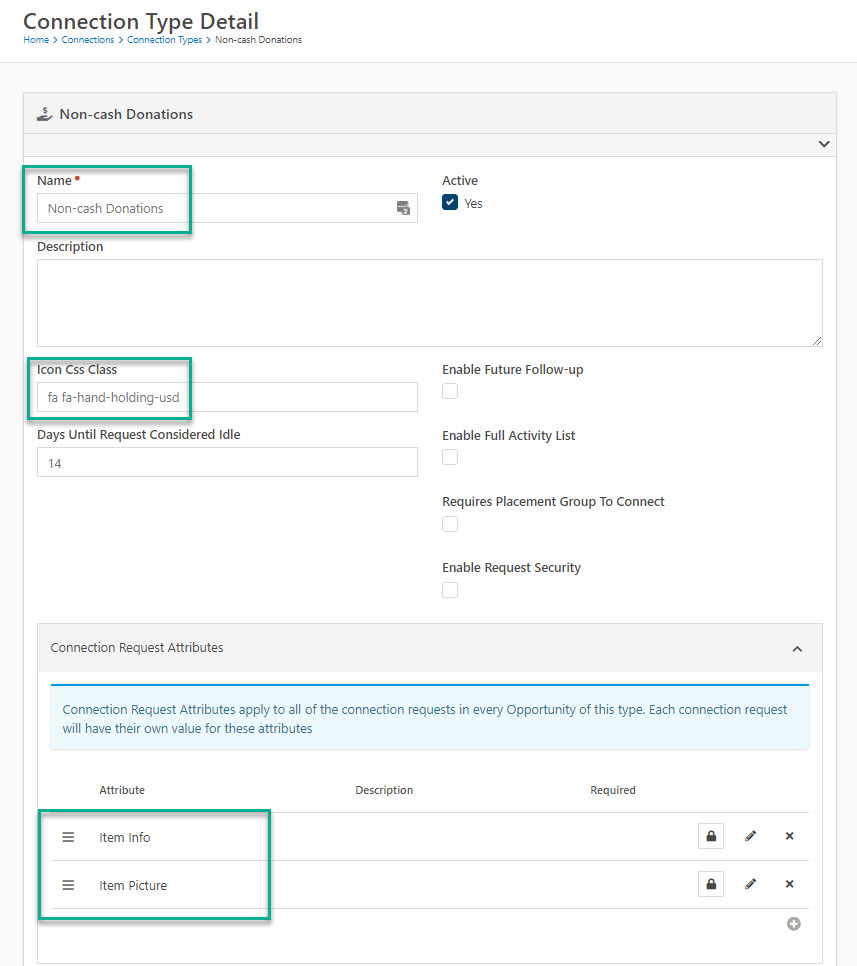
- Name: Item Info
Key: ItemInfo
Field Type: HTML
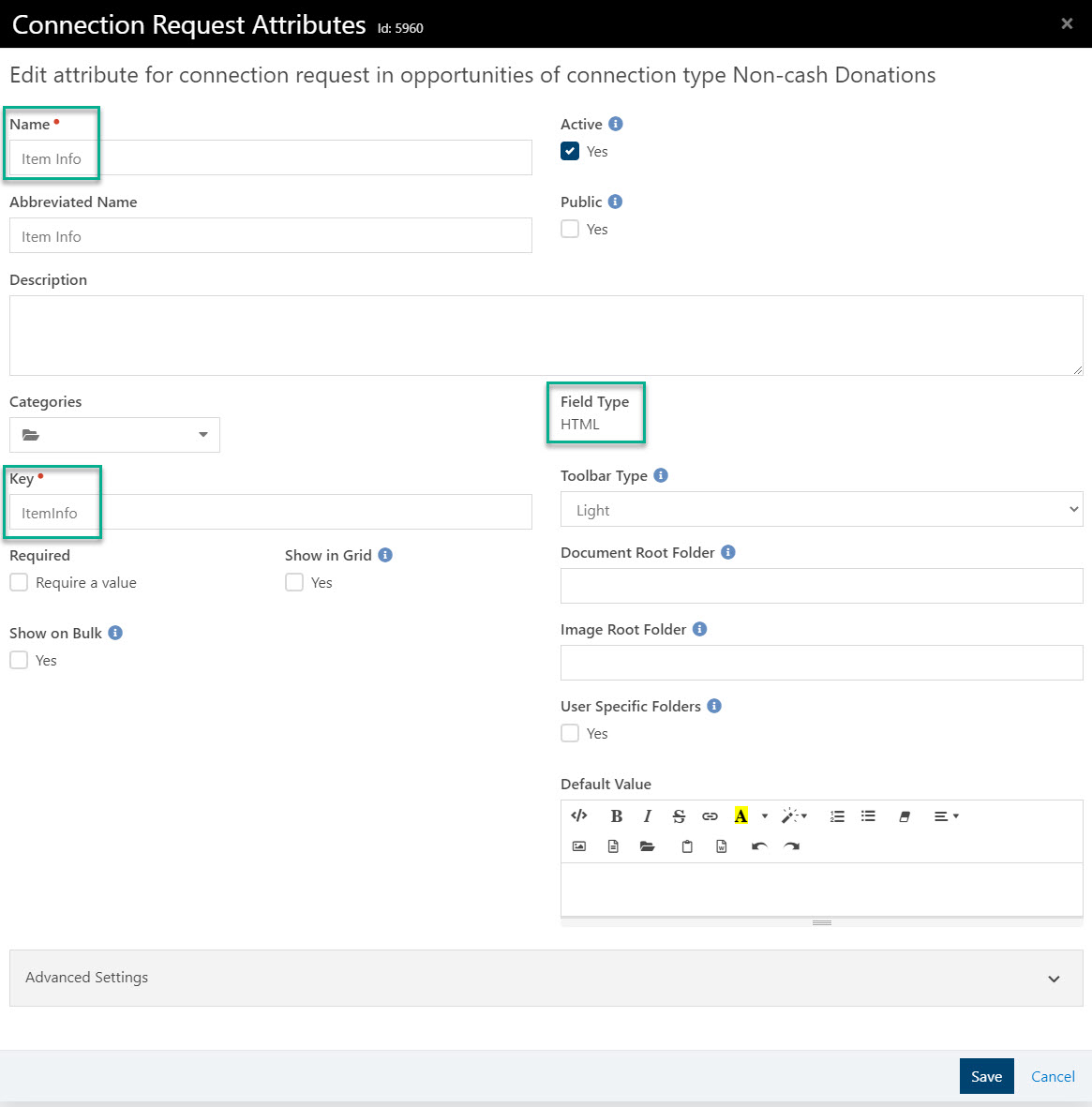
- Name: Item Picture
Key: ItemPicture
Field Type: File
File Type: Media File
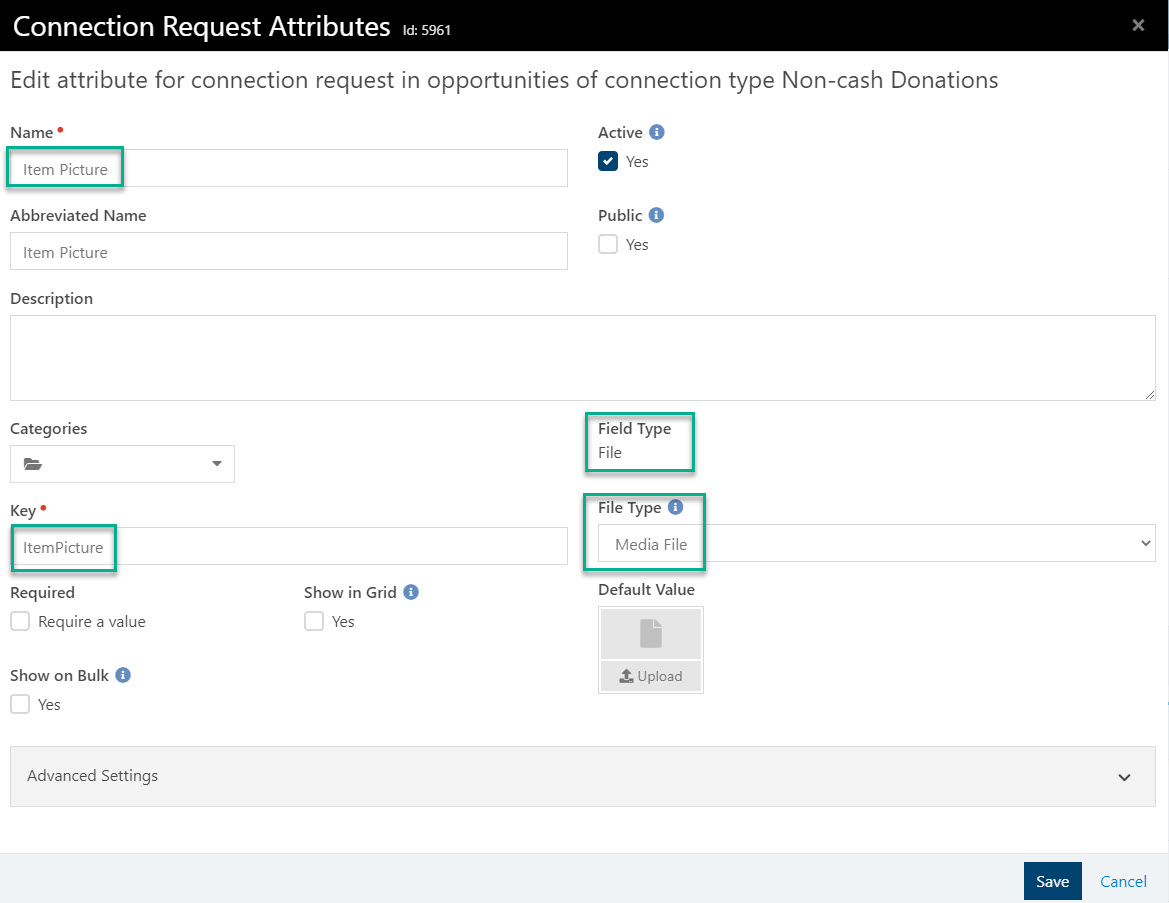
Note: A new file type may need to be created for the purpose of storing item photos of assets such as vehicle, boat, furniture, jewelry, etc.
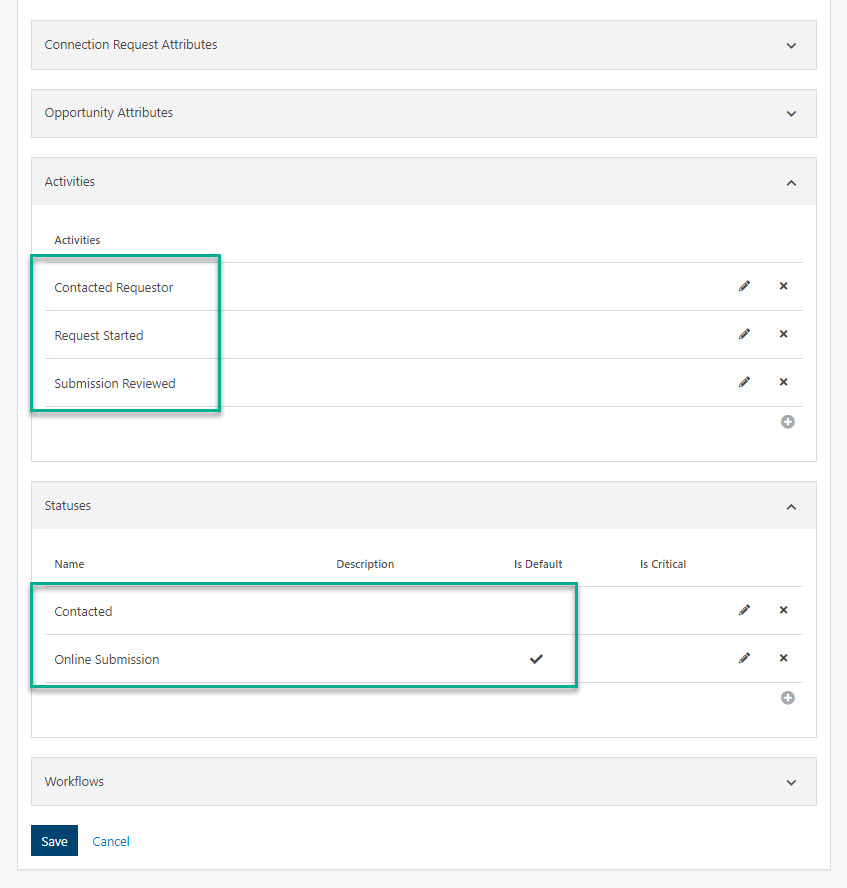
- Add Activities and Statuses to the Connection Type that makes sense for your church’s process:
- Create a new Connection Opportunity for Non-cash Donation:
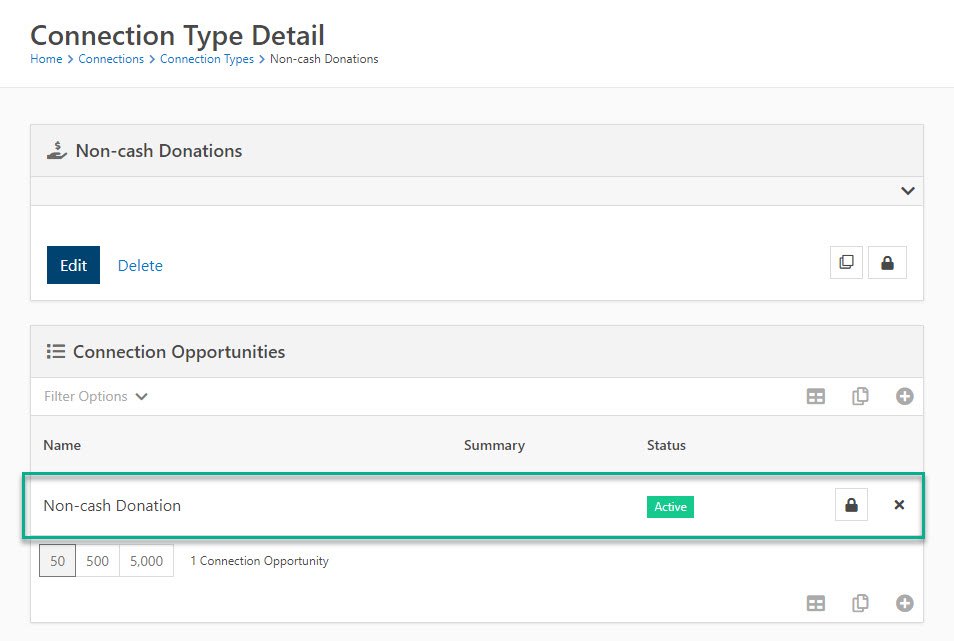
WORKFLOW SETUP
Now that you have your Connection Type and Opportunity set up you may now import and edit the workflow to tie all of these things together.
- Go to Admin Tools - Power Tools - Workflow Import/Export to import the attached workflow in this article.
Note: You may have to unzip this file first and upload just the xxxxxx.json file
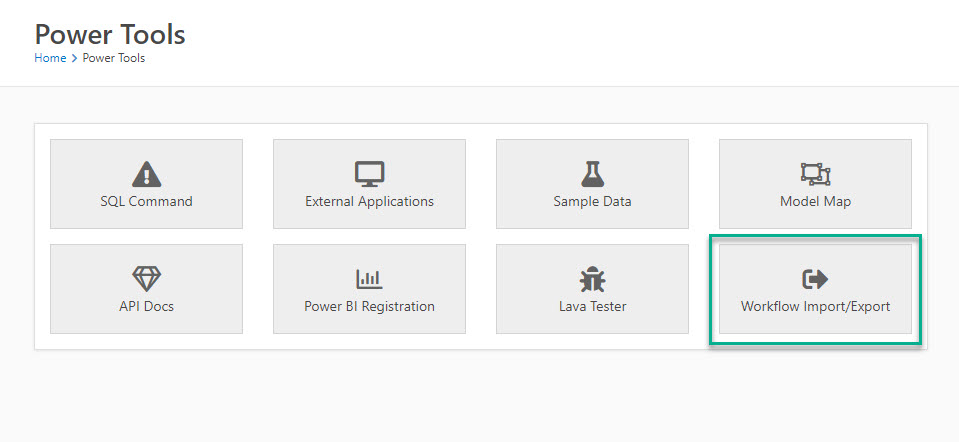
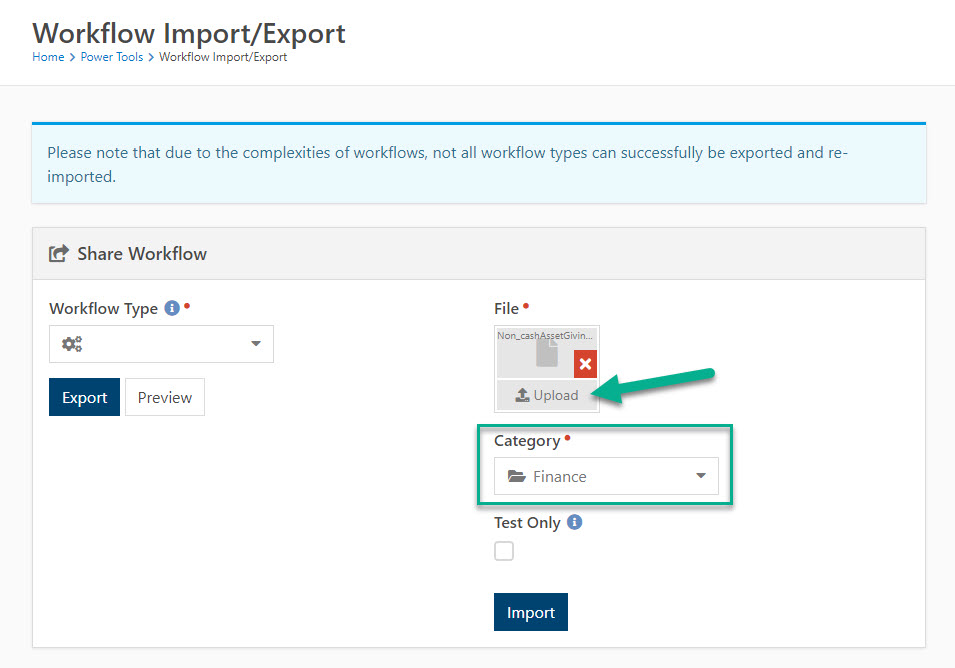
- Now that the Workflow has been imported, navigate to the workflow settings by navigating to Admin Tools - General Settings - Workflow Configuration
- Select the "Non-cash Asset Giving Interest" workflow in the tree list and click the Edit button:
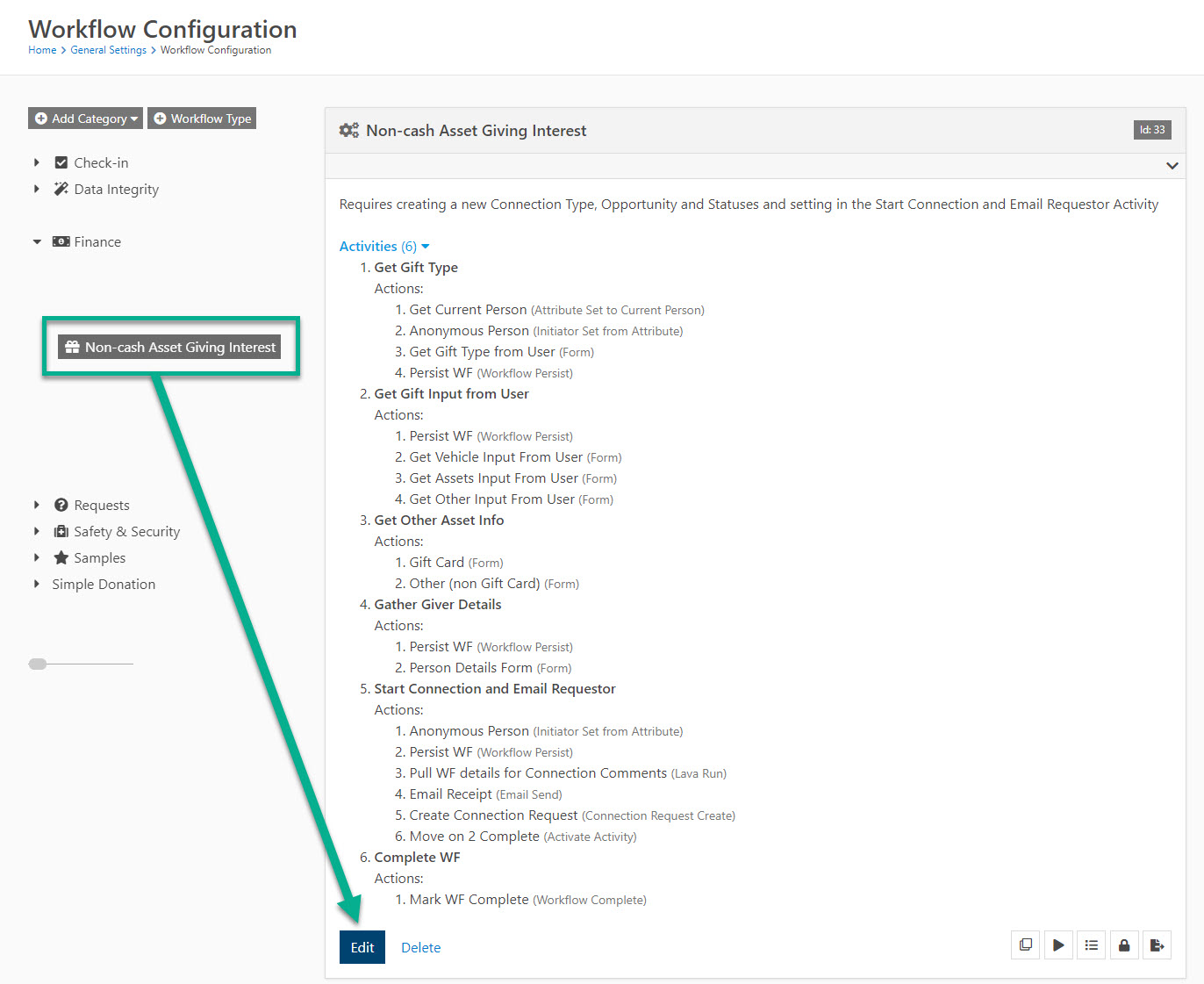
- Edit any/all of the workflow attributes as needed for your organizational needs
- Edit the language found in the Get Gift Type Activity - Get Gift Type from User Action Form Header:
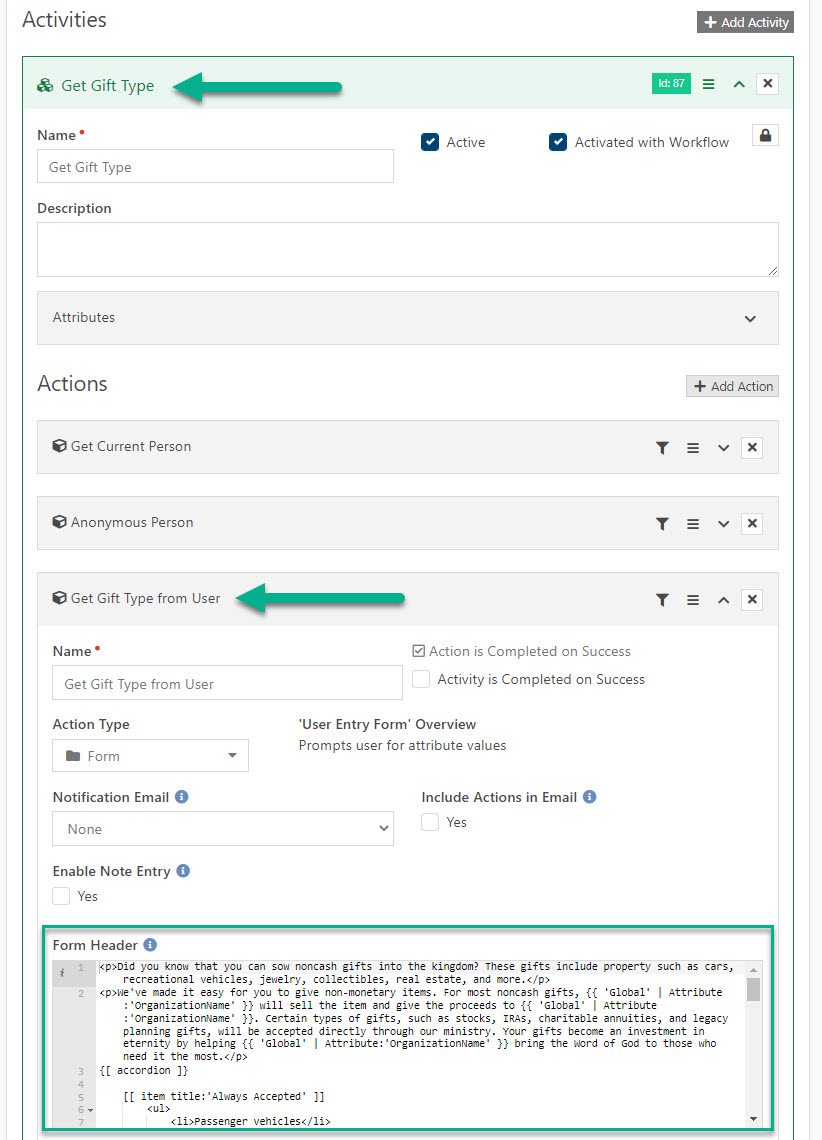
- Read through and adjust all other Form Header language as needed
- Edit the Create Connection Request Action found in the Start Connection and Email Requestor Activity:
- Set the Connection Status and Connection Comment Attribute according to the previous Connection Type Opportunity setting you created previously:
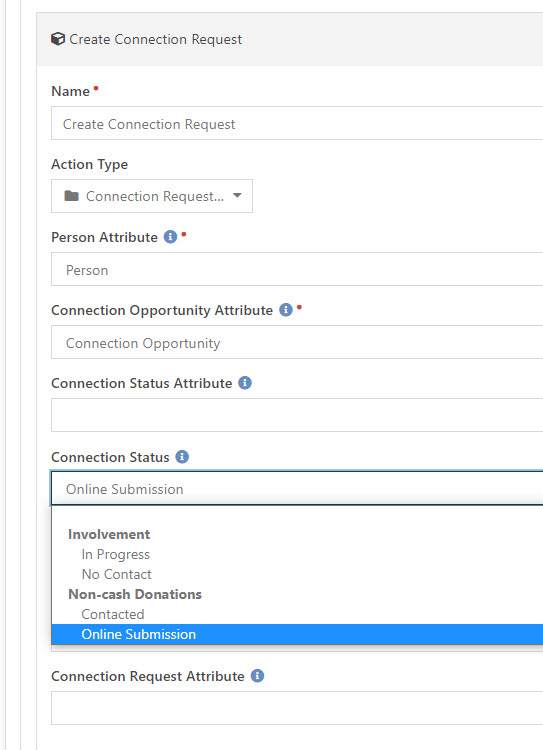
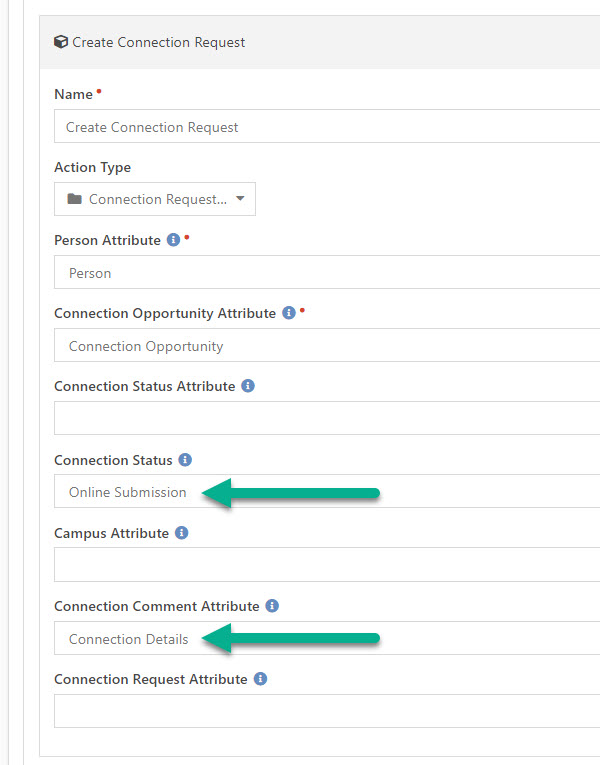
- Save the Workflow
- Add a Workflow Entry block onto a new External page (typically a child-page of your main Give tree) of your website and select this new workflow in the Workflow Type setting on the block:
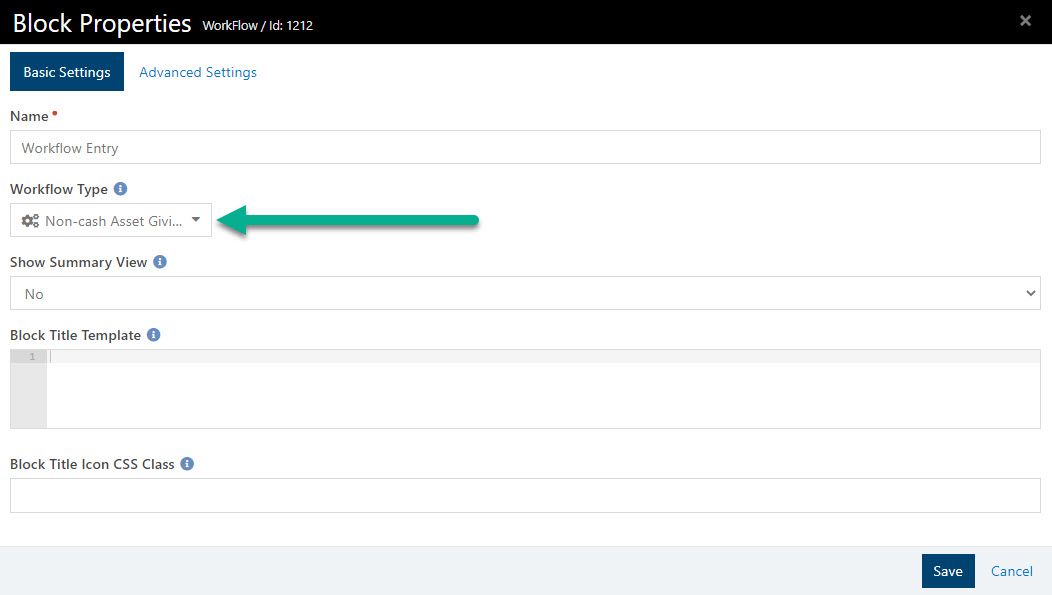
FINAL THOUGHTS
This is a simple workflow that you can use as a template to tie workflows to Connections for any other needs you may have in the future. Feel free to make suggestions on bettering this workflow and I’ll be happy to upload a new attachment for it.
A great live "in the wild" example of this workflow being used can be found on Church on the Rock’s website: https://www.cotr.org/give/non-cash
Download related file (Non_cashAssetGivingInterest.json)
Screenshots
- /GetImage.ashx?guid=79e5b2ab-18d6-4e53-92e2-c4040e5b1f80