Recipe - Automated Follow Up
Skill level: Advanced
Organization: ONE&ALL Church
Requires Rock: 1.11.0
{# strip images & classes from the HTML but otherwise leave structure #}
MOVE FROM PAPERWORK TO RELATIONSHIPS
Stop clicking your screen and start clicking with people
by creating a custom automated system in Rock.
All of the details from the RX2021 presentation are located at https://oneandall.church/rx2021takeaway
The Problem
How do we connect new guests effectively?
- Lost physical paperwork
- Dead-end Rock connections
- Time-consuming follow up
- Low accountability for follow-through
The Solution
A system that handles the routine tasks and tracks progress enabling team members to focus on meaningful interactions
and ensure that people do not fall through the cracks.
New Guest fills out connection card via workflow
Automated Tasks
- Added to follow-up group
- Email from Guest Experience Team
- Emails from Campus Pastor
- Texts from Campus Pastor
- Connections for post cards
- Connections for phone call
Meaningful Interactions
- Phone call from Campus Pastor
- Postcard from Team Member
- Replies to emails
- Replies to text messages
How Do I Use It?
- New Guests
- Baptism/Salvation
- Prayer
- New Family/Child
- Event Follow Up
- Lead Up To Event
- New To Serve Team
- New To Community Group
- Any process where you would like multiple routine steps performed over the course of several days
The Details
The system has multiple components: Groups & Group Type, Content Channels, Child Content Channels, Content
Channel Types, Group Viewer Page, Workflow, SQL, and a Job.
Group Type
Create a Group Type that has a Member Attribute of “Active Date” of type Date.
This is used to contain the people who are in the automated system. The active date is used to track when the
automation is to start. NOTE: The Attribute Id of this attribute will be used later in the SQL
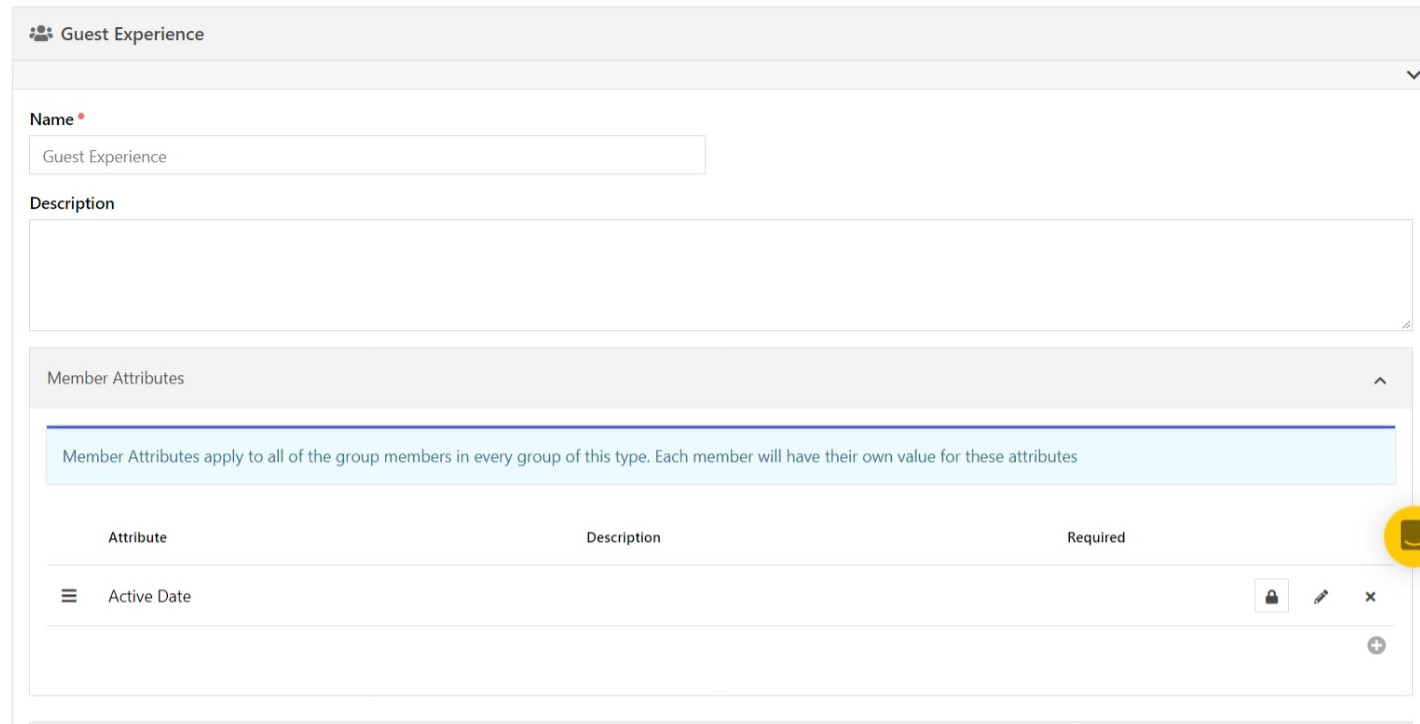
We use Active Date rather than Date Added because with some groups we want to control what day of the week the
automation starts so we always know what day it is when content is created/sent. All our First Time guests have an
Active Date of the Sunday they first visited.
Group(s)
Create Groups of the Group Type created above and populate the groups with profiles that need automated. Make sure
that the Member Attribute: ActiveDate is set.
Content Channel Types
Create 2 different Content Channel Types:
- Follow Up Queue
- No Dates
- Item Attribute: Guest Experience Group (NOTE: Write down the Attribute Id. It will be used in the SQL)
- Field Type: Group
Follow Up Action
- Single Date
- Channel Attribute: Follow Up Type (NOTE: Write down the Attribute Id. It will be used in the SQL)
- Field Type: Single Select
- Values:
SMS^Text Message,Email^Email Message,Connection^Connection Opportunity Request
- Item Attribute: Days Since Active (NOTE: Write down the Attribute Id. It will be used in the SQL)
Content Channels
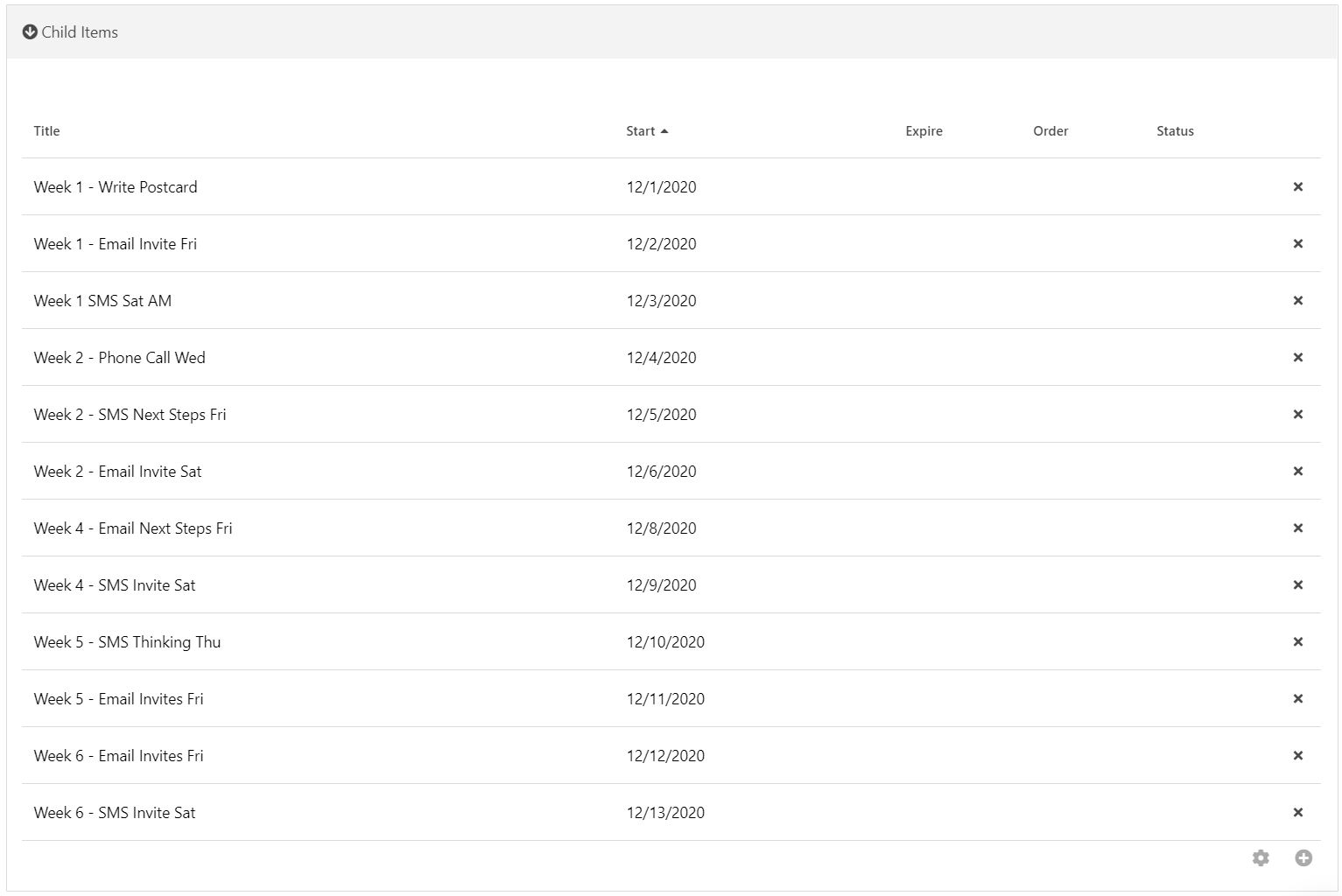
- Create Content Channels of Type “Followup Action”
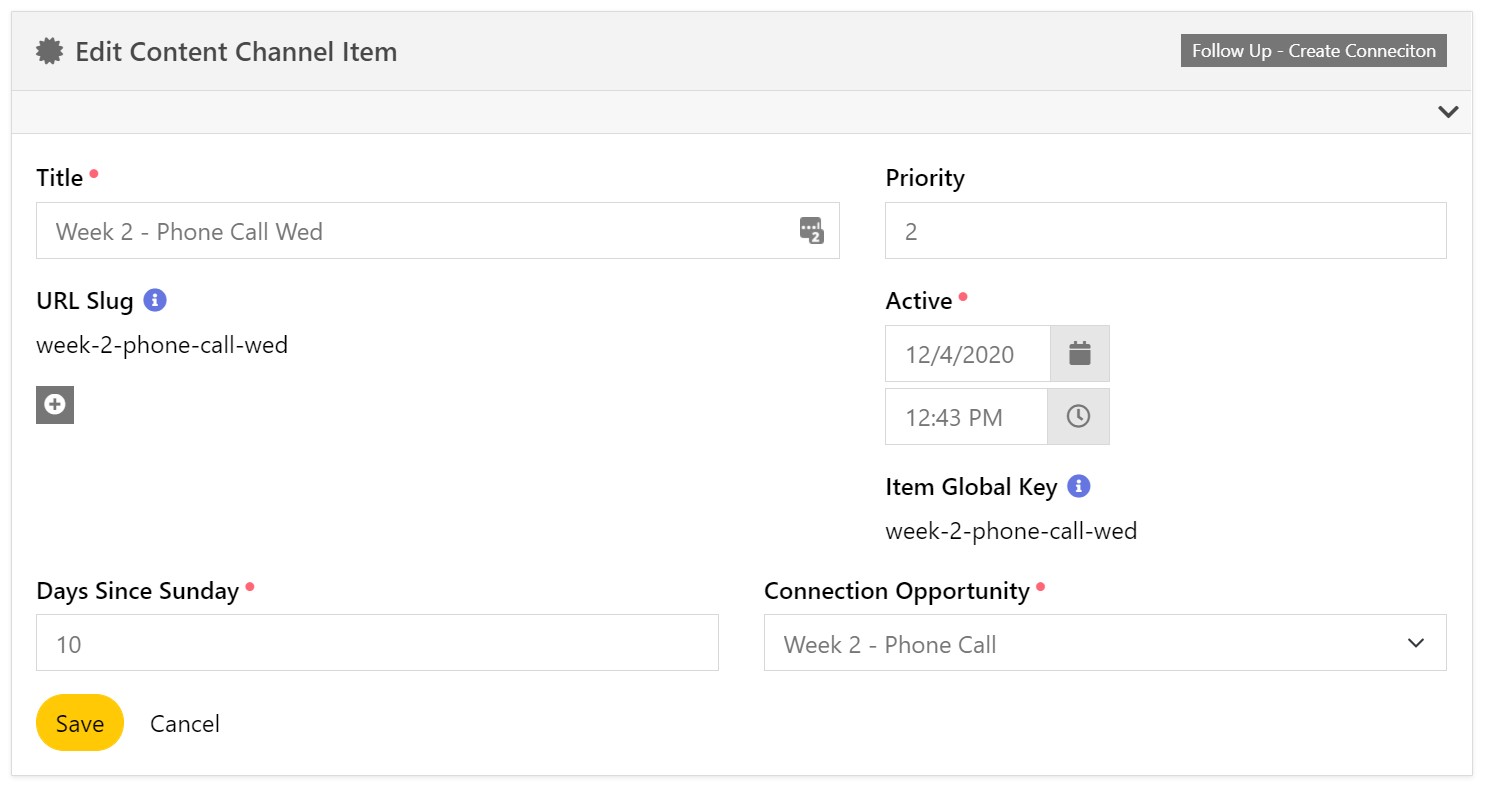
- Create Connection
- Set Follow Up Type to “Connection Opportunity Request”
- Create Item Attribute: Connection Opportunity
- Field Type: Connection Opportunity
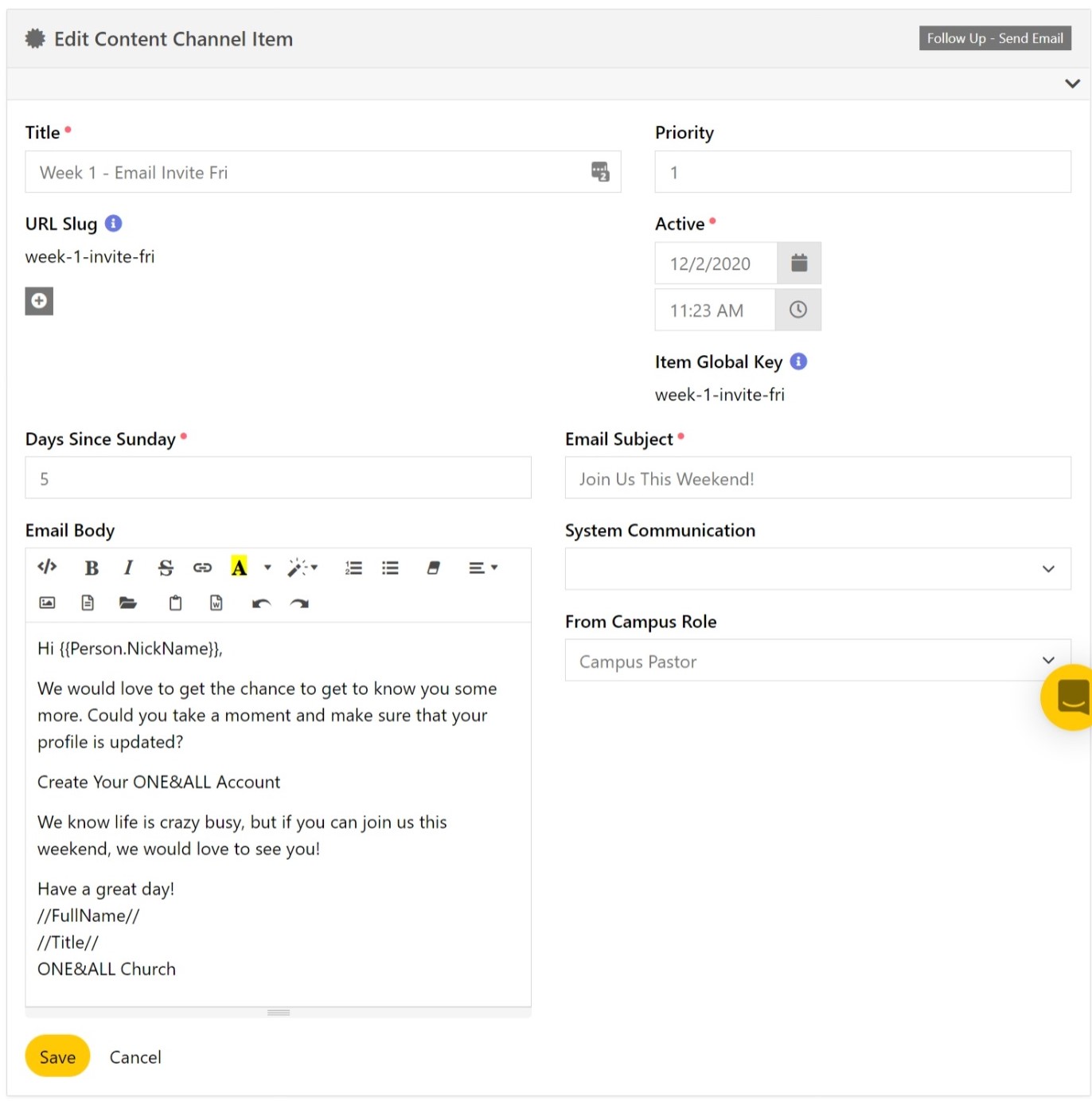
- Send Email
- Set Follow Up Type to “Email Message”
- Create Item Attributes:
- Subject - Text
- Body - HTML
- System Communication - System Communication
If this is set, ignore the subject and body
- From Email Address - Type: email
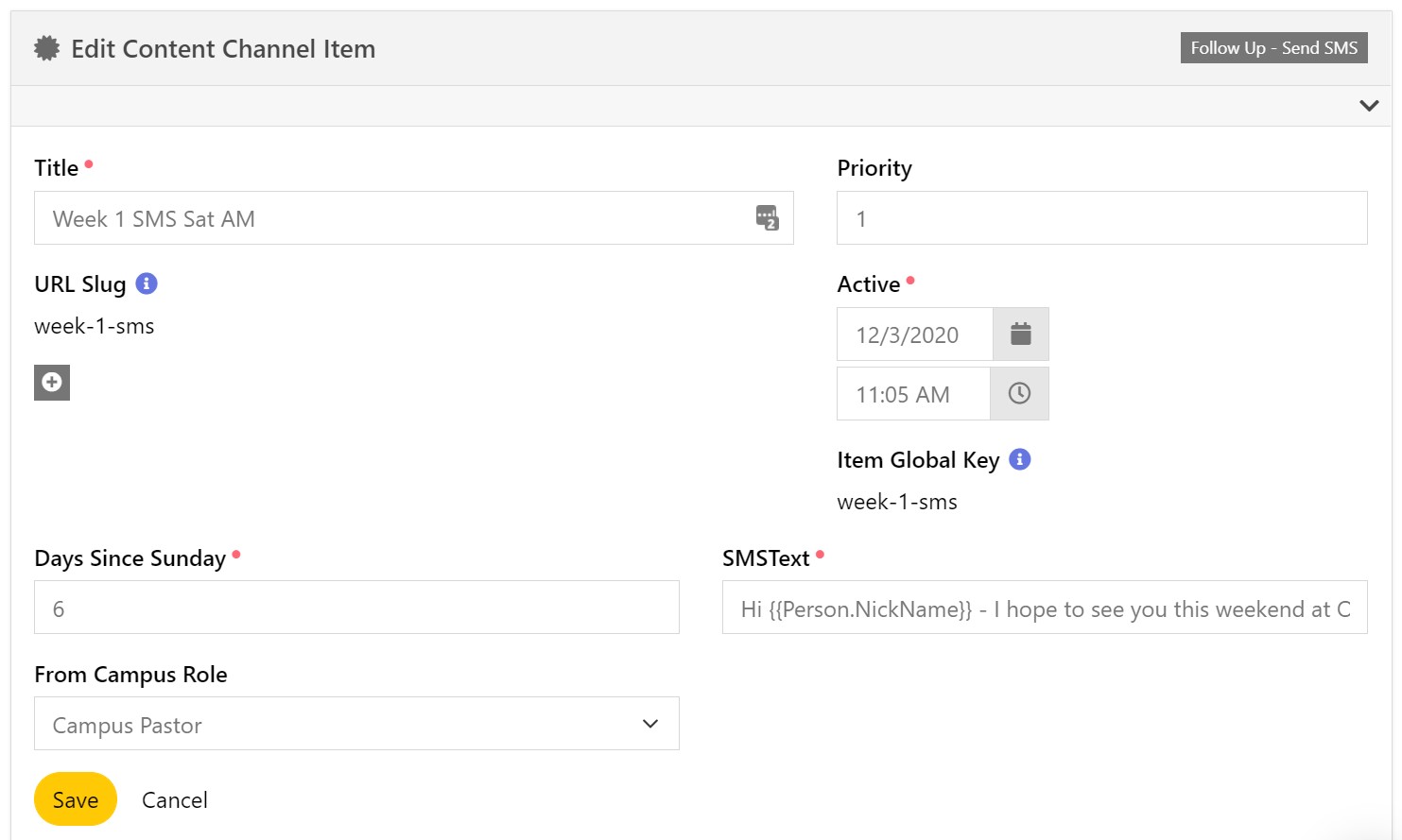
- Send SMS
- Set Follow Up Type to “Text Message”
- Item Attributes:
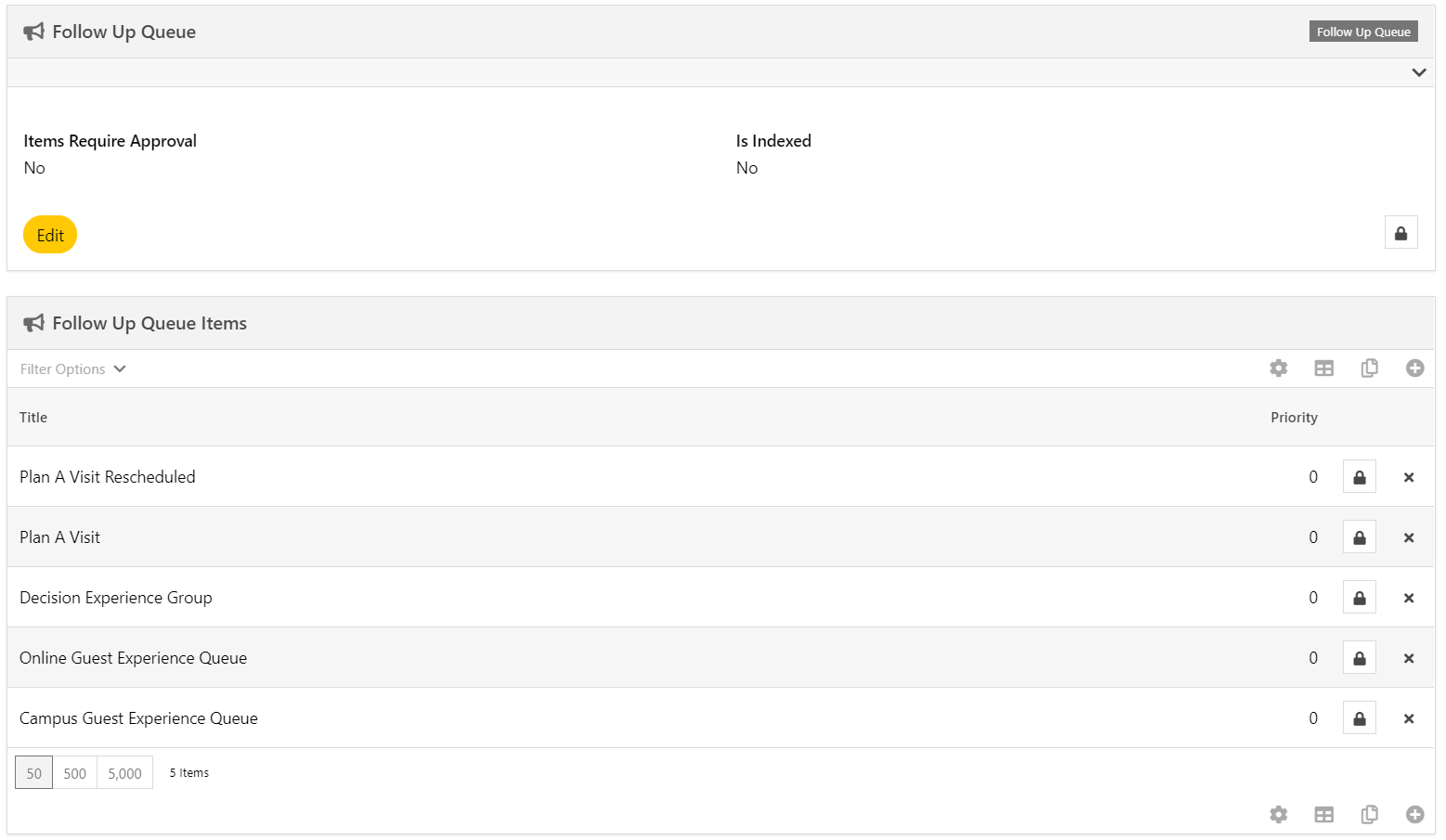
- Create a Content Channel of Type “Followup Queue”
- Add Child Content Channels for each Content Channel created in step 1
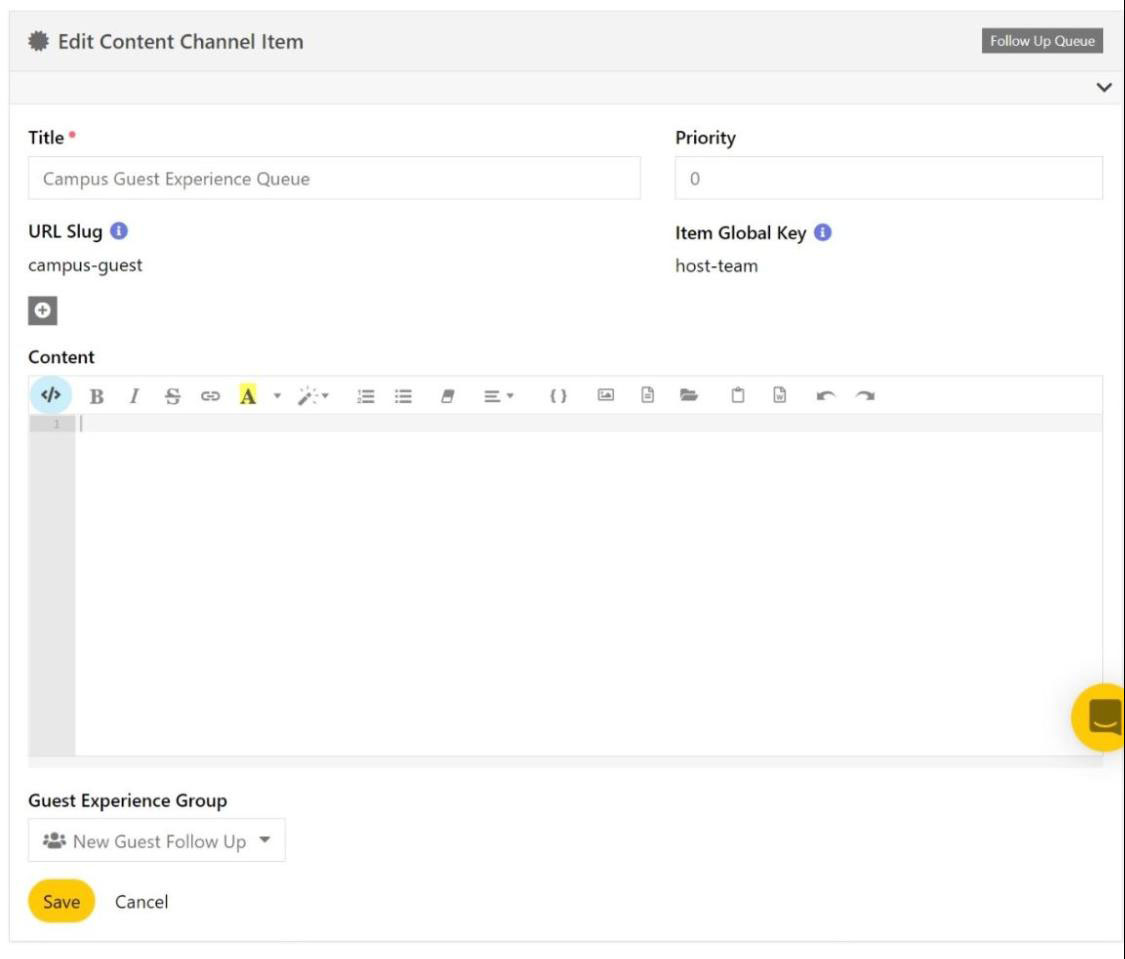
- Add Content Channel Items
- Map out the timing of all your automation and create the appropriate Actions as children under the
appropriate Follow Up Queue
Workflow
Import the Workflow from the attached json file “Automated Follow Up Action Template_202109010841.json”. You need the Guid of all 3 of your Action Content Channels to filter which action the workflow runs and change the filter for the actions in the "Start" Activity: Start Send Email Activity, Start SMS Activity and Start Create Connection Activity. Make sure to note the Workflow Type Id that the imported
workflow assigns.
The Guids can be found using SQL:
SELECT Id, Name, Guid FROM ContentChannel Where id in (22, 23, 24) -- Ids of the 3 Followup Action Content Channels
SQL
The SQL is the meat of the whole system. There are many variables that will be different based on your instance. It
resides inside the Job that runs as scheduled once a day.
DECLARE @QueueContentChannelGroupAttributeId INT
    , @ActionContentChannelDaysSinceAttributeId INT
    , @GroupMemberActiveDateAttributeId INT
    , @FollowupGroupType INT
    , @ChurchTimeZone VARCHAR(50);

-------------------------------------------
SET @QueueContentChannelGroupAttributeId = 20074;
-- When editing Content Channel Queue "Guest Experience Group" attribute value this would be listed AS "Content Item Attributes Id: 20074" IN the header.

SET @ActionContentChannelDaysSinceAttributeId = 20030;
-- When editing Content Channel Action "Days Since" attribute value this would be listed AS "Content Item Attributes Id: 20030" IN the header.

SET @GroupMemberActiveDateAttributeId = 20072;
-- When editing Group Types Member attribute of "Active Date" this would be listed AS "Group Member Attributes Id: 20072" IN the header.

SET @FollowupGroupType = 110;
-- The GroupType of Groups created "Guest Experience"

SET @ChurchTimeZone = 'Pacific Standard Time';
-- Other Common in USA = Mountain Standard Time, Central Standard Time, Eastern Standard TIME.Find ALL options BY running "SELECT * FROM sys.time_zone_info;"

-------------------------------------------
DECLARE @ContentChannelEntityTypeId INT
    , @DateAtChurchTimeZone DATE;

SET @ContentChannelEntityTypeId = (
        SELECT [ID]
        FROM EntityType
        WHERE [Name] = 'Rock.Model.ContentChannel'
        );
SET @DateAtChurchTimeZone = CAST(GETDATE() AT TIME ZONE 'UTC' AT TIME ZONE @ChurchTimeZone AS DATE);

SELECT gm.Guid GroupMember
    , cciAction.Guid ActionItem
FROM [GROUP] g
INNER JOIN AttributeValue avGroup
    ON avGroup.AttributeId = @QueueContentChannelGroupAttributeId
        AND TRY_CAST(avGroup.[Value] AS UNIQUEIDENTIFIER) = g.Guid
INNER JOIN ContentChannelItem cciQueue
    ON cciQueue.Id = avGroup.EntityId -- AND cciQueue.ContentChannelTypeId = 19
INNER JOIN ContentChannelItemAssociation cia
    ON cia.ContentChannelItemId = cciQueue.Id
INNER JOIN ContentChannelItem cciAction
    ON cciAction.Id = cia.ChildContentChannelItemId -- AND cciAction.ContentChannelTypeId = 21
INNER JOIN AttributeValue avDaysSince
    ON avDaysSince.AttributeId = @ActionContentChannelDaysSinceAttributeId
        AND cciAction.Id = avDaysSince.EntityId
INNER JOIN GroupMember gm
    ON g.Id = gm.GroupId
        AND gm.IsArchived = 0
        AND gm.GroupMemberStatus != 0
INNER JOIN AttributeValue avActiveDate
    ON gm.Id = avActiveDate.EntityId
        AND avActiveDate.AttributeId = @GroupMemberActiveDateAttributeId
        AND DATEDIFF(DAY, avActiveDate.ValueAsDateTime, @DateAtChurchTimeZone) = avDaysSince.ValueAsNumeric
INNER JOIN Person p
    ON gm.PersonId = p.Id
        AND NOT EXISTS (
            SELECT 1
            FROM Interaction i
            INNER JOIN PersonAlias pa
                ON i.PersonAliasId = pa.Id
                    AND pa.PersonId = gm.PersonId
            INNER JOIN InteractionComponent ic
                ON i.InteractionComponentId = ic.Id
                    AND ic.EntityId = cciAction.Id
            INNER JOIN InteractionChannel ich
                ON ic.InteractionChannelId = ich.Id
                    AND ich.ComponentEntityTypeId = @ContentChannelEntityTypeId
            )
WHERE g.IsActive = 1
    AND g.IsArchived = 0
    AND g.GroupTypeId = 110
Job
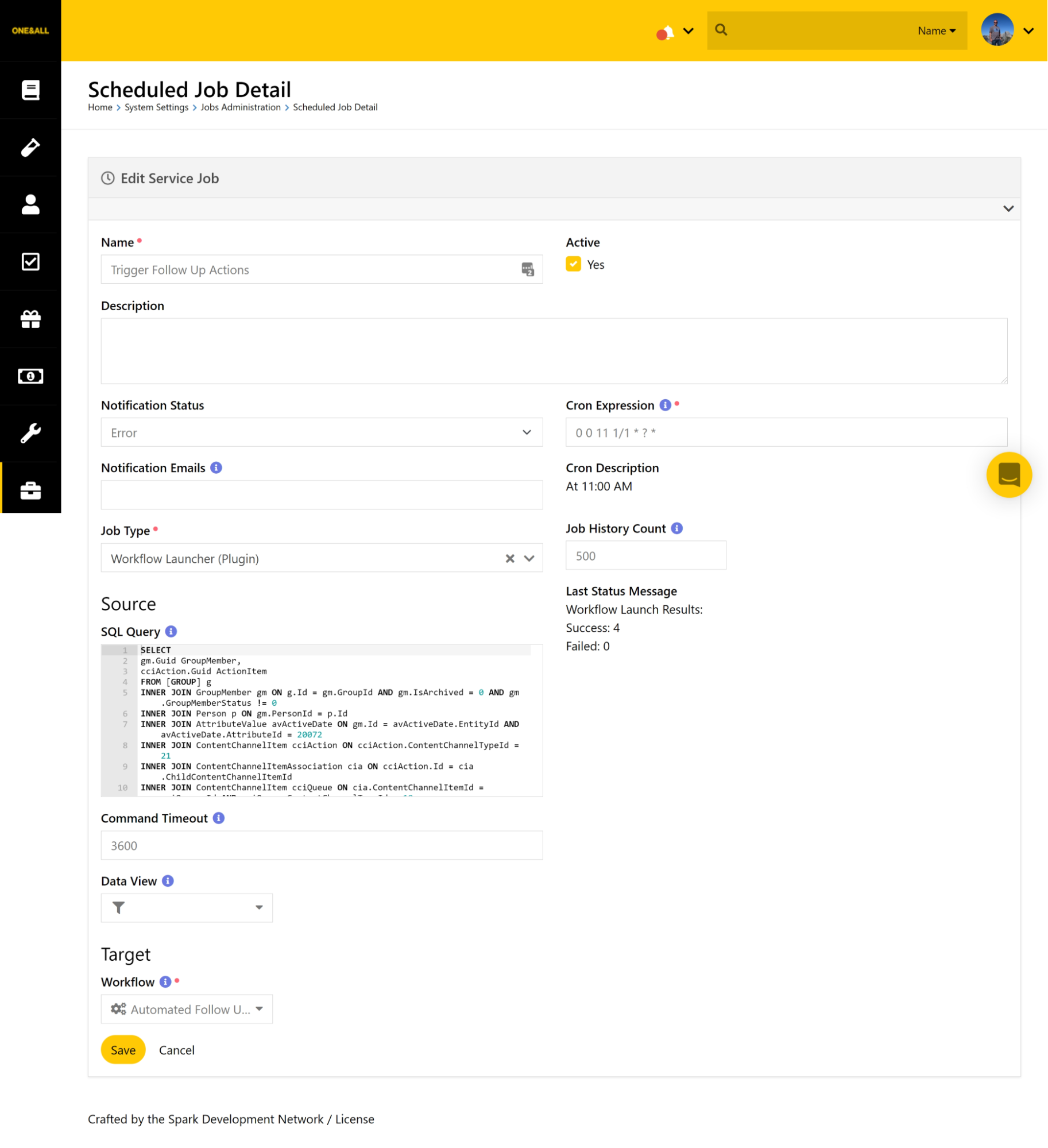
The job runs daily at any specified time you feel is appropriate to have your communications sent. You need to
install a plugin that launches a workflow for every entity in a SQL. You can find the plugin here: https://www.rockrms.com/rockshop/plugin/85/workflow-launcher
BONUS: Followup Group Viewer
- Duplicate the page used for Group Viewer and the Group Member Detail
- On the new Group Viewer Page:
- Modify the Block properties in the main zone named GroupDetailRight.
- Select the Group Type for the Followup Group and make sure it is the only Type selected in the
Group Type Includes field
- Modify the Block properties in the main zone named Group Member List.
- Select the Page copied in step 1 as the Group Member Detail Page for the Detail Page on the
block.
- On the Custom Grid Options tab, create custom columns in any order desiered:
- Age -
{{ Row.Person.Age }}
- Days Active -
{% assign midnight = 'Now' | Date:'MM/dd/yyyy 00:00:00' %}{{ Row | Attribute:'ActiveDate' | DateDiff:midnight,'d'}}
- Week -
{% assign midnight = 'Now' | Date:'MM/dd/yyyy 00:00:00' %} {% assign week = Row | Attribute:'ActiveDate' | DateDiff:midnight,'d' | DividedBy:7 | Ceiling %} {% if week > 0 %}Week {{ week }}{% endif %}
- Next -
{% contentchannel where:'ContentChannelTypeId == 21 && GuestExperienceGroup == "{{Row.Group.Guid}}"' Iterator:'Items' %}
    {% assign offsetlow = 100 %}
    {% assign midnight = 'Now' | Date:'MM/dd/yyyy 00:00:00' %}
    {% assign offset = Row | Attribute:'ActiveDate' | DateDiff:midnight,'d' | AsInteger %}
    {% for channel in Items %}
        {% for item in channel.Items %}
            {% assign showitem = 0 %}
            {% for pitem in item.ParentItems %}
                  {% assign parentgroup = pitem.ContentChannelItem | Attribute:'GuestExperienceGroup','RawValue' %}
                  {% if parentgroup == Row.Group.Guid %}
                      {% assign showitem = 1 %}
                  {% endif %}
            {% endfor %}
            {% if showitem == 1 %}
                {% assign days = item | Attribute:'DaysSinceSunday' | AsInteger %}
                {% if days > offset and days < offsetlow %}
                    {% assign type = item.ContentChannel | Attribute:'FollowUpType','RawValue' %}
                    {% assign offsetlow = days %}
                {% endif %}
            {% endif %}
        {% endfor %}
    {% endfor %}
{% endcontentchannel %}
{% if offsetlow < 100 %}
    {{ type }} on Day {{ offsetlow }}
{% else %}
    {% if offset == null %}
Not Active
    {% else %}
Complete
    {% endif %}
{% endif %}
Note: You may need to modify attribute names and ContentChannelTypeId == statement in this
lava
- Modify the Block properties in the sidebar1 zone named GroupViewLeft
- Select the Group Type for the Followup group and make sure it is the only type selected in the
Group Type Includes field
- Select the Parent Group of your Follow Up groups in the Root Group field
- Select the page copied in step 1 as the Group viewer Page for the Detail Page
- Create a new block in the sidebar1 zone named Queue List and make it a Dynamic Data Block
- Block Properties
- Query:
SELECT g.Id AS [Group]
    , avoffset.Value AS [Days]
    , cciaction.Title AS Action
    , cciaction.Id AS ccId
    , cciqueue.id AS ccQueue
FROM ContentChannelItemAssociation ccia
JOIN ContentChannelItem cciaction
    ON ccia.ChildContentChannelItemId = cciaction.Id
JOIN ContentChannel cc
    ON cciaction.ContentChannelId = cc.Id
JOIN AttributeValue avtype
    ON avtype.EntityId = cc.Id
        AND avtype.AttributeId = 20075 -- (find the Attribute Id of your “Follow Up Type” in the Follow Up Action Content Channel)
JOIN AttributeValue avoffset
    ON avoffset.EntityId = cciaction.Id
        AND avoffset.AttributeId = 20030 -- (find the Attribute Id of your “Days Offset” in the Follow Up Action Content Channel)
JOIN ContentChannelItem cciqueue
    ON ccia.ContentChannelItemId = cciqueue.Id
JOIN AttributeValue avgroup
    ON avgroup.EntityId = cciqueue.Id
        AND avgroup.AttributeId = 20074 -- (find the Attribute Id of your “Follow Up Group” in the Follow Up Queue Content Channel)
JOIN [Group] g
    ON avgroup.Value = g.Guid
WHERE cciaction.ContentChannelTypeId = 21
    AND g.Id = {{GroupId}}
ORDER BY cciaction.StartDateTime
- Formatted Output:
<h3>Guest Experience</h3>
<table class="table">
    <thead><tr><th>Days</th><th>Action</th></thead>
    <tbody>
        {% for row in rows %}
            <tr>
                <td>{{row.Days}}</td>
                <td><a href="/ContentChannelItem/{{row.ccId}}">{{row.Action}}</a></td>
                {% assign queue = row.ccQueue %}
            </tr>
        {% endfor %}
    </tbody>
</table>
<a href="/ContentChannelItem/{{queue}}" class="btn btn-primary">Guest Queue</a>
- On the New Group Member Detail Page:
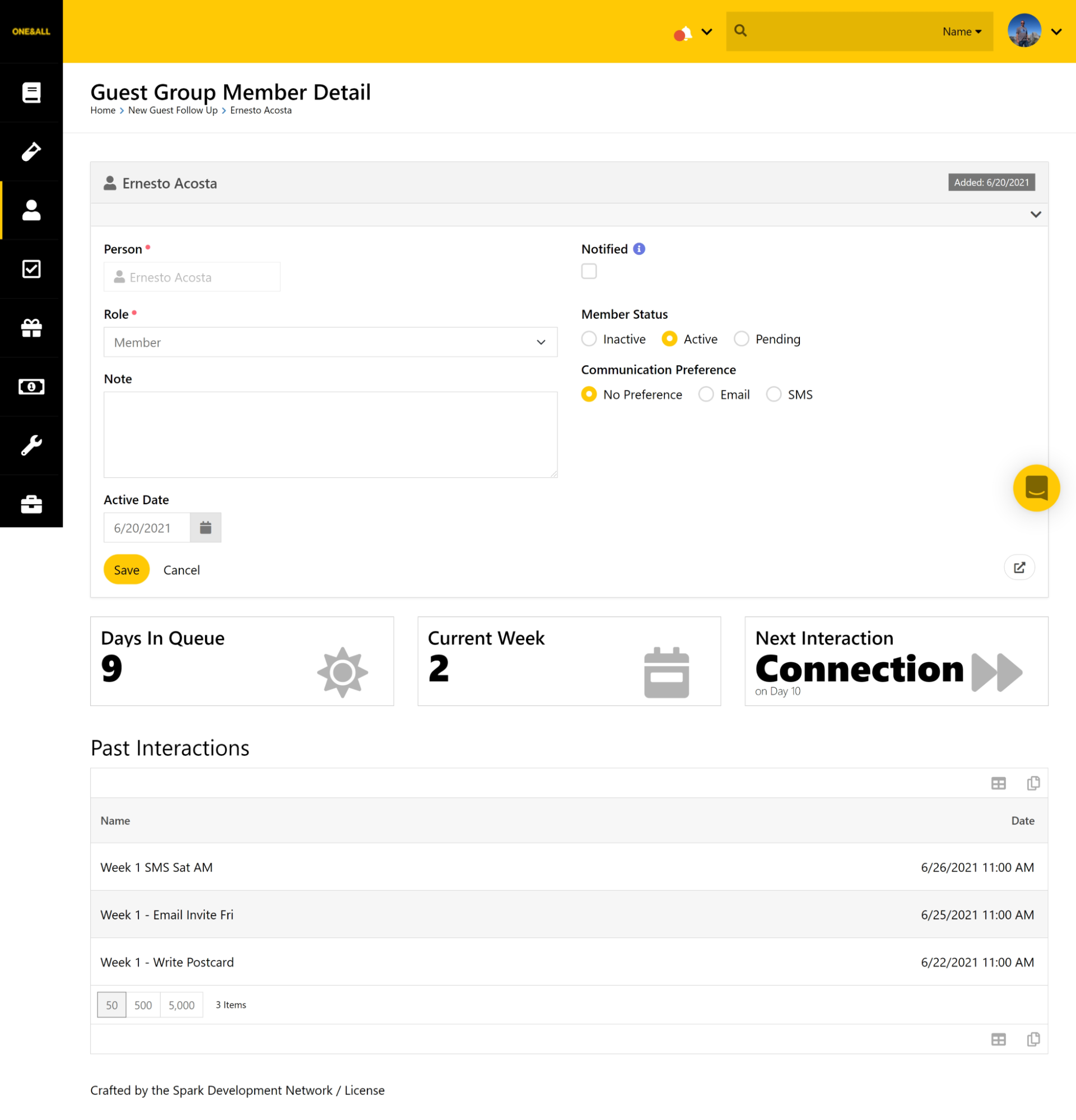
- Create 5 blocks in the Main Zone
- Group Member Detail (Group Member Detail)
- Member Details (HTML Content)
- Interactions Title (HTML Content)
- Follow Up Interactions (Dynamic Data)
- Notes (Notes)
- In Member Details Block:
{% stylesheet id:'home-feature' %}
.metric {
border: 1px solid #ccc;
padding: 12px;
margin-bottom: 12px;
}
.metric h5 {
font-size: 24px;
margin-top: 0;
margin-bottom: 0;
width: 100%;
white-space: nowrap;
overflow: hidden;
text-overflow: ellipsis;
}
.metric .value {
font-size: 48px;
font-weight: 800;
line-height: 1em;
}
.metric .value small{
display: block;
font-weight: 300;
font-size: 14px;
line-height: 1em;
}
.metric .icon {
float: right;
opacity: .3;
font-size: 65px;
border-radius: 0;
width: 85px;
height: 65px;
}
{% endstylesheet %}
{% assign groupmember = PageParameter.GroupMemberId %}
{% groupmember id:'{{groupmember}}' %}
{% assign Person = groupmember.PersonId | PersonById %}
{% assign Member = groupmember %}
{% endgroupmember %}
{% assign sundaydate = Member | Attribute:'ActiveDate' %}
{% assign midnight = 'Now' | Date:'MM/dd/yyyy 00:00:00' %}
{% if sundaydate != null %}
<div class="row">
<div class="col-md-4">
<div class="metric">
<h5>Days In Queue</h5>
<i class="icon fa fa-sun"></i>
{% assign days = sundaydate | DateDiff:midnight,'d' %}
<div class="value">{% if days %}{{ days }}{% else %}N/A{% endif %}<small> </small></div>
</div>
</div>
<div class="col-md-4">
<div class="metric">
<h5>Current Week</h5>
<i class="icon fa fa-calendar-week"></i>
<div class="value">{% assign week = sundaydate | DateDiff:midnight,'d' | DividedBy:7 | Ceiling %}
{% if week %}
{% if week >= 0 %}
{{ week }}
{% endif %}
{% else %}
N/A
{% endif -%}
<small> </small>
</div>
</div>
</div>
<div class="col-md-4">
<div class="metric">
<h5>Next Interaction</h5>
<i class="icon fa fa-forward"></i>
<div class="value">{% contentchannel where:'ContentChannelTypeId == 21' Iterator:'Items' %}
{% assign offsetlow = 100 %}
{% for channel in Items %}
{% for item in channel.Items %}
{% assign showitem = 0 %}
{% for pitem in item.ParentItems %}
{% assign parentgroup = pitem.ContentChannelItem | Attribute:'GuestExperienceGroup','RawValue' %}
{% if parentgroup == Member.Group.Guid %}
{% assign showitem = 1 %}
{% endif %}
{% endfor %}
{% if showitem == 1 %}
{% assign days = item | Attribute:'DaysSinceSunday' | AsInteger %}
{% assign offset = sundaydate | DateDiff:midnight,'d' | AsInteger %}
{% if days > offset and days < offsetlow %}
{% assign type = item.ContentChannel | Attribute:'FollowUpType','RawValue' %}
{% assign offsetlow = days %}
{% endif %}
{% endif %}
{% endfor %}
{% endfor %}
{% endcontentchannel %}
{% if offsetlow < 100 %}
{{ type }}
<small>on Day {{ offsetlow }}</small>
{% else %}
{% if offset == null %}
N/A
{% else %}
Complete
{% endif %}
{% endif %}
</div>
</div>
</div>
</div>
{% endif %}
Be sure to change any Attribute Names and ContentChannelTypeId different from ones listed.
- In Interactions Title:
<h3>Past Interactions</h3>
- In Follow Up Interactions:
- Query:
SELECT pa.PersonId
    , comp.Name
    , i.CreatedDateTime DATE
    , cci.Id ContentItemId
FROM Interaction i
JOIN InteractionComponent comp
    ON i.InteractionComponentId = comp.Id
JOIN InteractionChannel chan
    ON comp.InteractionChannelId = chan.Id
        -- AND chan.ComponentEntityId = 209 -- (Entity Id of "Content Channel Entity")
JOIN PersonAlias pa
    ON pa.Id = i.PersonAliasId
JOIN GroupMember gm
    ON pa.PersonId = gm.PersonId
JOIN [Group] g
    ON gm.GroupId = g.Id
JOIN ContentChannelItem cci
    ON comp.EntityId = cci.Id
JOIN ContentChannelItemAssociation cca
    ON cca.ChildContentChannelItemId = cci.Id
JOIN AttributeValue av
    ON av.EntityId = cca.ContentChannelItemId
        AND av.AttributeId = 20074 -- (find the AttributeId of the Group in the Followup Queue Content Channel)
WHERE chan.ChannelEntityId IN (22, 23, 24) -- Ids of the 3 Followup Action Content Channels
    AND gm.Id = {{ GroupMemberId }}
    AND av.Value = g.Guid
ORDER BY i.CreatedDateTime DESC
    --(Find the Ids of the 3 follow up action content channels)
-
Formatting:
- Hide Columns: PersonId, ContentItemId
- Selection URL: /ContentChannelItem/{ContentItemId}
Download related file (Automated_Follow_Up_Action_Template_202109010841.json)
Screenshots
- /GetImage.ashx?guid=a99a802a-6baf-426f-a48b-e3cd07f1462a