Recipe - Update the status of "Connected" Connection Requests to "Complete"
Skill level: Intermediate
Organization: Calvary Church (St. Peters, MO)
Requires Rock: 1.10.0
{# strip images & classes from the HTML but otherwise leave structure #}
In our organization, once a Connection Request is Connected, there is typically no further action that staff
need to take. Unfortunately, this means that often the Connection Requests are left with a Status that is not
"Complete"
This is how we have the Connection Request Status automatically set to Completed when a Connection Request State is
set to Connected. If your organization uses the Status function differently, you'll need to adjust this recipe.
This guide depends on using the Connection Type Id for filtering.
Therefore, if new Connection Types are added, this workflow will need to be updated. To use this for multiple Connection Types, you can either duplicate the Workflow Type for each Connection Type, or modify the workflow to account for the 'selected' connection type (which is more advanced, and not covered in this recipe)
The workflow is attached at the end (you'll want to edit it...)
Tools used:
- A simple workflow that sets the request to Completed
- A workflow trigger that initiates the workflow
How this works:
For this to work, you'll need to configure 2 major components: The Workflow and The Workflow Trigger on the Connection Type
- The Workflow Trigger on the Connection Type initiates the workflow when the Connection Request is connected
- The Workflow sets the Connection Request Status to Completed
The workflow
If a setting isn't mentioned, it's stock (or not worth mentioning)
Use the sections below (Basic Settings, Advanced Settings, Attributes, and Activities) to build the workflow from this recipe. I have also attached the workflow export to this recipe (if you want to attempt importing and customizing instead of building it)
Basic Settings:
- Automatically Persisted (Yes)
- Description:
- This workflow will parse the (initiating) Connection Request, set workflow attributes for the type,
opportunity, request, and status. Then it will automatically change the Connection Request Status to the
appropriate 'Completed' status for the Connection Type. This workflow is primarily initiated via
workflow trigger, but can also be used from a grid.
The workflow also has an attribute for "Debug
Mode" which should have one of 2 values: a value of "Not_Debug" if you don't want to populate the "Debug
Dump" workflow attribute, and a value of "Debug" if you do want to populate the "Debug Dump" workflow
attribute.
- Icon CSS Class:
Select whichever icon you would like (or none). I went with a check-mark in a square using the 'light' style (we use FontAwesome Pro)
Advanced Settings:
- Processing Interval (Minutes): 480
- Logging Level: None
- Completed Workflow Retention Period (Days): 3
- Log Retention Period (days): 2
Attributes (7):
Connection Request
- Key: ConnectionRequest
- Field Type: Connection Request
Initial Connection Request Status
- Key: InitialConnectionRequestStatus
- Field Type: Connection Status
Debug Mode
This is used for enabling/disabling dumping debug data into a visible workflow
attribute. To enable debug mode, use "Debug" as the default value for the workflow attribute. To disable debug
mode, use "Not_Debug" as the default value for the workflow attribute
- Key: DebugMode
- Field Type: Text
Debug Dump
This is used for dumping debug data into a visible workflow attribute
- Key: Debug
- Field Type: Memo
This field type also can be listed on the grid if you'd like (which adds it to the Details page, and should allow
HTML in the Memo
Connection Type
This isn't actively used in actions, but is super helpful to have in place so you know what the request type is when
looking at the workflow result
- Key: ConnectionType
- Field Type: Connection Type
Connection Opportunity
- Key: ConnectionOpportunity
- Field Type: Connection Opportunity
Initial Connection Type Id
- Key: InitialConnectionTypeId
- Field Type: Text
Activities
Activity: Set workflow attributes from Connection Request, Dump Debug
- Active: Yes
- Activated with Workflow: Yes
- Description: Populate the workflow attributes, dump debug data (if debug is enabled), and move on to the activity
that makes changes
Actions:
Set Connection Request Attribute to the Request of the initiating Request
- Action is completed on success: Yes
- Activity is completed on success: No
- Action Type: Attribute Set from Entity
- Attribute: Connection Request
- Entity is Required: Yes
- Use Id instead of Guid: No
- Lava Template:
Set Connection Request Opportunity Attribute to the Opportunity of the initiating Request
- Action is completed on success: Yes
- Activity is completed on success: No
- Action Type: Attribute Set from Entity
- Attribute: Connection Opportunity
- Entity is Required: Yes
- Use Id instead of Guid: No
- Lava Template:
- {{ Entity.ConnectionOpportunity.Guid }}
Set the Initial Connection Request Type Id Attribute to the Type of the initiating Request
- Action is completed on success: Yes
- Activity is completed on success: No
- Action Type: Attribute Set from Entity
- Attribute: Initial Connection Type Id
- Entity is Required: Yes
- Use Id instead of Guid: No
- Lava Template:
- {{ Entity.ConnectionOpportunity.ConnectionTypeId }}
Set Connection Request Type Attribute to the Type of the initiating Request
- This action makes it much easier to know which Type was targeted (as it's more easier readable than an Id)
- Action is completed on success: Yes
- Activity is completed on success: No
- Action Type: Attribute Set from Entity
- Attribute: Initial Connection Type Id
- Entity is Required: Yes
- Use Id instead of Guid: No
- Lava Template:
- {{ Entity.ConnectionOpportunity.ConnectionType.Guid }}
Set Initial Connection Request Status Attribute to the Status of the initiating Request
- Action is completed on success: Yes
- Activity is completed on success: No
- Action Type: Attribute Set from Entity
- Attribute: Initial Connection Request Status
- Entity is Required: Yes
- Use Id instead of Guid: No
- Lava Template:
- {{ Entity.ConnectionStatus.Guid }}
Write Debug
- Filter:
- Run If: `Debug Mode`
- Equal To `Debug`
This is a text workflow attribute, so you'll need to type this correctly
- Action is completed on success: Yes
- Activity is completed on success: No
- Action Type: Attribute Set from Entity
- Attribute: Debug Dump
- Entity is Required: Yes
- Use Id instead of Guid: No
- Lava Template:
Check the Lava documentation for info on using other entities, such as 'Entity.ConnectionOpportunity.ConnectionType'
Activate Activity Complete the Connection Request...
- Action is completed on success: Yes
- Activity is completed on success: Yes
- Action Type: Activate Activity
- Activity: Complete the Connection Request, Launch Complete Activity
Activity: Complete the Connection Request, Launch Complete Activity
- Active: Yes
- Activated with Workflow: No
- Description: Modify the connection request Status to be 'Completed', then launch the activity Complete Workflow
Actions:
( Opportunity Type's Name ): Set Connection Request
Status to Completed
For each of the Opportunity Type's you'll be using this workflow for, you'll need to create an Action (each with a unique filter)
There is a picture of my Workflow's Action Filters attached to this recipe... you probably want to download it to view the details if needed
- Filters:
Important!: this must be done for each Connection Type you want to enable this workflow for. Find the
ConnectionTypeId for the type, and then use that as the value you're filtering on (as that value will be populated
in the first activity of the workflow) - Run If: Initial Connection Type Id
- Equal To: ( a Text Value )
Insert the appropriate Text Value into this field. You can look up the Id by going to the Connection Type edit page
and looking at the query string parameter
For example:- 1 = Ministry Involvement
- 4 = Membership
- Action is completed on success: Yes
- Activity is completed on success: No
- Action Type: Connection Request Set Status
- Connection Request Attribute: Connection Request
- Connection Request Status Attribute:
- Connection Status: ( Completed )
Select the appropriate 'Completed' status. You must select the Status that corresponds to the Type matching the
filter for the action you're editing. Failure to select the appropriate Status may result in odd, abnormal
behavior...
Activate Activity Complete Workflow
- Action is completed on success: Yes
- Activity is completed on success: Yes
- Action Type: Activate Activity
- Activity: Complete Workflow
Activity: Complete Workflow
- Active: Yes
- Activated with Workflow: No
- Description:
Actions:
Complete Workflow
- Action is completed on success: Yes
- Activity is completed on success: Yes
- Action Type: Workflow Complete
The Workflow Trigger on the Connection Type
How to set the Connections Type to trigger the workflow when the Connection Request Status changes.
- Edit the Connection Type (such as Ministry Involvement)
- Select the Workflows accordion
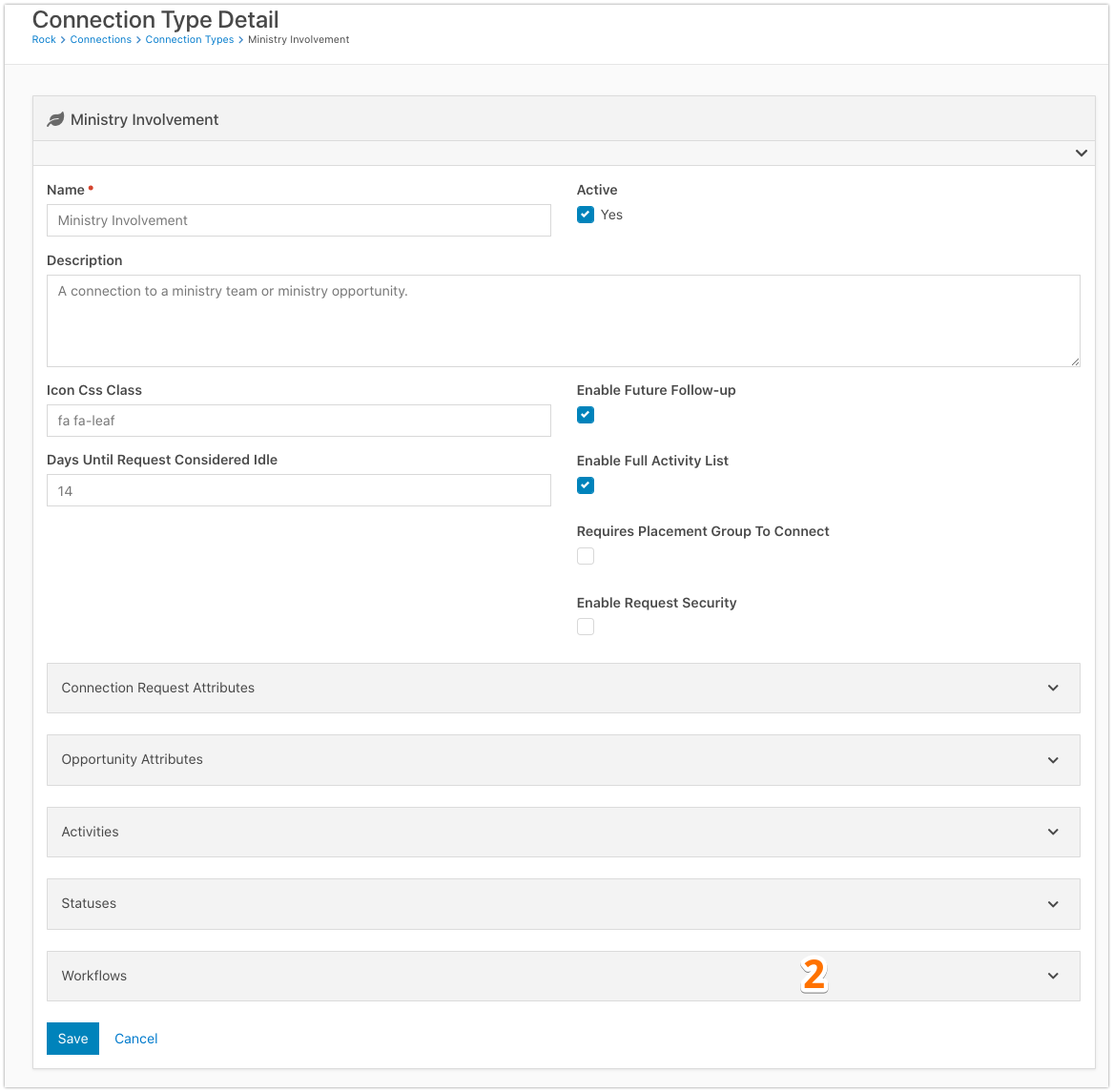
- Add a new workflow
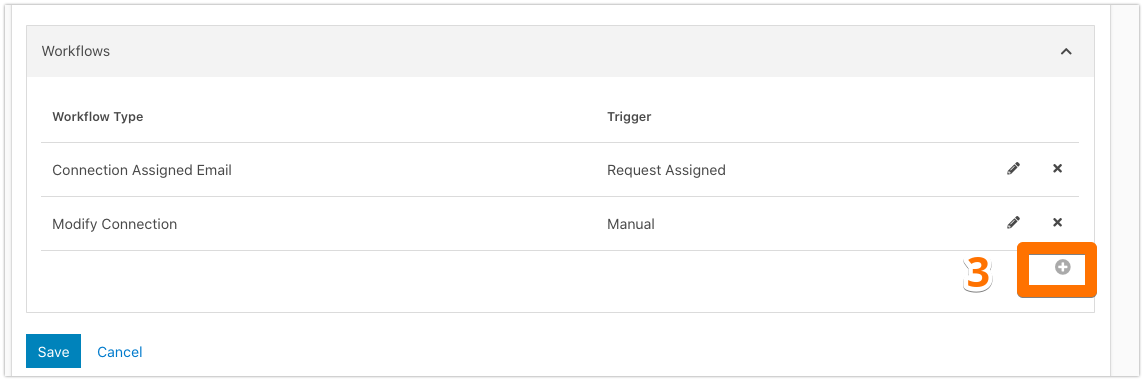
- Set the Workflow Trigger and Type

- Trigger: Request Connected
- Type: Auto-Complete Connection Request(s)
Select the workflow you created
My workflow is attached (below, the Download button)
Download related file (Auto_Complete_Connection_Request_s__202103161540.json)
Screenshots
- /GetImage.ashx?guid=4ccabb70-7f26-4a83-8645-543821398272