Recipe - Perfect Volunteer Label
Skill level: Beginner
Organization: Lighthouse Church
Requires Rock: 1.12.0
{# strip images & classes from the HTML but otherwise leave structure #}
Maybe you find yourself like us in the midst of COVID with a lot of new visitors to church. With lots of new visitors and lots of new volunteer team members it has become more and more important for our volunteers to be identifiable.
Up to this point we have not done name tags with our volunteers, being a small as we are, but we are ready to launch into name tags.
When I first started working on this I was stuck. Thanks to Ben Murphy, for all his help, this recipe is his brain child.
Step 1
Person Attributes: We needed to create a few person attributes to put on our label. I will use one, as an example but you could use any that you would like.
Create a person attribute. General Settings> Person Attributes> + new attribute
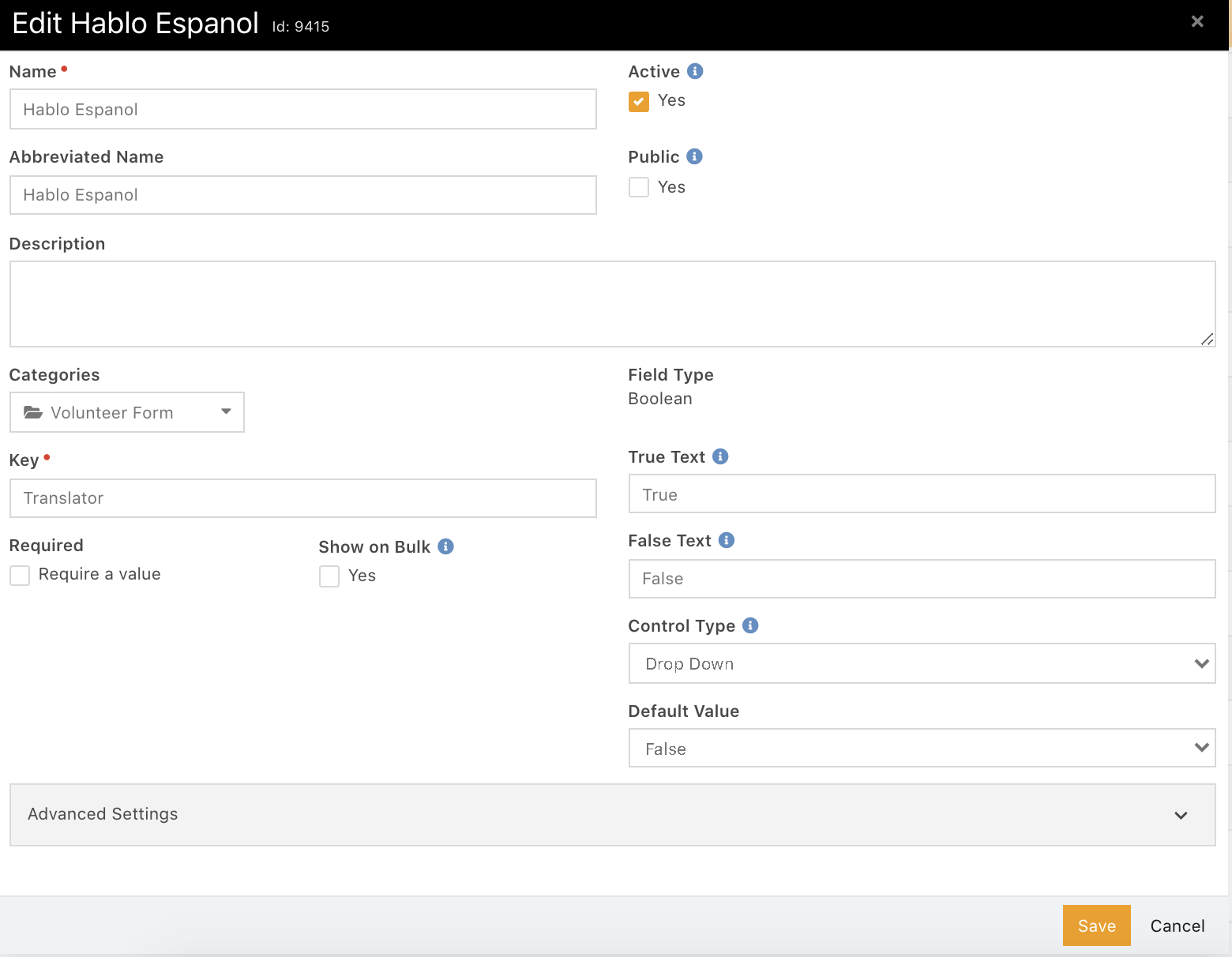
Make sure your key is what you would like it to be. The Key is the most important part here. We chose Boolean that way everyone would default to false, then we could change it to true on certain types.
Step 2: Create a Label Merge Field
Checkin> Label Merge Field> Add a new one
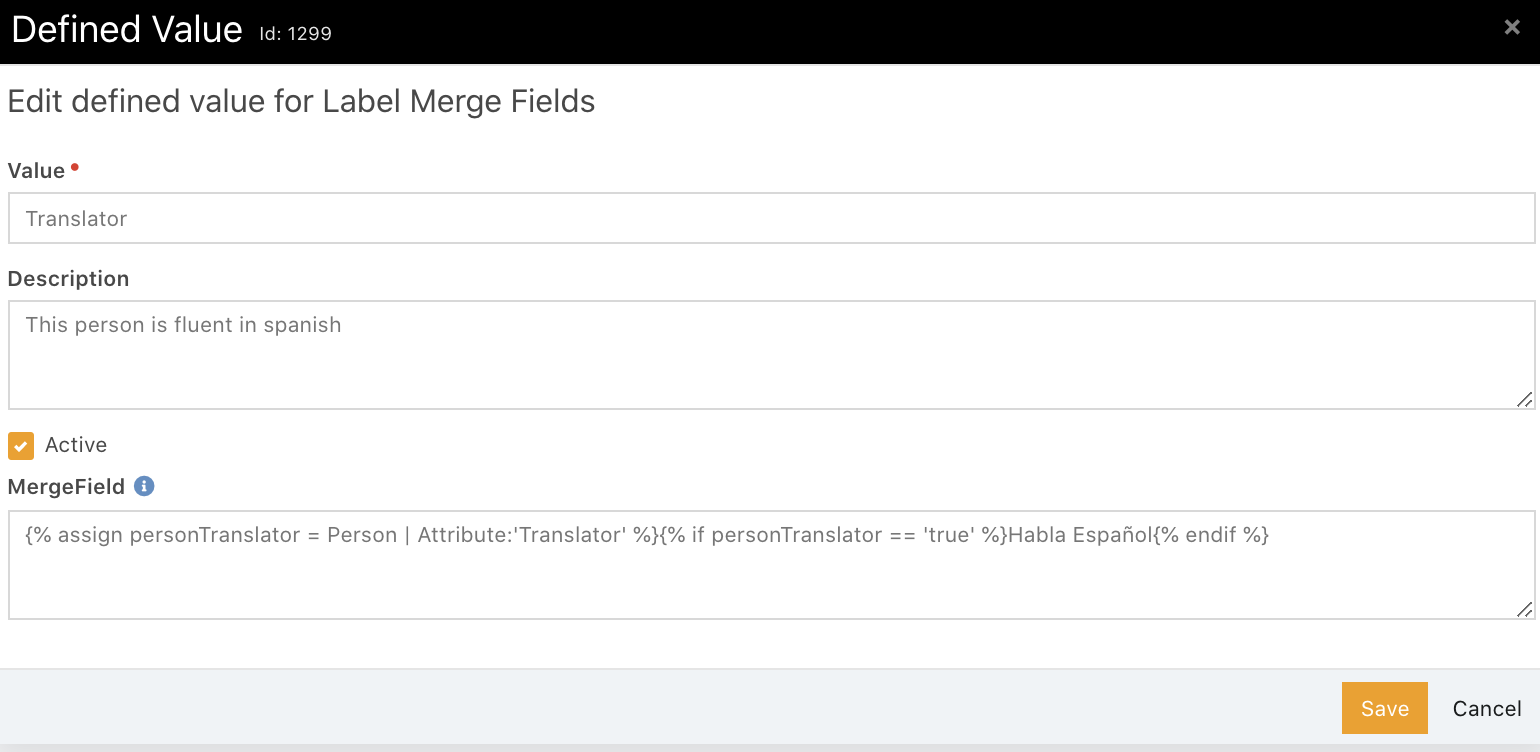
The merge field here is saying that the person attribute of translator if it is marked as true that it needs to mark it on the label.
MERGE FIELD: {% assign personTranslator = Person | Attribute:'Translator' %}{% if personTranslator == 'True' %}Habla Español{% endif %}
Step 4: Create Check In Label
We used the Name tag Label, but you could start from scratch
General Settings >Checkin Labels>Name Tag
First, you will add a Merge Code that indicates the Label Merge Field
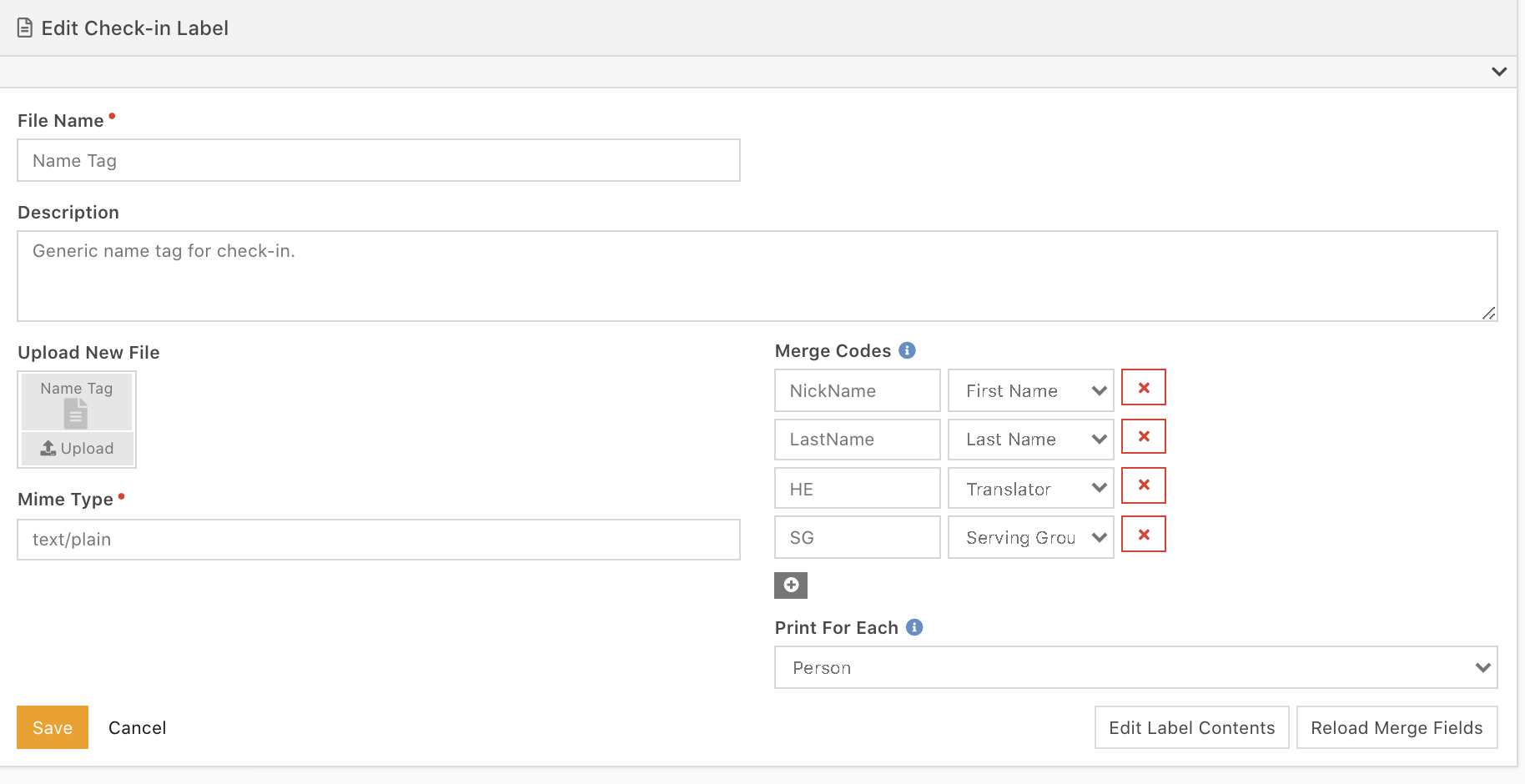
Step 5: Edit Label Contents
Press the edit label contents
Add this line to the end of your label or wherever you would like it
^FT16,330^A0N,40,55^FH\^FDHE^FS
The end of this line is what tells it to place the label merge field.
This is obviously fully customizable.
Optional Step:
This part was 100% Ben Murphy, I love the idea of putting a greeting at the top of our name tag so if you'd like to do that. Here is the Code we use, feel free to copy it or make your own.
�CT~~CD,~CC^~CT~
^XA~TA000~JSN^LT0^MNW^MTD^PON^PMN^LH0,0^JMA^PR6,6~SD24^LRN^CI28^XZ
^XA
^MMT
^PW812
^LL0406
^LS0
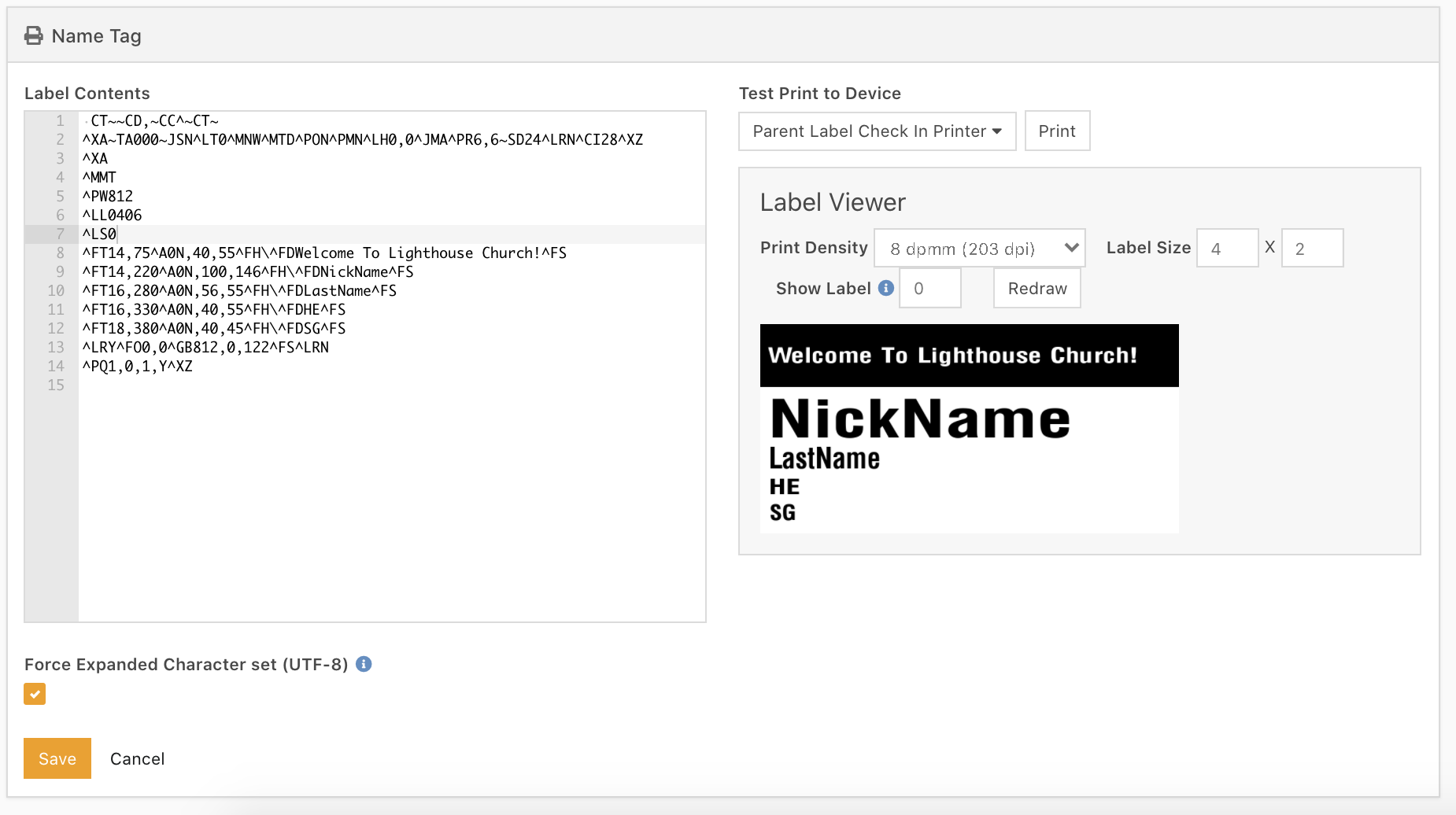
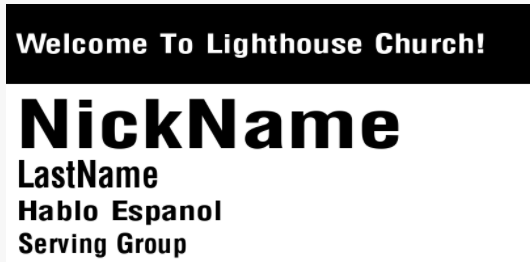
^FT14,75^A0N,40,55^FH\^FDWelcome To Lighthouse Church!^FS
^FT14,220^A0N,100,146^FH\^FDNickName^FS
^FT16,280^A0N,56,55^FH\^FDLastName^FS
^FT16,330^A0N,40,55^FH\^FDHE^FS
^FT18,380^A0N,40,45^FH\^FDSG^FS
^LRY^FO0,0^GB812,0,122^FS^LRN
^PQ1,0,1,Y^XZ
This will render this:
Please feel free to shoot me questions in slack. I am by no means an expert, but I'd love to help if possible. You can find me on Rocket Chat.
Download related file (Screen_Shot_2020_08_21_at_2.32.01_PM.png)
Screenshots
- /GetImage.ashx?guid=e8f0abe9-ef22-4672-b525-ee916b955f45