Server model validation keeps Lava and HTML out of fields that were never meant to hold them. Before you turn it on, Rock shows you what it would likely block, so you can fix each issue first and flip the switch with confidence.
It's a strong layer of protection, but turning it on without preparation could stop a staff member's save in the middle of a busy week. That's why Rock logs first and blocks later. Saves that validation would reject land in your Exception Log, so you can fix the cause long before anyone runs into it.
This post walks through that review: where to find the exceptions, how to read them and how to resolve each one. Most fixes come down to checking Allow Lava or Allow HTML on an attribute. The rest point to a workflow, import or habit that's saving content where it doesn't belong.
Check Your Version
Validation logging is available in Rock 17.9, 18.5, 19.5 and 20.0, plus any later release in each of those version lines. Earlier versions don't log these exceptions.
Plan on About a Month
Check the Exception Log once a week for roughly four weeks. That gives your weekly and monthly processes time to run and log anything they would trip over. Here's the full path from first look to fully enabled:
- Review the Exception Log for the two exception types covered in this post.
- Fix attribute exceptions by adjusting attribute settings or cleaning up the source of the content.
- Fix property exceptions by updating the workflows, imports, integrations or staff habits that produce them.
- Confirm the log is quiet. By your last weekly check, aim for zero new validation exceptions, or only ones you've reviewed and are comfortable having blocked.
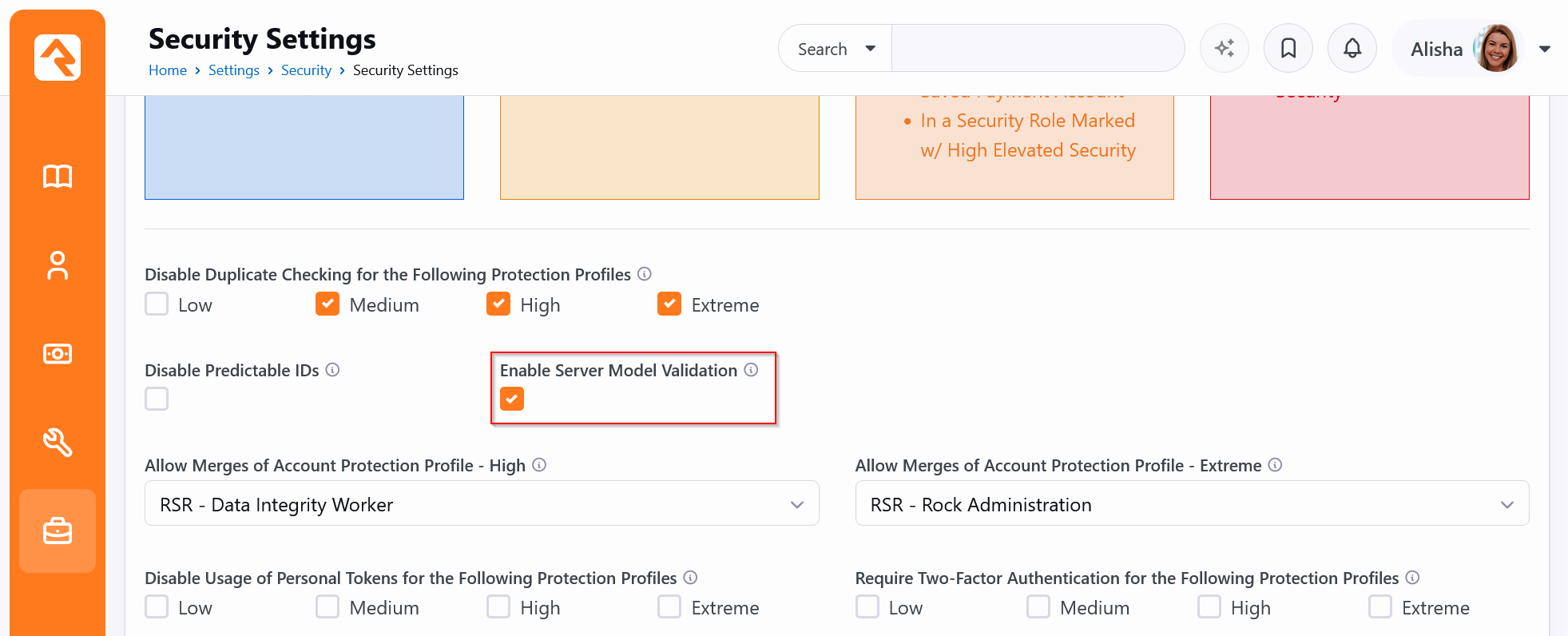
- Turn it on. Go to
Admin Tools > Settings > Security > Security Settings, check Enable Server Model Validation and save.
- Restart Rock. The setting is only read when Rock starts, so it doesn't take effect until the application restarts.
- Monitor. For the first few weeks, watch the Exception Log and listen for staff reports of saves that fail. Failures are usually logged and point to the exact attribute or field involved.
When you're ready, the setting lives on the Security Settings page.
Know the Two Exception Types
Rock logs two kinds of validation exceptions, and each one gets a different fix.
- Attribute Value Validation (
Rock.Security.AttributeValueValidationException) means a value saved into an attribute contained something that attribute isn't configured to allow. The most common case by far is Lava or HTML in a Text or Memo attribute.
- Property Validation (
Rock.Security.PropertyValidationException) means a value saved into one of Rock's built-in fields, such as a person's name, a group's name or a page title, contained something that field never allows.
Validation only runs when something is saved. Records that are never edited won't generate errors, even if they already hold content that isn't allowed, so the log reflects what's actually happening day to day. When a record is saved, the checks work like this:
- Attribute values are checked only when the value is new or has changed. Workflow form fields are the exception: every editable field is checked each time the form is submitted.
- Built-in fields are all checked whenever the record is saved, not only the ones that changed. If a person's last name already contains HTML, editing only their email address will still log (or, once enabled, block) the save.
Find the Exceptions
- Go to
Admin Tools > Settings > System > Exception List.
- Enter
validationexception in the search box. Look for AttributeValueValidationException and PropertyValidationException in the Type column. Other types that match the search aren't covered here.
- Use the Description column to see which attribute or property is affected.
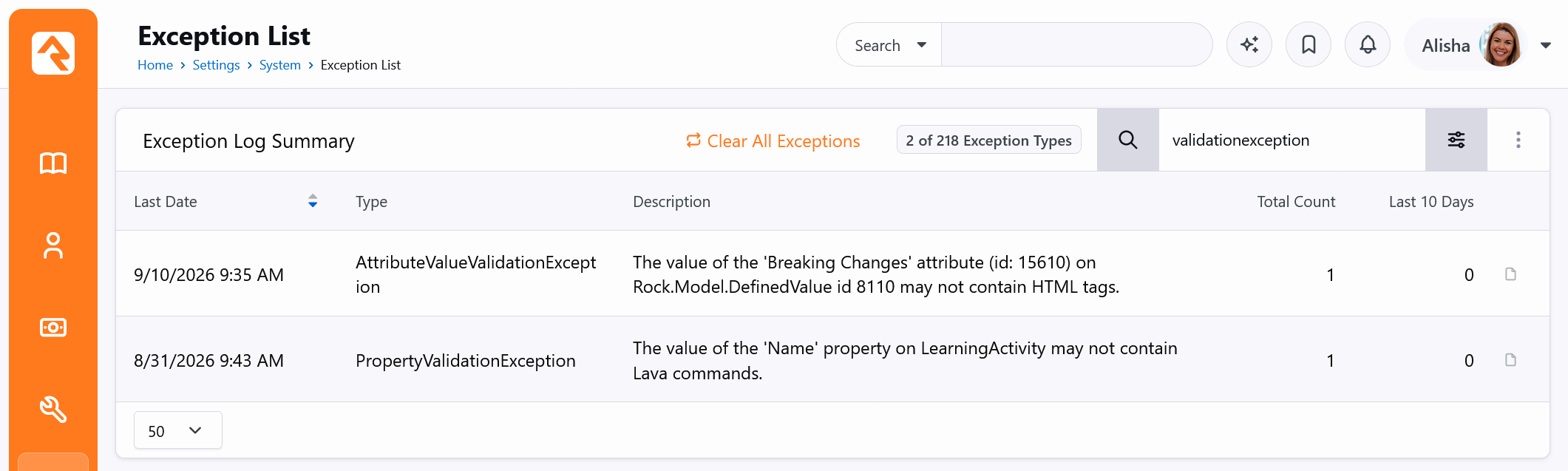
Select any exception to see each occurrence, including the page URL and stack trace, when you need to know where it came from.
Read the Message
Attribute Exceptions
The value of the '<Attribute Name>' attribute (id: <AttributeId>) on <Entity Type> id <EntityId> <reason>.
For example:
The value of the 'Breaking Changes' attribute (id: 15610) on Rock.Model.DefinedValue id 8110 may not contain HTML tags.
- Attribute name and id tell you exactly which attribute to fix.
- Entity type tells you what kind of record the attribute belongs to, which helps you find it.
- Entity id is the specific record that was being saved, useful for looking at the actual value.
- Reason tells you what kind of content was rejected.
Global attributes use a slightly different format: The value of the '<Name>' global attribute (id: <Id>) on entity id 0 <reason>.
Property Exceptions
The value of the '<Property Name>' property on <Entity Type> <reason>.
For example:
The value of the 'Name' property on LearningActivity may not contain Lava commands.
These refer to a built-in field on the entity, not an attribute, and they're fixed at the source. See Fix Property Exceptions later in this post.
Fix Attribute Exceptions
Decide Whether the Content Belongs There
Before changing anything, look at the value that was saved if you can, and ask one question: is this attribute meant to hold Lava or HTML?
- Yes, it's expected. A group type attribute that holds a Lava template for a welcome email, or a content channel attribute that holds formatted text. Turn on the matching option.
- No, it arrived by accident. Someone pasted formatted text into a plain text field, or a workflow wrote output that still contained unresolved Lava. Fix the source and leave the attribute locked down.
Turning on Allow Lava or Allow HTML loosens protection on that attribute. Only turn them on where the content is genuinely expected, and take extra care with attributes the public can edit, such as registration forms, workflow entry forms on your external site and public profile editing.
Choose the Fix
Turn on only the option that matches the reason in the message: Allow Lava for Lava, Allow HTML for HTML tags. Which options you'll see depends on the field type.
- Text offers Allow Lava and Allow HTML. These options have no effect when the attribute is marked as a first name field.
- Value List offers Allow Lava and Allow HTML.
- Memo offers Allow HTML. Memo attributes always allow Lava.
- Other field types don't have these options. Fix the source instead.
If the reason in the message is anything other than Lava or HTML tags, treat it as a source problem. That content isn't allowed in these field types even with both options on.
A few field types are unrestricted and never generate these exceptions: HTML, Code Editor, Lava and Structured Content Editor. Markdown allows Lava and basic HTML.
{% raw %}Keep in mind that Lava detection is a simple text check. Any value containing {{, {% or {[ counts as Lava, even if it wasn't meant as Lava, such as JSON or text copied from a template. The fix is the same: turn on Allow Lava if that content is expected.{% endraw %}
Find and Edit the Attribute
If you already know where the attribute is managed, such as on a defined type or a workflow type, edit it there. Otherwise, the Entity Attributes page lists every attribute in Rock and is the quickest way to track one down.
- Go to
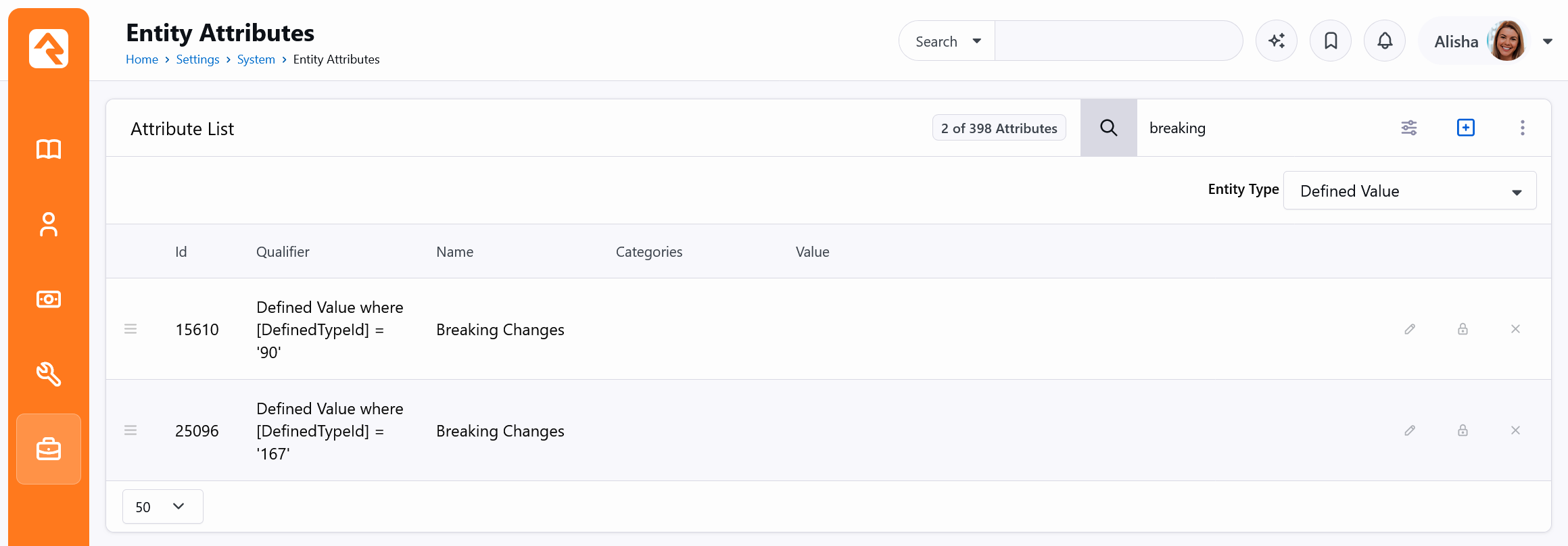
Admin Tools > Settings > System > Entity Attributes.
- Set Entity Type to the entity type from the exception message. For example,
Rock.Model.DefinedValue is Defined Value. For global attributes, choose Global Attributes.
- Enter part of the attribute name in the search box.
- If more than one attribute matches, use the Id column to pick the one whose id matches the exception message.
In the following example, two Defined Value attributes are named "Breaking Changes." The exception message said (id: 15610), so the first row is the one to edit.
If the entity type is Rock.Model.Block, Rock.Model.WorkflowActionType or another component whose attributes are defined in code, don't edit the attribute. See Attributes Defined in Code later in this section.
To make the change:
- Select the edit (pencil) icon on the attribute row.
- In the field type configuration area under the Field Type selection, check Allow Lava, Allow HTML or both, based on the reason in the message.
- Save the attribute.
The following example is a Memo attribute, so only Allow HTML appears. Text and Value List attributes show Allow Lava in the same area.
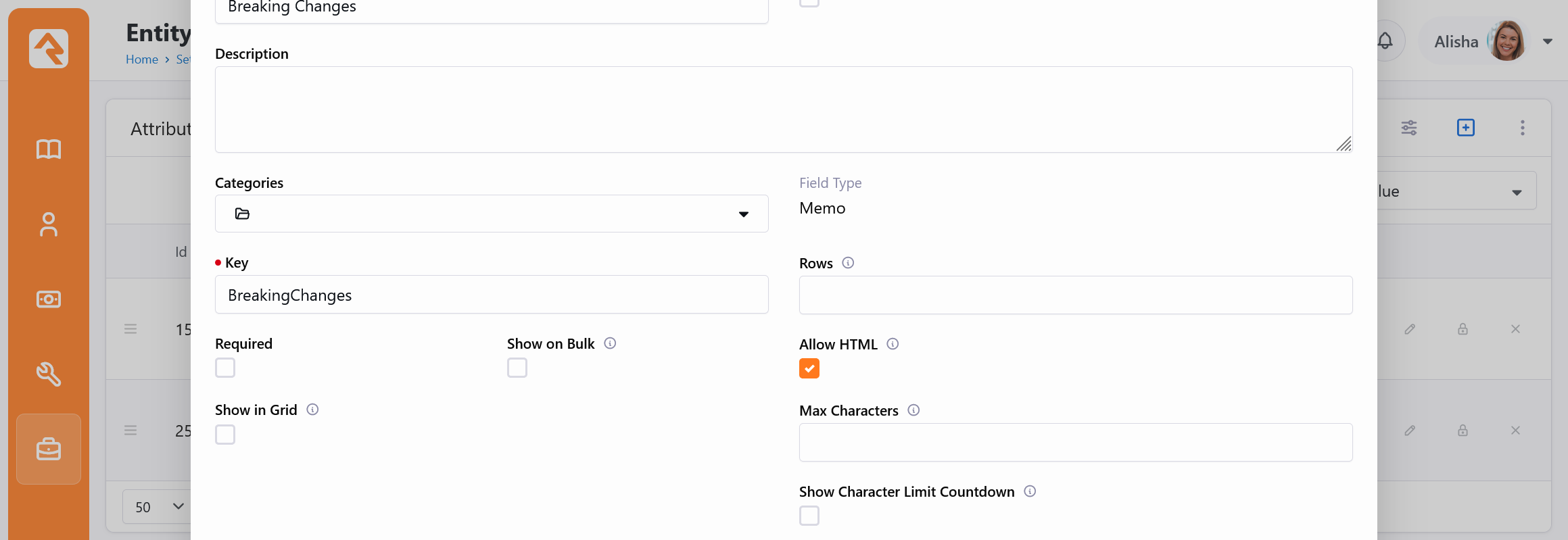
The change takes effect immediately. No restart is required.
Confirm the Fix
Re-save one of the affected records, or re-run the process that produced the value, and confirm no new exception is logged for that attribute. Existing log entries don't clear on their own, so note the time you made the fix and only look at entries logged after it.
Attributes Defined in Code
Attributes on blocks, workflow actions, jobs and other components are declared in code. If one of these shows up in the log with reasonable content, such as a block setting meant to hold a Lava template, the attribute definition likely needs to be updated to allow that content. This is usually a simple oversight.
- If it comes from core Rock, report it on the Rock issue tracker with your Rock version and the full exception message.
- If it comes from a plugin, report it to the plugin's author.
Fix Property Exceptions
Built-in properties have fixed rules that can't be changed through settings. A person's name, for example, will never allow HTML. To resolve these, find and change whatever is putting the content there.
Change the Process
- Workflows: make sure Lava used to set names, titles or other simple fields outputs plain text. Use filters such as
StripHtml where formatted content might sneak in.
- Imports and integrations: clean or strip formatting from the source data before it's sent to Rock.
- Lava templates: check that entity commands set only plain values on simple properties.
- Staff habits: train staff to paste as plain text (Ctrl+Shift+V in most browsers) when entering names and titles, and to avoid copying from word processors or emails into simple fields.
- Plugins: contact the plugin's author.
Clean Up Existing Data
Changing the process stops new invalid content, but records that already contain it will keep reporting the same error every time they're saved, even when the invalid field wasn't touched. Once validation is enabled, those saves will fail. Clean up the existing data, or expect these errors to keep appearing until you do.
Confirm the Fix
Note the time of the fix and confirm no new entries appear for that property afterward, other than from records you haven't cleaned up yet.
Turn It On
Once no new validation exceptions are being logged, or only ones you've reviewed and are comfortable having blocked, go to Admin Tools > Settings > Security > Security Settings, check Enable Server Model Validation, save and restart Rock. Keep an eye on the Exception Log for the next few weeks, and you'll catch anything that didn't come up during your review.
For Plugin Developers
This section is for plugin developers. If you don't write plugins, you can skip it.
Validation covers string properties on entity models and attribute values, in plugins as well as core Rock. Test your plugin on a development server with Enable Server Model Validation turned on so problems surface as failed saves rather than log entries.
Model Properties
Declare what each string property is meant to hold with the [StringValidation] attribute (Rock.Security) and a StringValidationProfile (Rock.Enums.Security).
| Profile | Intended for |
|---|
PlainText | Ordinary text with no formatting. |
Name | Names of people, groups and similar values. Stricter than PlainText. |
BasicHtml | Short formatted text that should not contain Lava. |
LavaAndBasicHtml | Formatted text or templates that may contain Lava. |
Unrestricted | Content edited only by trusted administrators, such as raw templates or code. |
For example, a Name property that holds a person's name and a Description property that holds formatted text look like this:
[DataMember]
[StringValidation( StringValidationProfile.Name )]
public string Name { get; set; }

[DataMember]
[StringValidation( StringValidationProfile.LavaAndBasicHtml )]
public string Description { get; set; }
- Only decorated properties are checked, for now. A string property without
[StringValidation] isn't validated today, so existing plugins keep working. In a future version, undecorated properties will be treated as PlainText. Decorate every string property on your models now, especially any that need to hold HTML or Lava, so your plugin keeps working when that change arrives.
- The property must also have
[DataMember], must not have [NotMapped] and must have a public setter.
- Choose the most restrictive profile that fits the data. Use
Unrestricted sparingly.
- ExcludedRules and
AdditionalRules fine-tune a profile for a single property when none of the profiles fit exactly. Use these sparingly as well.
Attributes Declared in Code
Block settings, workflow action settings, jobs and other components are validated with the same Allow HTML and Allow Lava options covered earlier. If an attribute is meant to hold HTML or Lava, say so in its declaration:
[TextField( "Welcome Message",
    Key = AttributeKey.WelcomeMessage,
    AllowHtml = true,
    AllowLava = true )]

[MemoField( "Summary Template",
    Key = AttributeKey.SummaryTemplate,
    AllowHtml = true )]
TextFieldAttribute and ValueListFieldAttribute support both AllowHtml and AllowLava. MemoFieldAttribute supports AllowHtml and always allows Lava. For settings that hold full templates or code, use a field type built for it, such as CodeEditorField or LavaField.